
MSP Subaccount Templates
Last updated:
Overview
Duo Managed Service Providers (MSP) Subaccount Templates help you create new customer subaccounts with a consistent configuration. You can configure a subaccount with the settings you want and use it as a template when creating new subaccounts. This reduces repetitive setup and helps standardize settings across managed customers.
Templates apply only when you create a new subaccount. Applying a template does not update an existing subaccount.
Prerequisites
The feature is available to MSP parent accounts.
- An administrator must have permission to create subaccounts to use a template while creating a new account.
- An administrator needs permission to update subaccounts to mark or unmark a subaccount as a template.
- Administrators can only view and select template subaccounts they are permitted to access. Access tag restrictions apply.
- Templates available in the creation flow must be compatible with the edition selected for the new subaccount. To compare editions and view all features, refer to the Editions and Pricing page.
Create or Remove Templates
-
Log in to the Duo Admin Panel.
-
Navigate to the Accounts → Accounts page in the Duo Admin Panel.
-
On the "Overview" tab, choose an existing subaccount and mark it as a template by clicking the three dots and selecting Mark as template. You can designate up to 10 subaccounts as templates.
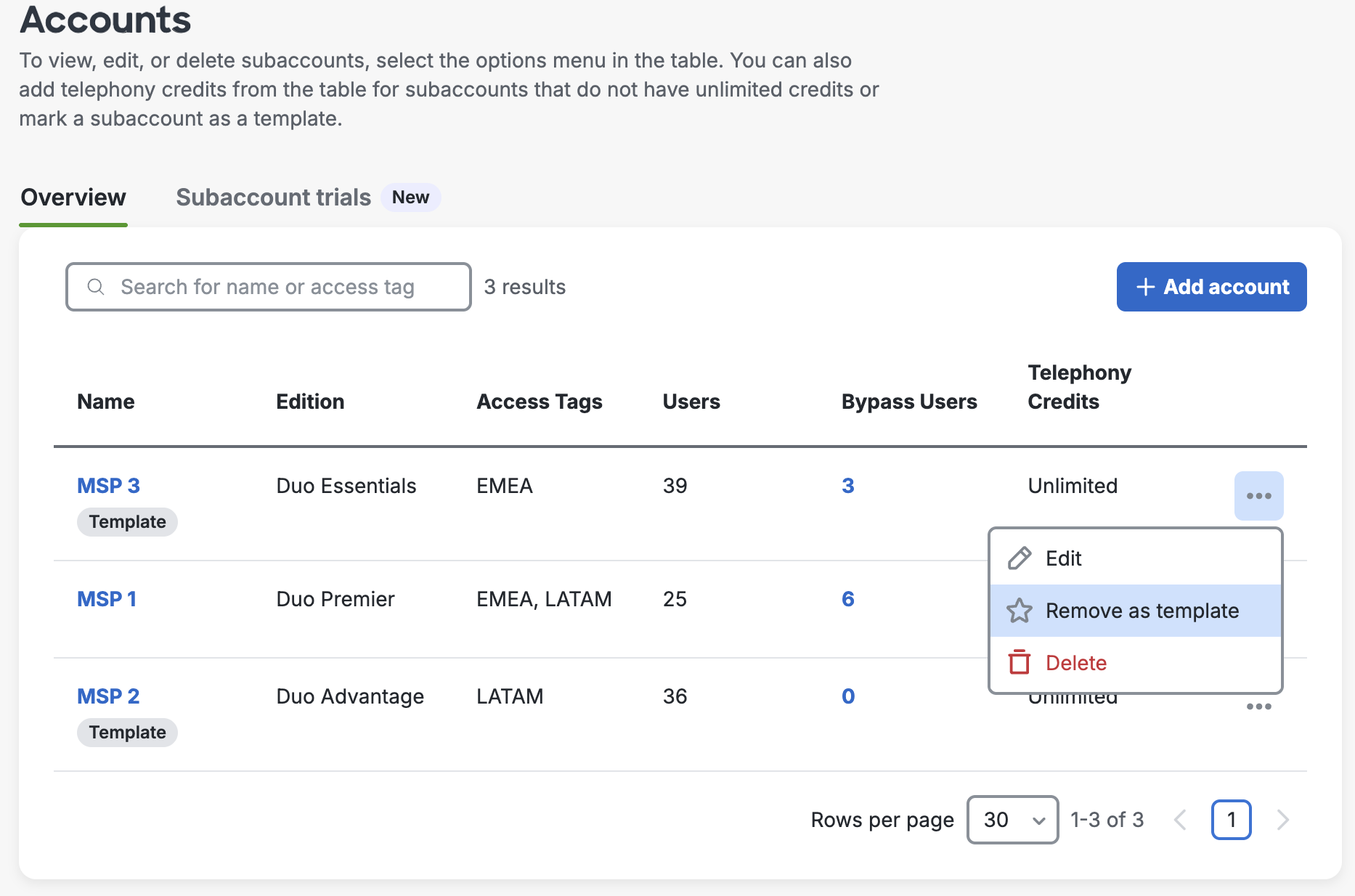
To remove a template status, click Remove as template. You can also edit or delete your subaccounts on this page.
Apply a Template
-
Click Add account at the top of the page to begin creating a new subaccount.
-
Set a subaccount as a template to speed up account creation by selecting an available template from the drop-down list. The template must be at or below the edition of the new subaccount.
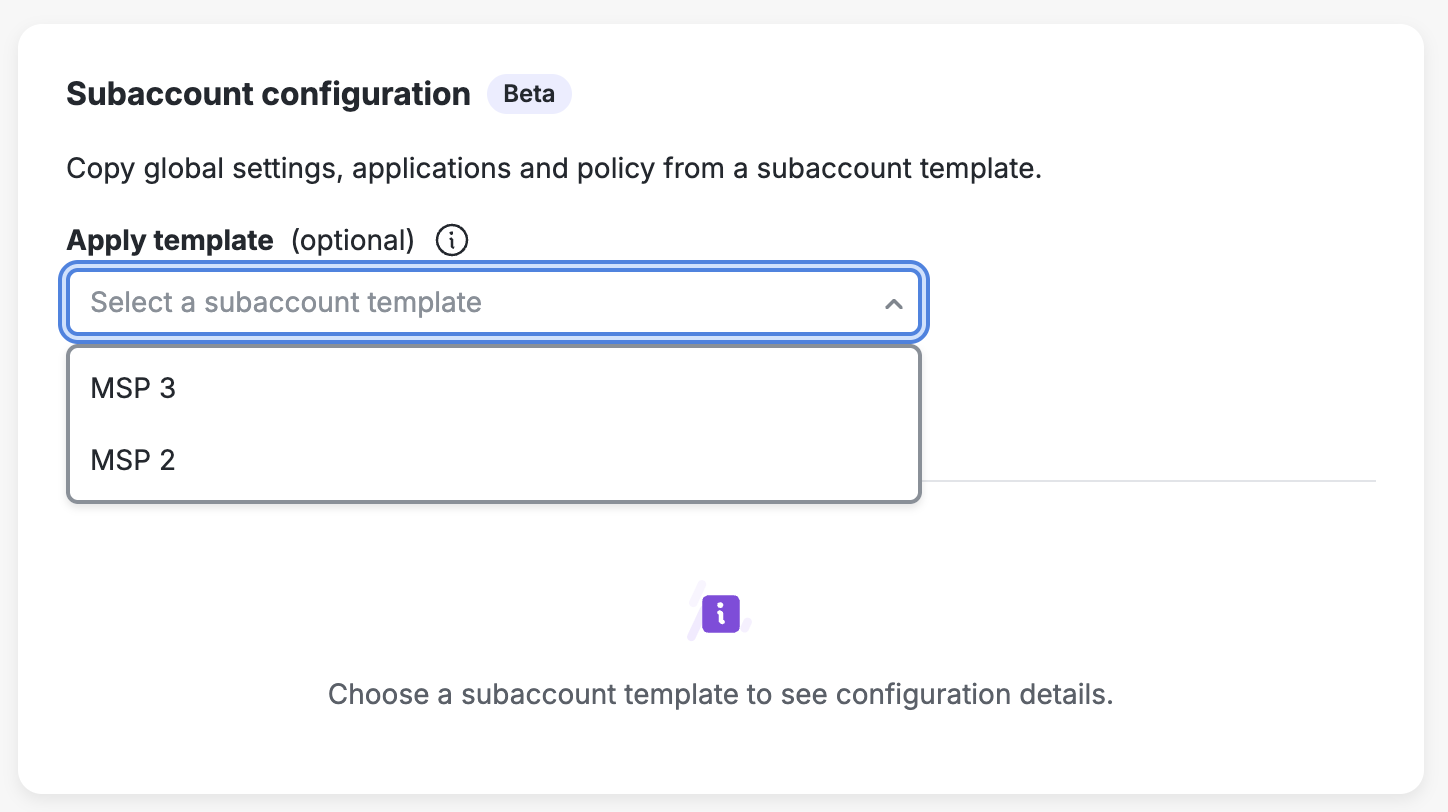
-
Select the categories of configuration to copy, then finish creating the account.
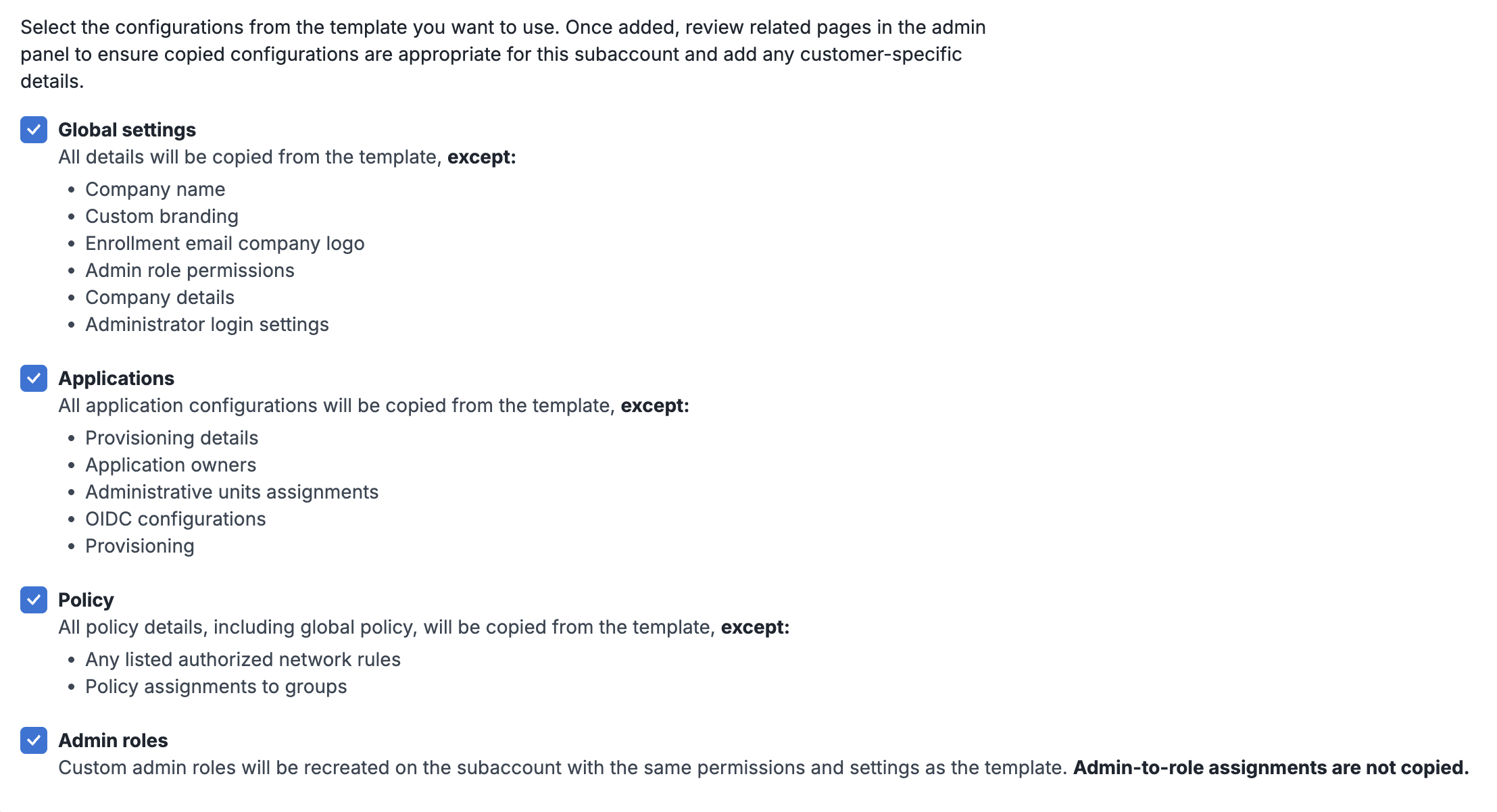
The selected configuration is copied only when you create the subaccount. Changes you make to the template later do not automatically apply to subaccounts created from it.
Template Categories
The "Template Categories" table shows which categories you can copy. The initial selections currently include "Global settings", "Applications", and "Policy".
| Template categories | Included content |
|---|---|
| Global settings | Copies supported account settings, enrollment email subject and body settings, the Portal integration prompt setting, Duo Directory password lockout settings, and custom help messaging and links. For more information, see Global Settings. |
| Applications | Copies application and integration configuration and remaps references to copied policies for the new subaccount. |
| Policy | Copies the global policy and custom policies. |
| Admin roles | Recreates eligible custom administrator roles, including their names, permissions, settings, versions, and descriptions. This is available only if the new subaccount supports custom administrator roles. |
Template Limitations
A template does not create a live link or ongoing synchronization with the new account. Changes made to the template after account creation do not apply to previously created subaccounts. You also cannot apply a template to update existing subaccounts.
The following items are not copied:
-
Users and groups. As a result, copied authentication and enrollment policies are not attached to groups.
-
Account-specific data, including the account name and account key.
-
Custom branding, including the logo, theme, accent color, background, SSO login label, and Duo branding choice.
-
Provisioning details, application owners, administrative-unit assignments, and OIDC configuration.
-
Authorized-network rules, administrator login settings, and admin-to-role assignments.
If a category fails to copy, the failure does not prevent creation of the new subaccount. After account creation, you should verify that the configuration was copied as expected.
Troubleshooting
Need some help? Take a look at our MSP Knowledge Base articles or Community discussions. For further assistance, contact Support.