
Duo Legacy AD Protection
Last updated:
Overview
Many organizations still rely on legacy, on-premises applications that authenticate via Active Directory using Kerberos or NTLM. These applications do not natively support modern security controls like multi-factor authentication (MFA), leaving them vulnerable to attacks and out of compliance with security requirements and insurance mandates.
Duo Legacy AD Protection installs a subauthentication filter DLL on domain controllers to add MFA to domain logon requests. By operating at the Active Directory domain controller level, this lightweight filter enforces Duo MFA without requiring changes to your Active Directory schema, legacy application code, or the deployment of individual agents for each application. This approach ensures broad protection across authentication flows.
MFA enforcement occurs at the initial Kerberos AS-REQ or NTLM authentication step. The subauthentication filter does not re-evaluate subsequent authentication activity within an already-established session (such as accessing additional resources, renewing tickets, or certain delegation and certificate-based authentication scenarios), and does not trigger MFA for those events. Duo Legacy AD Protection secures the initial logon or authentication event.
Duo Legacy AD Protection is part of the Duo Premier and Duo Advantage plans.
Key Features
- Flexible Policy Control: Use Active Directory groups or Duo policies to tune which users and endpoints require MFA, and which bypass it.
- Log-Only Mode: Deploy in a non-intrusive, observation-only mode to monitor authentication flows and fine-tune policies before enforcing MFA.
- Granular Control: Protect by user, group, or endpoint (computer), or apply globally.
- Flexible Exemptions: Exclude service accounts and specific endpoints from MFA enforcement.
- Fail-Open by Default: If Duo is unreachable, logins proceed without MFA (configurable).
- Proxy Support: Communication with Duo's cloud service using the system-wide WinHTTP proxy or Duo-only proxy settings.
How It Works
Install the Duo subauthentication filter ("DuoSubAuthFilter") on Windows Active Directory domain controllers (DCs). The filter intercepts successful Kerberos and NTLM logons, and invokes Duo MFA according to defined policies.
Next, enforce MFA on AD security groups (configured as "enforce" and "bypass" groups) or by Duo cloud policies. Windows LSA loads the Duo subauthentication filter to operate in the background, maintaining an in-memory cache of relevant AD groups.
End users in targeted groups receive an MFA request via automatic Duo Push notification or phone callback when they access the legacy application. The legacy application does not display a Duo MFA prompt while waiting for the user's approval of the MFA request.
Duo Factor Support
Duo Legacy AD Protection supports these authentication methods only:
- Duo Push
- Phone Call
Do not apply authentication methods policies that restrict use of Duo Push or phone call to your Duo Legacy AD Protection application, as that would prevent user authentications.
Enroll Users Before Installation
Duo Legacy AD Protection doesn't support inline self-service enrollment for new Duo users.
Unenrolled users, that is, users that do not yet exist in Duo with an attached 2FA device, need an administrator to create them manually, import them, or self-enroll through another application that supports Duo's self-service enrollment (see Test Your Setup) before those users can authenticate with Duo Legacy AD Protection.
The Duo username (or username alias) should match the Windows username. When you create your new Legacy AD Protection application in Duo, the username normalization setting defaults to "Simple", which means that if the application sends the usernames "jsmith," "DOMAIN\jsmith," and "jsmith@domain.com" to Duo at login these would all resolve to a single "jsmith" Duo user.
Duo Legacy AD Protection supports Duo Push and phone callback authentication methods. Duo users must have one of these methods available to complete 2FA authentication.
If a user authenticating after Duo Legacy AD Protection installation does not exist in Duo, then Duo treats the user as unenrolled and they will not be able to complete Duo MFA. Ensure that any users you target for MFA enforcement exist in Duo with a supported authentication method, and that all relevant aliases (such as username, domainName\userName, username@domain, or email if used as a username) are present in the Duo user entry.
Read the enrollment documentation to learn more about enrolling your users in Duo.
System Requirements
Windows Versions
Duo Legacy AD Protection supports the domain controllers running the following Windows Server versions:
- Windows Server 2019
- Windows Server 2022
- Windows Server 2025
The subauthentication filter supports both read-only and read-write DCs. Your AD forest can be at any functional level.
This application communicates with Duo's service on SSL TCP port 443 using TLS 1.2 or later.
Firewall configurations that restrict outbound access to Duo's service with rules using destination IP addresses or IP address ranges aren't recommended, since these may change over time to maintain our service's high availability. If your organization requires IP-based rules, please review Duo Knowledge Base article 1337.
See Duo Knowledge Base article 2152 for additional TLS version and SSL cipher support details.
First Steps
Before moving on to the deployment steps, it's a good idea to familiarize yourself with Duo administration concepts and features like options for applications, available methods for enrolling Duo users, and Duo policy settings and how to apply them. See all Duo Administrator documentation.
-
Log in to the Duo Admin Panel and navigate to Applications → Application Catalog.
-
Locate the entry for Legacy AD Protection with the "2FA" label in the catalog. Click the + Add button to create the application and get your integration key, secret key, and API hostname. You'll need this information to complete your setup. See Protecting Applications for more information about protecting applications with Duo and additional application options.
If you do not see the application listed in the catalog, verify that you have an active Duo Premier or Advantage subscription.
-
No active Duo users can log in to new applications until you grant access. Update the User access setting to grant access to this application to users in selected Duo groups, or to all users. Learn more about user access to applications. If you do not change this setting now, be sure to update it so that your test user has access before you test your setup.
This setting only applies to users who exist in Duo with "Active" status. This does not affect application access for existing users with "Bypass" status, existing users for whom the effective Authentication Policy for the application specifies "Bypass 2FA" or "Skip MFA", or users who do not exist in Duo when the effective New User Policy for the application allows access to users unknown to Duo without MFA. -
We recommend setting the New User Policy for your Legacy AD Protection application to Deny Access, because no unenrolled user may complete Duo enrollment via this application.
-
Download the Legacy AD Protection Installer Package. View checksums for Duo downloads here.
The security of your Duo application is tied to the security of your secret key (skey). Secure it as you would any sensitive credential. Don't share it with unauthorized individuals or email it to anyone under any circumstances!
Install Duo Legacy AD Protection
We recommend you first deploy Duo Legacy AD Protection in a test domain environment and verify your configuration selections before making changes to your production domains.
Prerequisites
Before installing Duo Legacy AD Protection, ensure you have the following:
- Domain controller(s) running a supported Windows Server version (2019, 2022, or 2025).
- Administrator privileges on the domain controller as a member of the Domain Admins group.
- (Optional) AD security groups containing user accounts, service accounts, or machine accounts to target for Duo MFA enforcement or bypass. You can also specify your target groups after installation.
Run the Installer
Installing Duo Legacy AD Protection requires a reboot of the target domain controller. Schedule your Duo installation during a maintenance window.
-
Launch the Duo Legacy AD Protection installer MSI from an elevated command prompt on the target domain controller (right-click "Command Prompt" and select the "Run as Administrator" option). Accept the license agreement and continue.
-
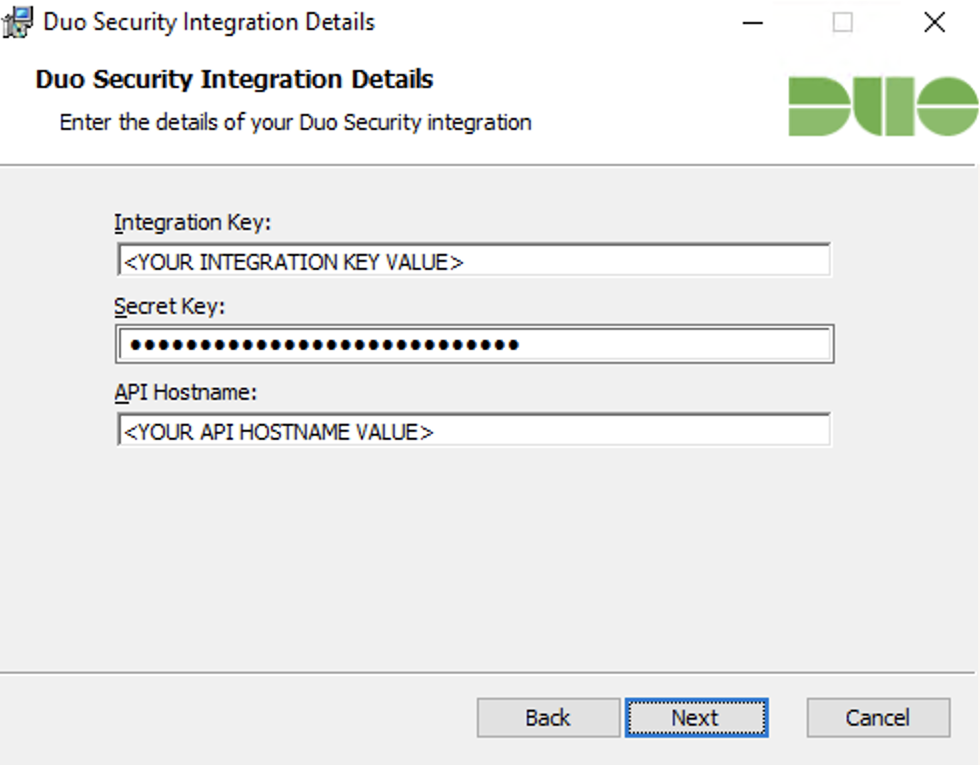
Enter your Integration key, Secret key, and API hostname from the Legacy AD Protection application page in the Duo Admin Panel when prompted.
-
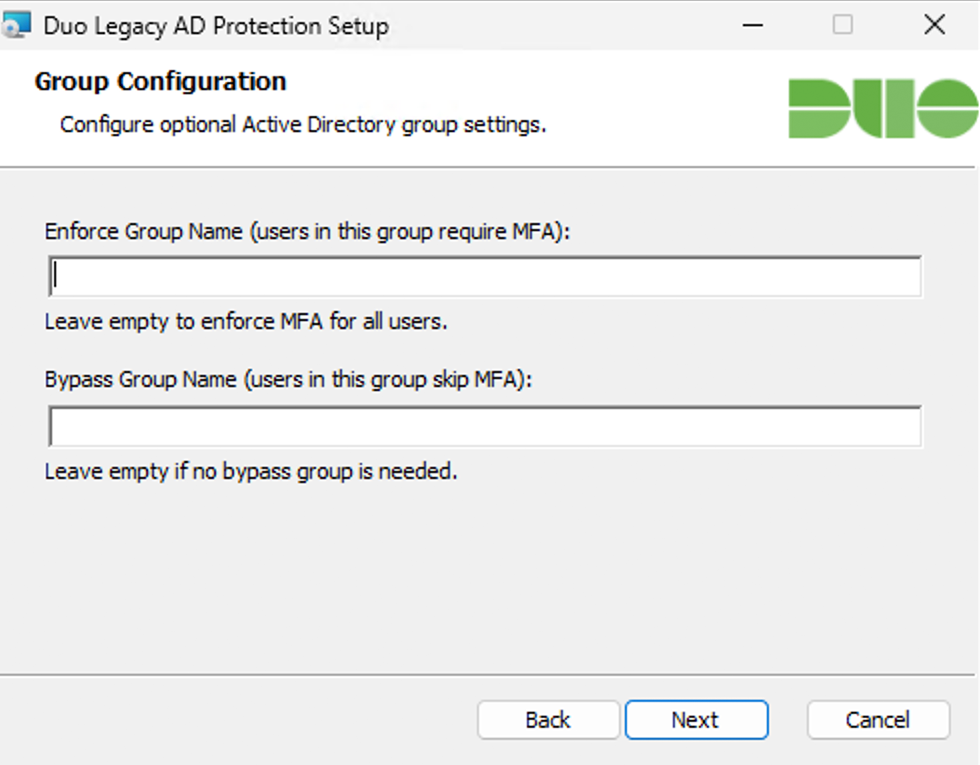
If you know the AD group names you want to target for Duo MFA enforcement or bypass, enter them in the Enforce Group Name and Bypass Group Name fields. The group names you enter must match the AD group names (the
sAMAccountNamevalue) exactly.The installer will not start enforcing MFA for any user until you explicitly enable it in the registry after installation. You do not need to enter any group names now to complete the initial install.
-
Complete the installation. By default, the installer will:
- Place the
DuoSubAuthFilterDLL inC:\Program Files\Duo Security\DuoSubAuthFilter. - Update registry keys to register the filter with the Windows authentication subsystem.
- Set
EnableDuo=0andEnableRequestLogging=1in the registry, configuring the filter in log-only mode (Duo MFA enforcement disabled; request logging enabled). - Set
DuoEnforceGroupNameandDuoBypassGroupNamein the registry to the groups you specified during installation. The installer does not create these registry values if you did not specify any group names during installation.
- Place the
-
The Duo installer prompts for a reboot after successful installation. Reboot the domain controller to activate the subauthentication filter.
Silent installs reboot the domain controller automatically unless reboot was deliberately suppressed.
Observe Authentication Activity in Logs
After installation, observe authentication attempts and review logs on the domain controller at C:\ProgramData\Duo Security\DuoSubAuthFilter\DuoSubAuthRequest.log to monitor authentication activity and assist with policy tuning before enabling MFA enforcement.
Example DuoSubAuthRequest.log output:
05/11/26 21:17:12 (1696) ACME, DC1$, DC1, Network, Bypass_Computer_Account
05/11/26 21:29:59 (624) ACME, norben, DC2, Interactive, Bypass_AD_Enforce_Exclusion
05/11/26 21:30:44 (1888) ACME, rue, DC2, Network, Bypass_MFA_Disabled
05/11/26 21:34:12 (1692) ACME, maddy, DC2, Interactive, Bypass_MFA_Disabled
See more details about Legacy AD Protection log output in the Logs section.
Duo Legacy AD Protection Tools
Download the Duo Legacy AD Protection Tools to help you collect and analyze authentication logs from domain controllers (DCs) running the Duo SubAuth Filter, and verify that Duo configuration is consistent across the domain.
The Legacy AD Protection Tools come in two different formats. Choose the one that best fits your environment.
| Archive | When to use |
|---|---|
DuoLegacyADProtectionTools-Standalone-<version>.zip |
Recommended for most environments. Contains self-contained EXE files. No Python installation required. Download |
DuoLegacyADProtectionTools-Scripts-<version>.zip |
Requires Python 3.10 or later to be installed separately. For environments where EXE execution is restricted or where you want to inspect the source scripts. Download |
Verify the checksums for the tools archives here.
Extract the contents of the Duo Legacy AD Protection Tools zip file and review the instructions in the included ADMIN_GUIDE.md to learn how to install, configure, and use the tools.
Tune Policies
-
Define AD groups for MFA enforcement (e.g., "DuoEnforce") and exemptions (e.g., "DuoBypass"). Enforcement and bypass logic supports use of nested Active Directory groups.
-
Configure the names of your enforcement or bypass groups in the registry on the domain controller.
-
Add users, service accounts, or computers to the appropriate groups.
-
Adjust policy as needed based on observed log data. Refer to DuoEnforce and DuoBypass Group Behavior to understand how group membership affects enforcement.
Workstation IP Address in Duo Calls
For Interactive logon types, Duo Legacy AD Protection passes the IP address of the target host (the domain controller) to the Duo cloud service. You can use this IP address with the Authorized networks policy setting in the Duo Admin Panel.
For Network logon types, the passed IP address is 0.0.0.0. An attacker can easily spoof the workstation name for Network logons, so do not trust it for secure IP resolution.
Microsoft reference: Administrative tools and logon types
DuoEnforce and DuoBypass Group Behavior
Evaluation of AD group membership occurs in a specific order to determine whether to enforce or bypass MFA for each authentication attempt. Evaluation ends when an enforce or bypass decision comes in the sequence.
Group configuration examples:
- Specify a DuoEnforce group if you want to pilot or test with a limited set of users or machines. Only members of the group will require MFA.
- Do not specify any DuoEnforce groups if you want MFA enabled for almost everyone, and use DuoBypass groups to make exceptions for specific users or computers.
When you add or remove people from the groups specified for MFA enforcement or bypass, there may be a delay before the change takes effect due to group membership caching by the Duo filter. Reboot your domain controller for immediate effect.
Add DuoEnforce and DuoBypass Groups in the Registry
-
Launch the Registry Editor (regedit.exe) and navigate to
HKEY_LOCAL_MACHINE\SOFTWARE\Policies\Duo Security\DuoSubAuthFilter. -
If the
DuoEnforceGroupNameorDuoBypassGroupNamevalues do not exist, create them as new string values (REG_SZ). -
Specify your DuoEnforce or DuoBypass group names as the value data. These names must match the AD group
sAMAccountNamevalues.
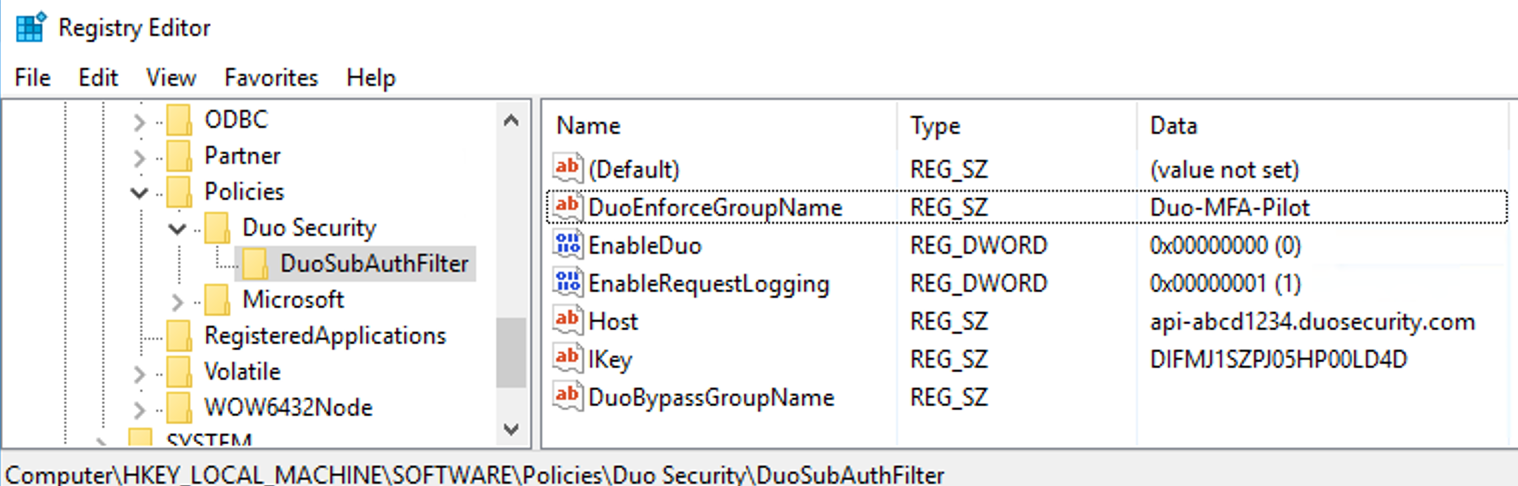
This example shows the AD group Duo-MFA-Pilot configured as the DuoEnforceGroupName value in the registry. Members of this group will receive MFA requests upon enabling enforcement.
Group Evaluation Logic
If the Enforce group is empty:
- If neither the user nor the computer is in the Bypass group: enforce MFA.
- If the user or the computer is in the Bypass group: bypass MFA.
If the Enforce group is not empty:
- If the user or computer is in both the Enforce group and the Bypass group: enforce MFA.
- If both the user and computer are in the Enforce group: enforce MFA.
- If the user is in the Enforce group and the computer is not:
- If the computer is not in the Bypass group: enforce MFA.
- If the computer is in the Bypass group: bypass MFA.
- If the user is not in the Enforce group and the computer is in the Enforce group:
- If the user is not in the Bypass group: enforce MFA.
- If the user is in the Bypass group: bypass MFA.
- If neither the user nor the computer is in the Enforce group: bypass MFA.
Username Matching and Enrollment
Duo Legacy AD Protection matches users based on the username the client presents during authentication. DuoSubAuthFilter passes the username to Duo in msDS-PrincipalName format, e.g. domainName\userName. If the client does not provide the domainName parameter to the subauthentication filter, it only sends the userName to Duo.
When configuring your Duo application, be sure to account for this login name format. We recommend using the "Simple" username normalization setting on the Duo application if the Duo username or alias does not exactly match the login name. When you create your Legacy AD Protection application the "Username normalization" option defaults to "Simple" normalization, so that Duo ignores anything preceding a backslash.
If there is no exact match between the username in Active Directory sent to Duo by the subauthentication filter and the username (or aliases) in Duo, Duo treats the user as unenrolled and the user cannot complete Duo MFA.
Enable MFA Enforcement
Switch to enforcement mode by updating the registry value HKEY_LOCAL_MACHINE\SOFTWARE\Policies\Duo Security\DuoSubAuthFilter\EnableDuo from 0 to 1 to enable MFA and exit log-only mode.
Duo Legacy AD Protection will now require MFA according to the policy and group evaluation outcome on all protected logins.
Test Your Setup
To test your setup, attempt to authenticate to a resource via Active Directory as a user enrolled in Duo and subject to MFA enforcement.
Enrolled users that have Duo Push enabled will receive an automatic push authentication request on their mobile device. Enrolled users that do not have Duo Push enabled will receive a phone call.
If the login attempt fails, check the C:\ProgramData\Duo Security\DuoSubAuthFilter\DuoSubAuth.log output for more information. Some common reasons for Duo MFA failure include user not enrolled in Duo, the enrolled Duo user does not have a device for Duo Push or phone callback, or the effective authentication methods policy prevents use of Duo Push or phone callback.
Add Ownership and Risk Information
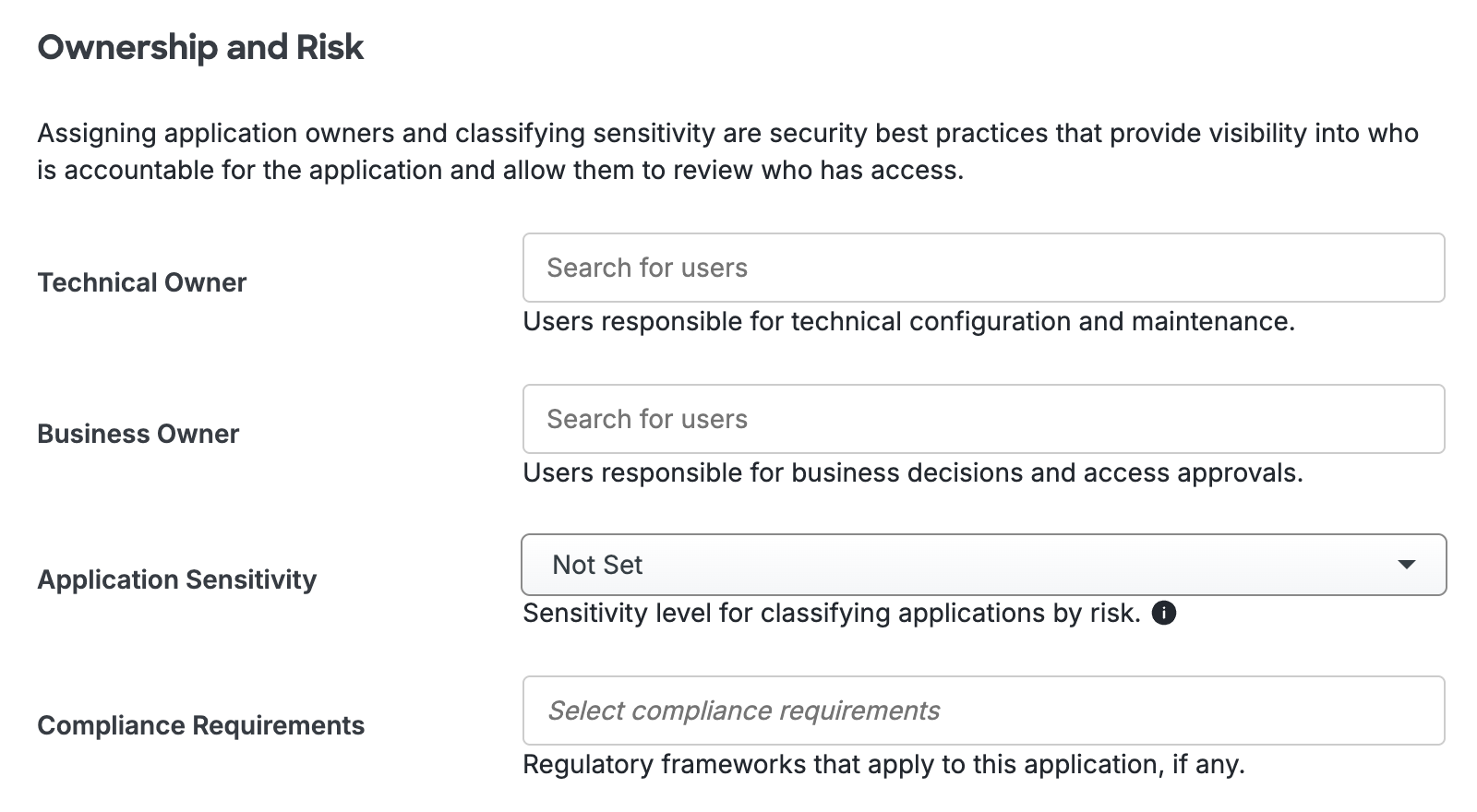
Go to the "Ownership and Risk" section of the application's page in the Duo Admin Panel to assign application owners and classify the application's risk level. Cisco Identity Intelligence automatically imports this information to populate relevant fields for Duo Advantage and Premier customers. Duo Essentials and Duo Federal plans exclude Cisco Identity Intelligence features.
You may set any of the following:
- Technical Owner: Search for and assign Duo users responsible for technical configuration and maintenance of this application.
- Business Owner: Search for and assign Duo users responsible for business decisions and access approvals related to this application.
- Application Sensitivity: Select this application's risk level from the drop-down list. Default: Not Set.
- Compliance Requirements: Select any applicable regulatory frameworks for this application (SOX (Sarbanes-Oxley), HIPAA, PCI-DSS, etc.) from the list.
Scroll to the bottom of the page and click Save to apply your changes.
Grant Access to Users
If you did not already grant user access to the Duo users you want to use this application be sure to do that before inviting or requiring them to log in with Duo.
Expand Your Deployment
Repeat the installation and configuration process on additional domain controllers or add additional users to your MFA enforcement groups as needed for full coverage.
Use Group Policy Objects, System Center, or your preferred deployment tool to automate rollout.
Registry Configuration
Manage DuoSubAuthFilter configuration primarily at:
Computer\HKEY_LOCAL_MACHINE\SOFTWARE\Policies\Duo Security\DuoSubAuthFilterThe installer stores some installer-specific or local-only settings (e.g., encrypted secret key, SKey) at:
Computer\HKEY_LOCAL_MACHINE\SOFTWARE\Duo Security\DuoSubAuthFilterYou must manually create most optional settings (including DuoEnforceGroupName and DuoBypassGroupName) as type REG_SZ.
Boolean settings such as EnableDuo and EnableRequestLogging are REG_DWORD.
You may use Group Policy Objects (GPO) to manage these settings for consistency across multiple domain controllers. See Advanced Configuration with Group Policy.
Configurable Settings
| Registry Value | Type | Description |
|---|---|---|
EnableDuo |
DWORD | Set to 1 to enable MFA enforcement. Set to 0 to disable MFA enforcement (log-only mode). Default: 0. |
EnableRequestLogging |
DWORD | Set to 1 to enable authentication request logging. Set to 0 to disable. Default: 1. |
FailOpen |
DWORD | Set to 1 to allow logins without MFA when Duo is unreachable (fail open). Set to 0 to deny logins when Duo is unreachable (fail closed, not recommended). Default: 1. |
DuoEnforceGroupName |
REG_SZ | The name of the Active Directory security group for MFA enforcement. Must match the AD group name exactly. Empty by default. |
DuoBypassGroupName |
REG_SZ | The name of the Active Directory security group for MFA bypass. Must match the AD group name exactly. Empty by default. |
SuppressDuplicatePushDuration |
DWORD | Duration in seconds for suppressing duplicate MFA pushes or denials for the same user and computer. Default: 5. |
EnableRequestEventLogging |
DWORD | Set to 1 to write each authentication request outcome to the Windows Event Log. Set to 0 to disable. Default: 0. |
LogFileMaxCount |
DWORD | Maximum number of rotated log files to keep. Applies to all Duo log files. |
LogFileMaxSizeMB |
DWORD | Maximum size in MB for each log file before rotation. Applies to all Duo log files. |
Configure Proxy Settings
Communication with Duo cloud uses the system-wide WinHTTP proxy by default. You may also configure proxying of Duo traffic only.
Update Duo Legacy AD Protection
You can upgrade your Duo Legacy AD Protection installation over the existing version; there is no need to uninstall first. The installer maintains your existing configuration settings.
-
Download the most recent Duo Legacy AD Protection installer package. View checksums for Duo downloads here.
-
Run the installer with administrator privileges on the domain controller and follow the on-screen prompts to complete the upgrade installation.
-
Reboot the domain controller to activate the updated subauthentication filter.
The upgrade installer does not present configuration screens for new or changed options. To configure new options after upgrading, update the registry settings directly or via Group Policy. See Registry Configuration or Advanced Configuration with Group Policy.
Uninstall Duo Legacy AD Protection
To remove Duo Legacy AD Protection, open "Apps and Features" in Windows Settings, select "Duo Legacy AD Protection" from the list, and click Uninstall.
After uninstalling, reboot the domain controller to ensure the filter is fully deactivated.
The installer backs up and restores any registry changes it made (such as changes to the LSA subauth filter list) upon uninstall. If you deployed the filter using GPO, ensure the GPO entries are also removed or reverted as needed.
Do not delete the Legacy AD Protection application from the Duo Admin Panel until you have uninstalled the Duo application from all domain controllers using that application.
Logs
Log files are stored in C:\ProgramData\Duo Security\DuoSubAuthFilter\:
DuoSubAuth.log: troubleshooting and operational logsDuoSubAuthRequest.log: authentication event logs for policy tuningDuoADCacheManager.log: AD cache operations and group membership cache debugging
The filter supports log rotation to ensure that log files do not grow too large. Control log rotation behavior with the LogFileMaxCount and LogFileMaxSizeMB registry settings, which apply to all Duo log files. See How do I configure log file rotation?
Interpret Log File Entries
DuoSubAuthFilter writes detailed entries to its log files, each indicating the outcome of an authentication event. Each entry includes the logon type (Interactive or Network) of the subauthentication request.
Network logons are initiated by NTLM authentications. The passed workstation value is typically the hostname of the client system, but the name can be spoofed and should not be trusted for configuring bypass rules.
The following table lists all possible verdicts:
| Result | Details |
|---|---|
Success |
An authentication request was sent to Duo and MFA was completed. |
Bypass_AD_Computer |
Duo enforcement is enabled for the authenticated user, but the computer for this authentication is in the configured AD bypass group. |
Bypass_AD_User |
Duo enforcement is enabled for the computer, but the user for this authentication is in the configured AD bypass group. |
Bypass_AD_Enforce_Exclusion |
Neither the user nor the computer for this authentication are in the configured AD enforce group. Duo is not called. |
Bypass_Computer_Account |
The user for this authentication is a computer account. Duo enforcement is bypassed. |
Bypass_Invalid_Session |
Duo enforcement is enabled for this authentication but there was a problem contacting the Duo cloud service. Check DuoSubAuth.log for details. |
Bypass_Local_User |
The user for this authentication request is a local account on the domain controller. |
Bypass_MFA_Disabled |
An authentication request would have been sent to Duo, but the registry setting EnableDuo is 0. |
Bypass_Duo_Policy |
An authentication request was sent to Duo. MFA was not enforced due to Duo policy configuration for the application. |
Bypass_Previous_Approval |
A previous approval for this user and computer was recently completed. Bypassing Duo enforcement for this request. |
Bypass_Fail_Open |
The Duo cloud service could not be reached. Legacy AD Protection is configured to allow logins when Duo is not available. |
Fail_Invalid_Session |
The Duo cloud service could not be reached, and Legacy AD Protection is configured to block logins when Duo is not available. |
Fail_Access_Denied |
A Duo authentication was attempted for this request, but the push was denied by the user. Access is denied. |
Fail_Previous_Denial |
A previous Duo authentication failure for this user and computer was recently recorded. Access is denied. |
Fail_Push_Timeout |
A Duo authentication was attempted for this request but was not completed. Access is denied. |
Fail_General_Exception |
An unexpected problem occurred during processing. More detailed information is available in DuoSubAuth.log. |
Advanced Configuration With Group Policy
You can deploy and configure Duo Legacy AD Protection via Active Directory Group Policy. You can also configure additional Duo settings via Group Policy Objects (GPO).
Please note that Duo Support is unable to troubleshoot issues related to MST transforms, network share permissions, or Group Policy scopes.
To create and apply the Duo Legacy AD Protection Group Policy Object (GPO):
-
Download the Duo Legacy AD Protection Group Policy template files, and documentation. View checksums for Duo downloads here.
-
Extract the contents of the zip file and copy the files into your domain's Administrative Templates store.
\\your.domain.local\sysvol\your.domain.local\Policies\PolicyDefinitions\LegacyADProtection.admx \\your.domain.local\sysvol\your.domain.local\Policies\PolicyDefinitions\en-us\LegacyADProtection.adml -
On your domain controller or another system with the Windows Remote Server Administration Tools installed, launch the Group Policy Management console (GPMC).
-
Expand your forest and navigate down the tree to Group Policy Objects. Right-click the Group Policy Objects folder and click New. Enter a name for the new GPO (such as "Duo Legacy AD Protection") and click OK.
-
Right-click the new GPO created in step 4 and click Edit. Navigate to Computer Configuration → Policies → Administrative Templates and expand Duo Legacy AD Protection.
-
Double-click a setting to configure it. When you've finished configuring settings, close the policy editor.
-
Once returned to the Group Policy Management window, click on the Delegation tab for your new Duo Legacy AD Protection GPO and then click the Advanced button. Click on the Authenticated Users group in the list and then click Remove.
Then, click Add... and type in Domain Controllers, and then click OK. Check the permissions boxes in the "Allow" column to grant the "Domain Controllers" group both Read and Apply group policy permissions. Click OK to apply the new delegated permissions. Verify that "Authenticated Users" no longer appears in the list.
-
Apply the new GPO for Duo Legacy AD Protection to domain controllers by linking the policy to the Domain Controllers OU or the desired OU.
For additional information about using GPOs and administrative templates, please see Microsoft's Group Policy documentation collection.
Deploy Duo Legacy AD Protection to DCs Using Active Directory
You can deploy Duo Legacy AD Protection via a Group Policy software installation package, with or without accompanying Duo settings specified in the same GPO.
-
Copy the downloaded Duo Legacy AD Protection MSI file to your centralized software deployment share. Your software share and the Duo MSI file should be readable by "Domain Controllers", as Duo Legacy AD Protection gets installed during the pre-logon group policy processing phase of the boot process and not under the context of any named user.
Consider modifying the access permissions of the file share location where you copy the Duo Legacy AD Protection MSI and MST files to prevent read by user accounts and prevent exposure of the Duo secret key.
-
Create a transform for the installer file by using a table editor tool like Orca (distributed as part of the Windows SDK) to deploy Duo Legacy AD Protection with initial configuration.
-
If you are using Orca, open the Duo Legacy AD Protection MSI file in the editor, and go to Transform → New Transform.
-
Click on the Property table from the table list on the left side of the application. Add the following new rows (by selecting Table → Add Row while the Property table is highlighted). Use your Duo Legacy AD Protection application's information from the Duo Admin Panel:
Property Value DUO_IKEY Your Duo integration key DUO_SKEY Your Duo secret key DUO_HOST Your Duo API hostname -
Go to Transform → Generate Transform... to create the MST file with your changes.
-
Close Orca after generating the transform MST file, and do not save any changes to the MSI file itself.
-
Copy the new transform file to your central application deployment share alongside the Duo Legacy AD Protection MSI installer. The share with the MST file should not be readable by unprivileged user accounts to prevent exposure of the Duo secret key.
-
-
In the Group Policy Management console, create a new GPO for Duo Legacy AD Protection software publishing. Navigate to Computer Configuration → Policies → Software Settings → Software installation then right-click and select New → Package. This opens a file browser window.
-
Use the file browser to navigate to the software deployment share where you put the Duo MSI installer and the MST transform file. Select the MSI file from your software deployment share and choose Advanced as the deployment method.
-
Go to the Modifications tab in the properties window. Click the Add button and select the MST transform you created earlier.
-
Click OK to finish, and the Duo Legacy AD Protection software package is created. When you've finished, close the policy editor.
-
Apply the new software publishing GPO for Duo Legacy AD Protection to domain controllers by linking the policy to the Domain Controllers OU. The target domain controllers need a reboot to apply the new GPO settings and install Duo.
Learn more about installing software using Group Policy at Microsoft Support.
Duo Secret Rotation
If you need to reset the client secret for Duo Legacy AD Protection after installation, try the Duo Secret Rotation tool. You must reboot your domain controller for the new secret to take effect.
Troubleshooting
Need some help? Take a look at the Legacy AD Protection Frequently Asked Questions (FAQ) page or try searching our Legacy AD Protection Knowledge Base articles or Community discussions. For further assistance, contact Support.
If the Duo application denies access to your users, ensure that you have enrolled them in Duo with a username or username alias that matches the username they use to log in to Windows, and with a 2FA device attached that is activated for Duo Push or can receive phone calls from Duo. Refer to these Duo Knowledge Base articles to learn more about user enrollment states and how they combine with policy settings to affect user logins.