
Duo Agent Directory
Last updated:
Overview
As AI agents begin accessing enterprise applications, data, and tools, organizations need to know which agents are operating, who is accountable for them, and what they can access. Agent activity often looks like ordinary authenticated traffic, which makes it difficult for security teams to tell whether a person or an agent acting on a person's behalf took an action.
The Duo Agent Directory gives administrators a central place to register, review, and manage agents as non-human identities (NHIs). Register an agent, assign the users or groups accountable for it, and define the client registration rules that bind incoming OAuth clients to the agent. Duo then shows you each instance of that agent, the users it acts on behalf of, the devices it runs on, and the Duo-protected resources it accesses.
Available in: Duo Essentials, Duo Advantage, and Duo Premier
Agent Directory Capabilities
- Register an agent identity and bind agent instances to Duo Single Sign-On OAuth clients.
- Match agents to OAuth clients by dynamic client registration (DCR), client ID metadata document (CIMD), or confidential client.
- Review agent instance details and the resources each instance accessed.
- Detect, review, and register agents that authenticate but don't match a registered agent.
- Retrieve agent, agent instance, and agent client instance information with the Admin API.
Agent Directory Terms
Familiarize yourself with the terminology used to describe Duo Agent Directory objects.
| Term | Description |
|---|---|
| Agent | A registered type of agent, such as Claude Code or GitHub Copilot. Client registration rules determine which OAuth clients represent the agent. |
| Agent instance | A unique combination of an agent, a user, and a device. |
| Agent client instance | An OAuth client that Duo bound to an agent instance through one of the agent's client registration rules. |
| Accessed resources | The Duo-protected resources that an agent's OAuth clients authenticated to, including deleted resources. |
Prerequisites
- Access to the Duo Admin Panel as an administrator with the Owner, Administrator, or User Manager administrative role to register and manage agents.
- For custom admin roles, the AI Agent management permission in the "AI Agents" section of the "Users and Groups" permissions controls access to the Agent Directory.
- Add the users you want to make accountable for agents in Users → Users, and optionally add them to a group in Users → Groups.
- Protect at least one resource with a Duo Single Sign-On (SSO) OAuth 2.1 and OIDC application or Model Context Protocol (MCP) application.
- Configure the MCP or OAuth 2.1 SSO application for dynamic client registration (DCR), client ID metadata documents (CIMD), or confidential clients, depending on how your agents register as OAuth clients.
Access the Agent Directory
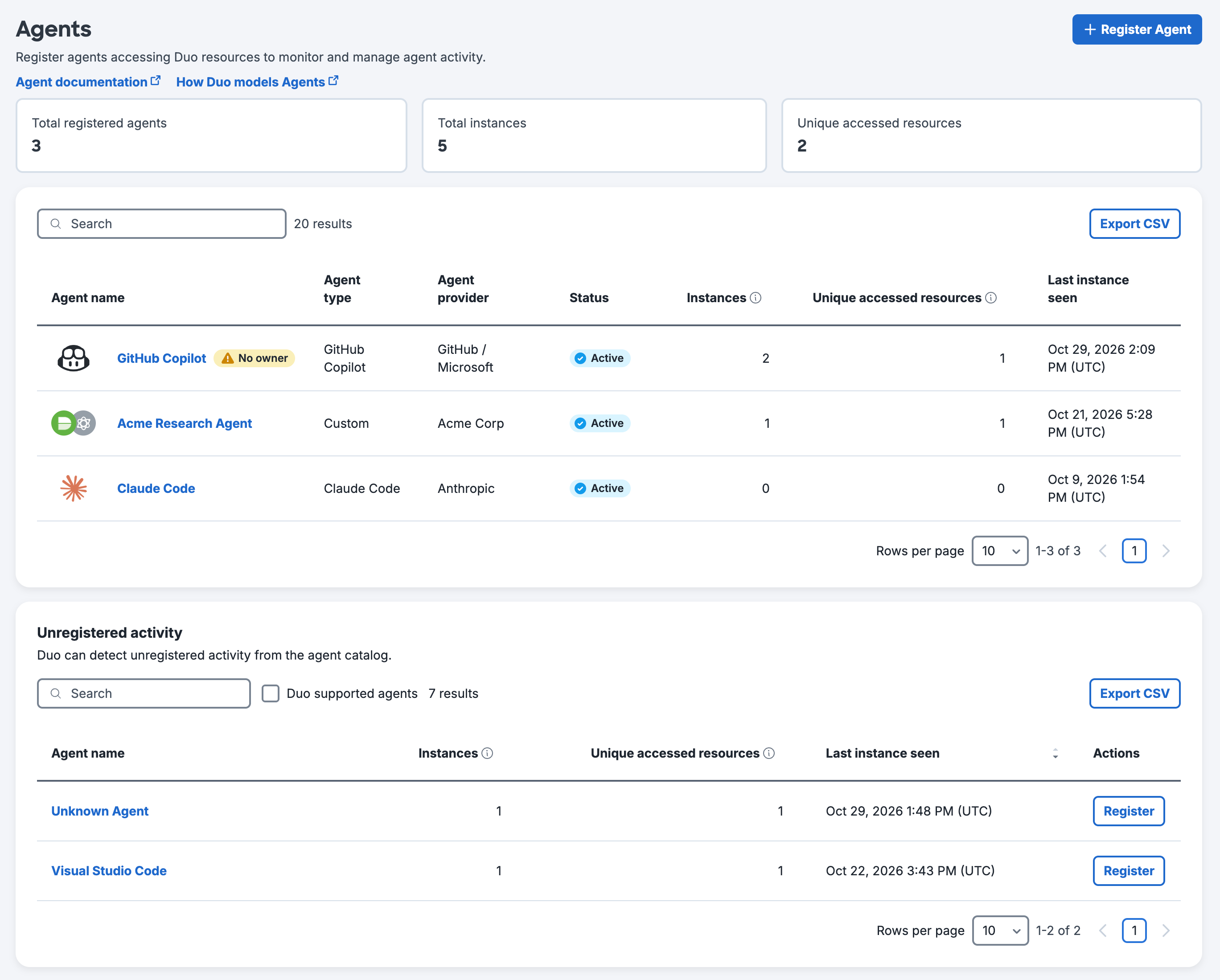
Log in to the Duo Admin Panel and navigate to Applications → Agents. The "Agents" page shows:
- The Total registered agents, Total instances, and Unique accessed resources counts.
- The Total registered agents count includes only agents with an "Active" status.
- Registered agents table: Lists each registered agent with its Agent name, Agent type, Agent provider, Status, Instances, Unique accessed resources, and Last instance seen information.
- An agent's status is "Active", "Draft", or "Disabled". A "No owner" tag appears next to an agent with no accountable users or groups.
- Unregistered activity: Agents that Duo detected but that you have not registered yet. See Unregistered Agents.
Click an agent's name to open its details page or click a draft agent's name to continue registering it. Use the search bar to locate a specific agent in the list. Export each table's agents with its Export CSV button.
Retrieve agent information programmatically with the Admin API Agents endpoints.
Register an Agent
Role required: Owner, Administrator, or User Manager.
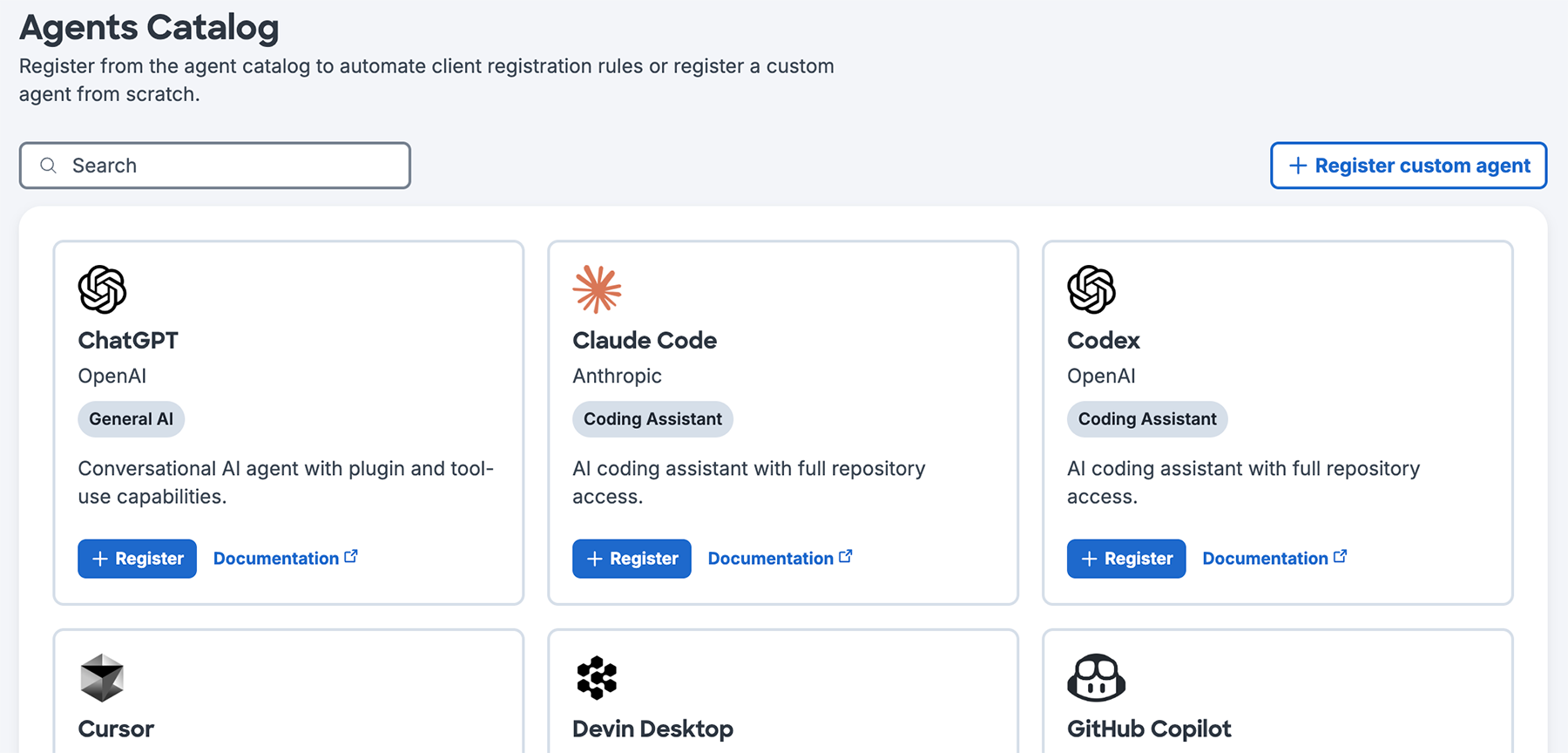
When registering an agent, you may choose from the catalog of Duo-supported agents, such as Claude Code or OpenAI Codex, to fill in the agent's identity and client registration rules automatically. To register an agent that isn't in the catalog, register a custom agent and enter the information yourself.
To register an agent:
-
Log in to the Duo Admin Panel and navigate to Applications → Agents.
-
Click + Register Agent.
-
Click + Register in a catalog agent's listing or click + Register custom agent to create an agent unique to your organization.
-
Complete the Identity, Client registration rules, and Summary steps to register your agent.
Enter Agent Identity Information
-
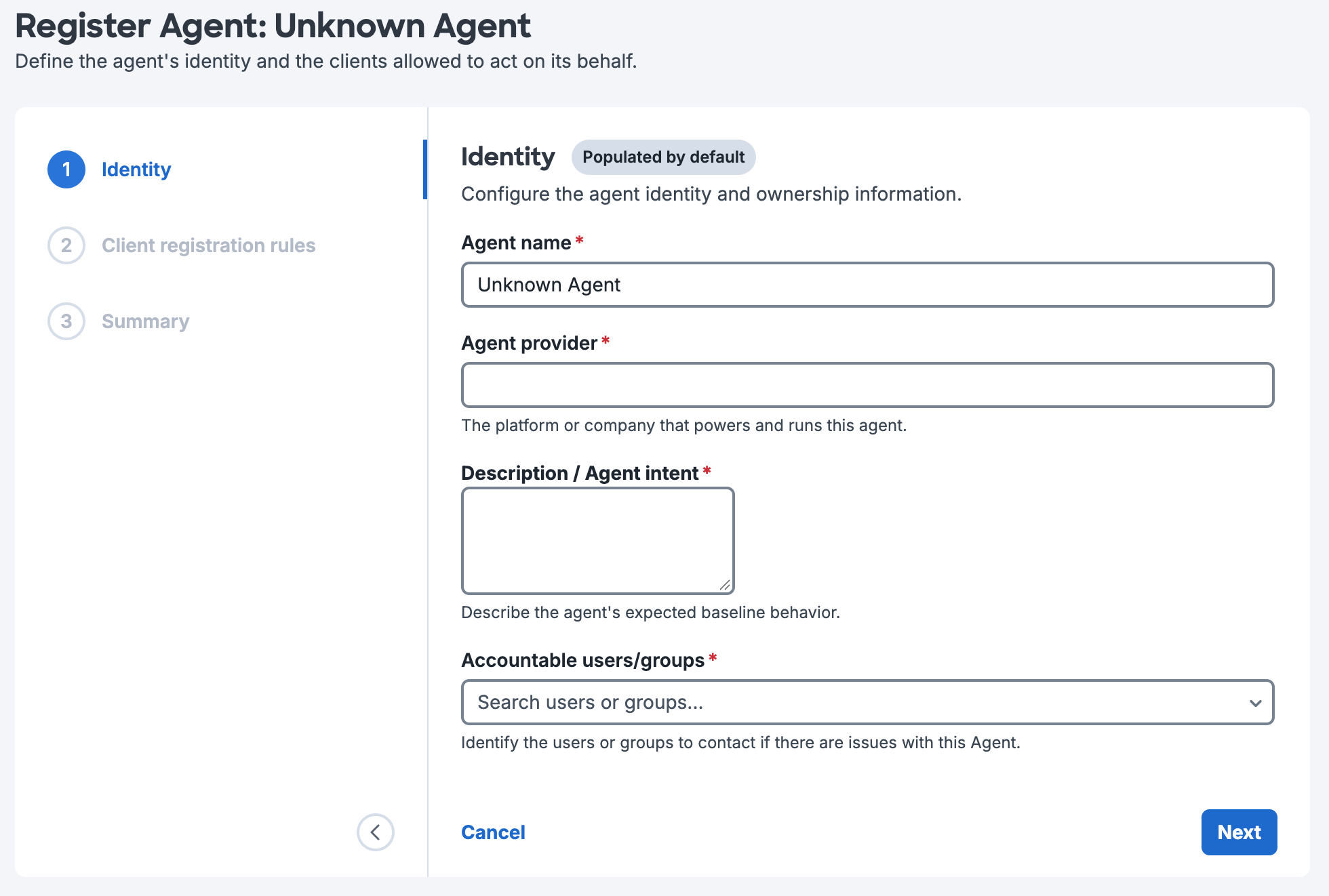
Enter or review the agent's identity information in the "Identity" step. All fields are required. If you selected a catalog agent, Duo fills in the Agent name, Agent provider, and Description / Agent intent information automatically. You must provide those details for custom agents.
Field Description Agent name The name of the agent. Agent provider The platform or company that powers and runs this agent. You can't change this information for catalog agents. Description / Agent intent The agent's expected baseline behavior. Accountable users/groups The Duo users or groups to contact if there are issues with this agent. 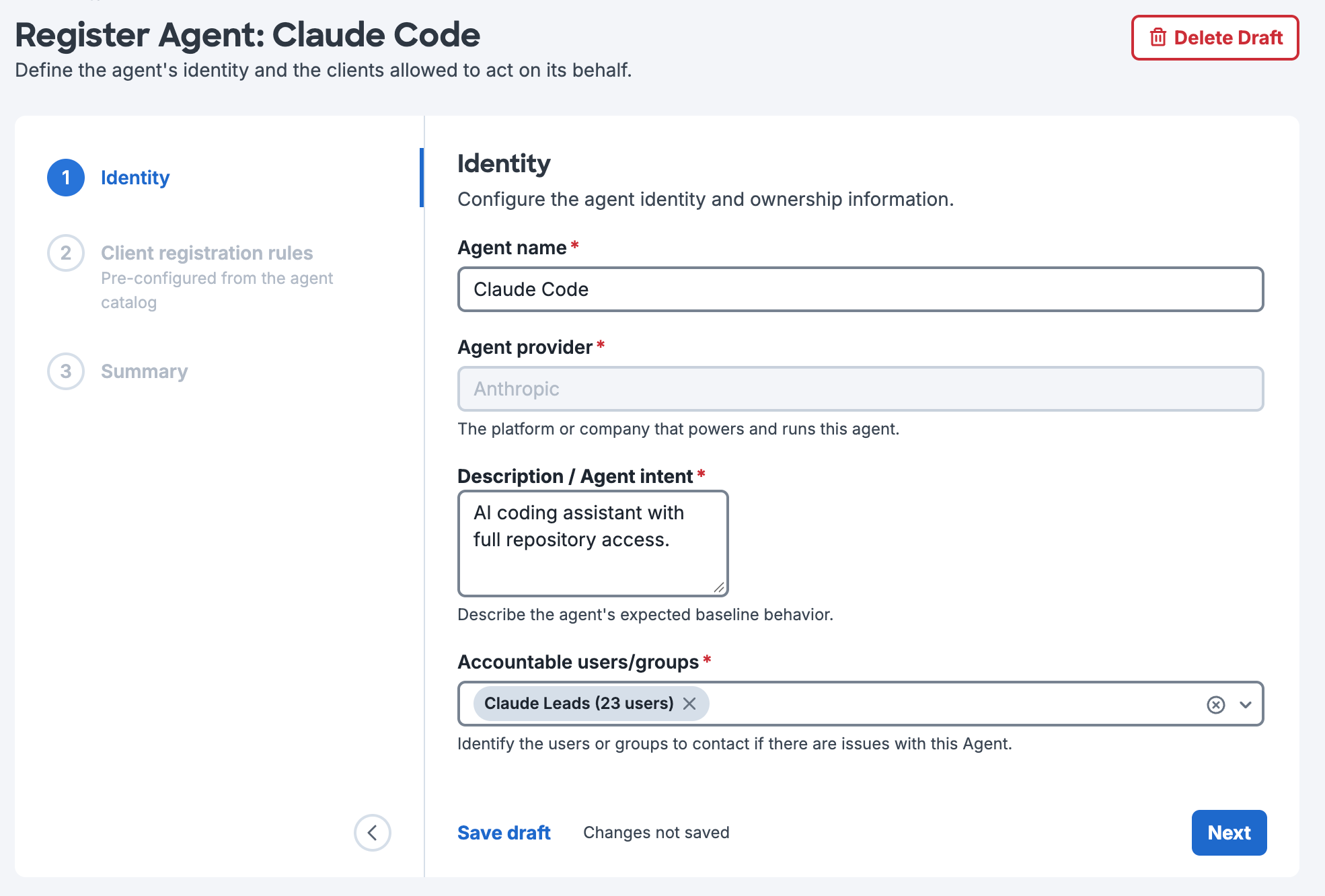
-
Click Next to continue with agent registration.
Configure Client Registration Rules
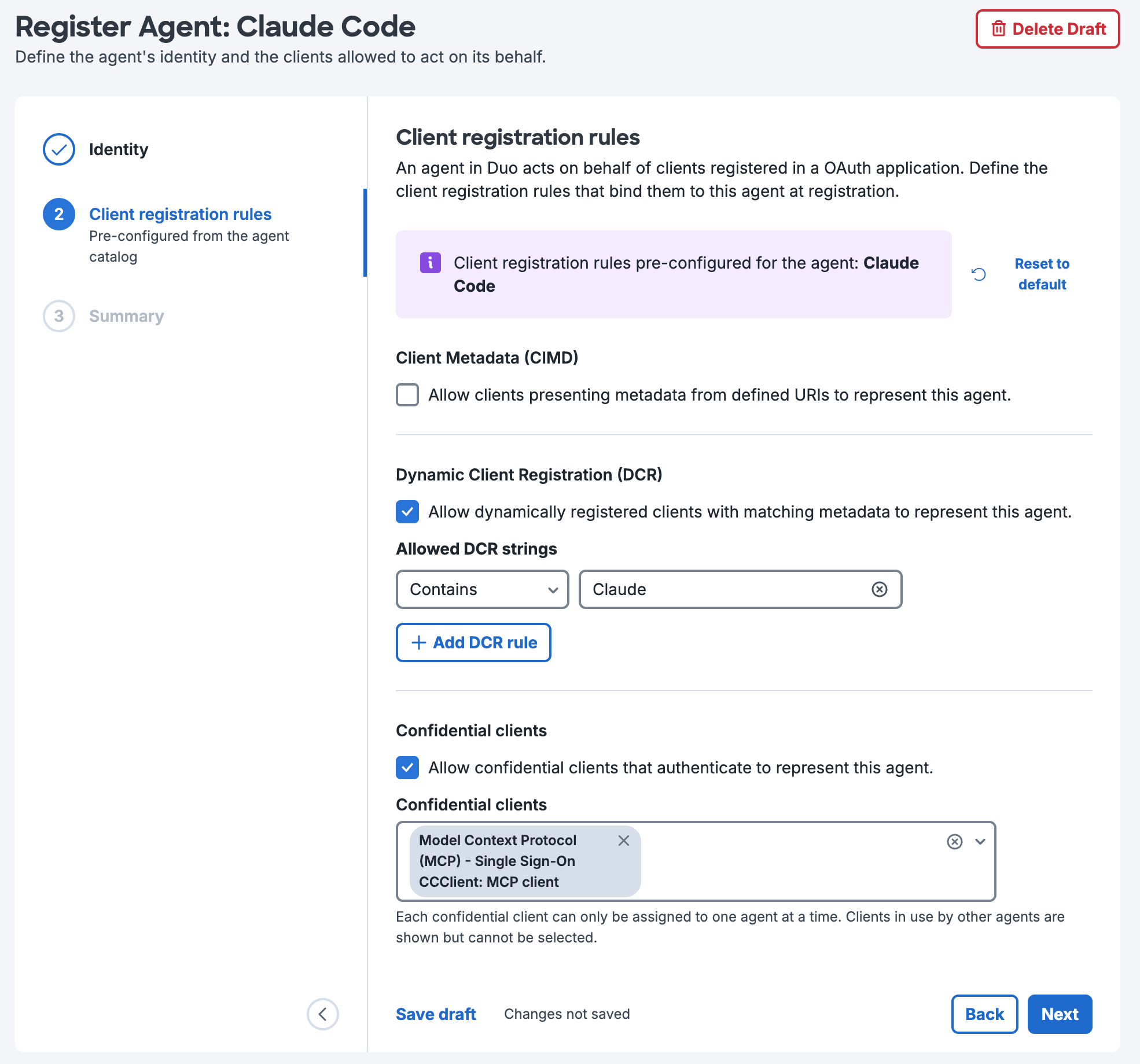
Client registration rules define how Duo matches incoming OAuth clients to this agent. When an OAuth client authenticates to a Duo-protected resource and matches a rule, Duo binds that client to the agent. For catalog agents, Duo preconfigures the client registration rules. Click Reset to default to restore the catalog rules after making changes.
Enable one or more of these matching methods:
Client ID Metadata Document (CIMD) Matching
- In the "Client Metadata (CIMD)" section, select Allow clients presenting metadata from defined URIs to represent this agent.
- In the Allowed CIMD URIs field, enter the URI of the client's metadata document, such as
https://example.com/.well-known/oauth/client-metadata.json. Click Add CIMD URI to add more URIs.
A CIMD URI can belong to only one active agent at a time. Remove any URIs already assigned to another active agent to continue.
Dynamic Client Registration (DCR) Matching
-
In the "Dynamic Client Registration (DCR)" section, select Allow dynamically registered clients with matching metadata to represent this agent.
-
Enter an Allowed DCR string and choose a match type. Click Add DCR rule to add more strings.
- Contains: The client name must contain the string. This is the default match type.
- Is exactly: The client name must match the string exactly.
Neither match type is case-sensitive.
If a client matches DCR strings for more than one agent, Duo binds the client to the agent with the longest matching string, since that is the most specific match. If two matching strings are the same length, Duo uses the agent you created first.
Confidential Client Matching
- In the "Confidential clients" section, select Allow confidential clients that authenticate to represent this agent.
- Select one or more confidential clients from the list. These are the confidential clients configured in your OAuth 2.1 and OIDC applications.
Each confidential client can belong to only one active agent at a time. The list shows clients already assigned to other agents, but you can't select them.
Click Next when you finish configuring your client registration rules.
Complete Agent Registration
-
Review the new agent's identity and client registration rules.
-
Click Register and Enable to activate the agent. The agent's status changes to "Active", and Duo immediately starts binding new OAuth client authentications that match the agent's client registration rules.
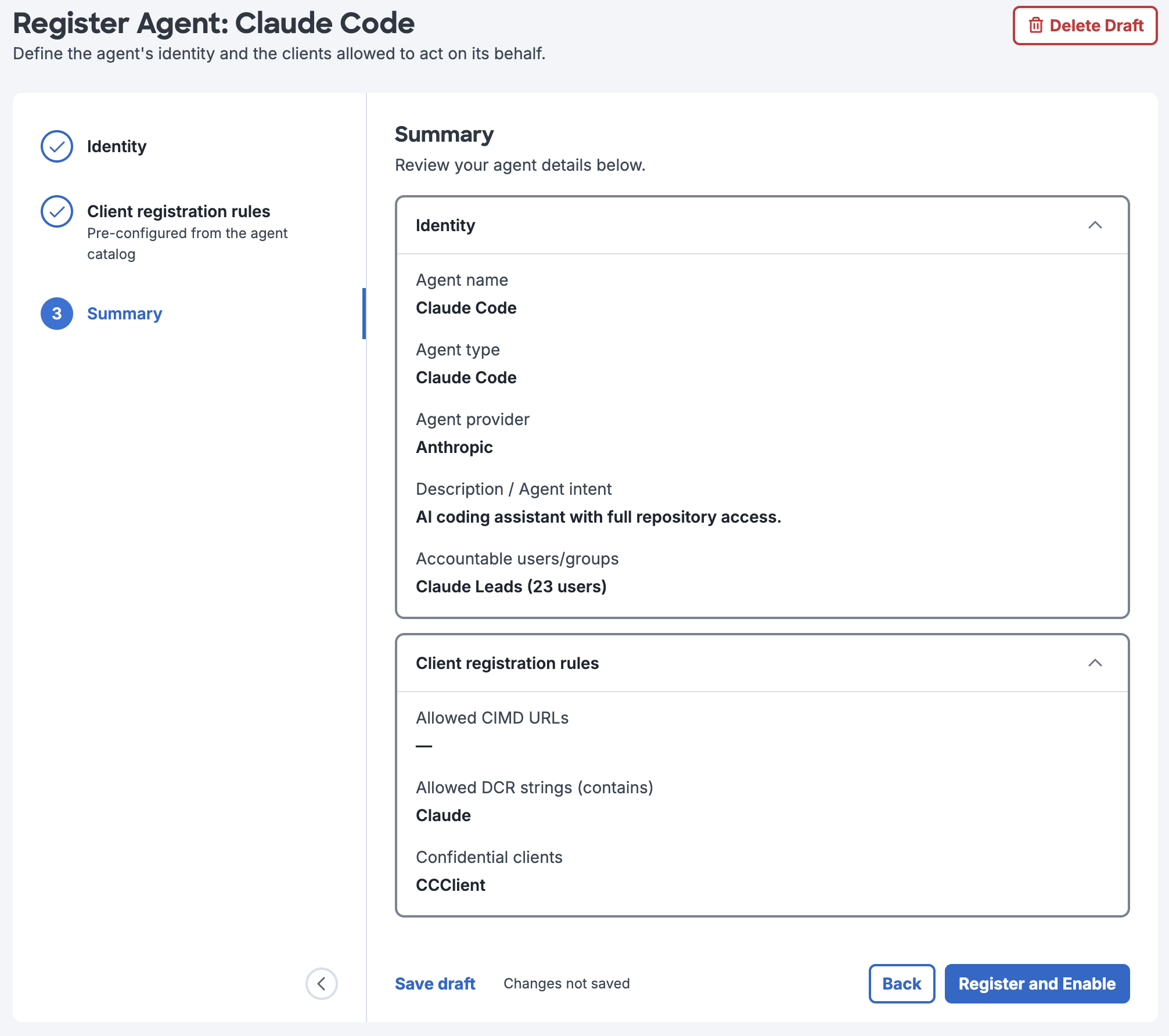
Click Save draft to save the agent without activating it. Draft agents don't bind OAuth clients. Click a draft agent's name on the "Agents" page later to reopen the registration process, where you can finish registering the agent. To discard a draft, click Delete Draft and then click Delete draft again to confirm.
Changes to an agent's client registration rules apply to new authentications as soon as you save them. Duo doesn't change existing agent instances or bindings.
Registered Agent Details and Instances
To view a registered agent's details, log in to the Duo Admin Panel, navigate to Applications → Agents, and click the agent's name. The details page shows:
- Agent identity: The agent's name, status, type, description, creation date, accountable users or groups, and the administrator who created it.
- Client registration rules: The CIMD URIs, DCR strings, and confidential clients that bind OAuth clients to this agent.
- Agent instances: Every instance of this agent that authenticated to your organization's Duo-protected resources. Search this table by user or device.
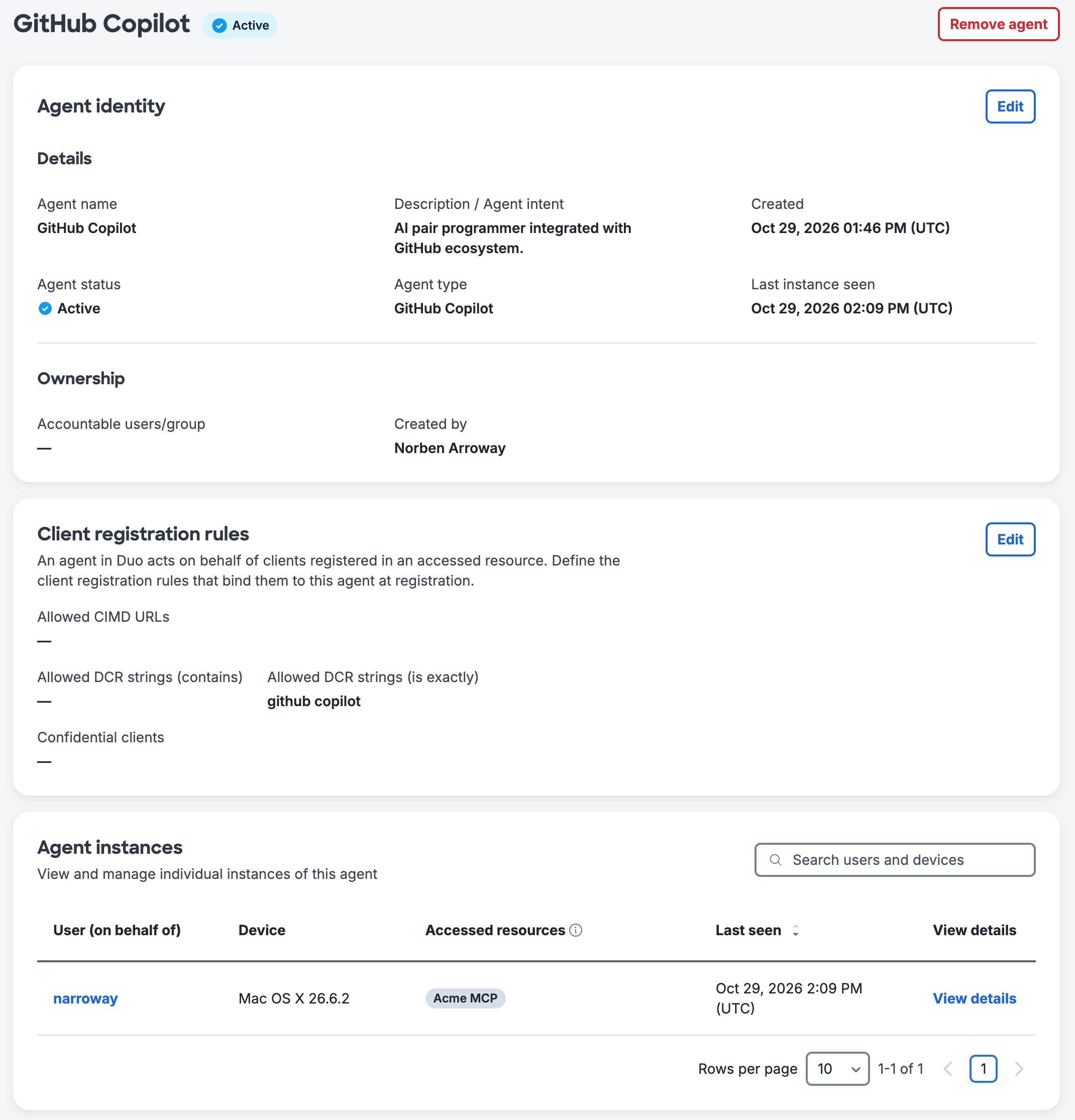
The "Agent instances" table shows this information for each instance:
| Column | Description |
|---|---|
| User (on behalf of) | The user the agent acts on behalf of. Click the name to view the user's details. Shows "Unknown" if the client didn't provide user context. |
| Device | The operating system and version of the device where the agent runs. Shows "Unknown" if the client didn't provide device context. |
| Accessed resources | The Duo-protected applications this instance connected to. |
| Last seen | The most recent time this instance authenticated, shown in your organization's configured time zone. |
"Unknown" in the User (on behalf of) and Device columns means that the OAuth client authenticated without providing user or device context. This happens with machine-to-machine OAuth flows, such as the client credentials grant, where there is no human user or identified device.
Instance Details
To view an agent instance's details, open the agent's details page and click View details in the "Agent instances" table.
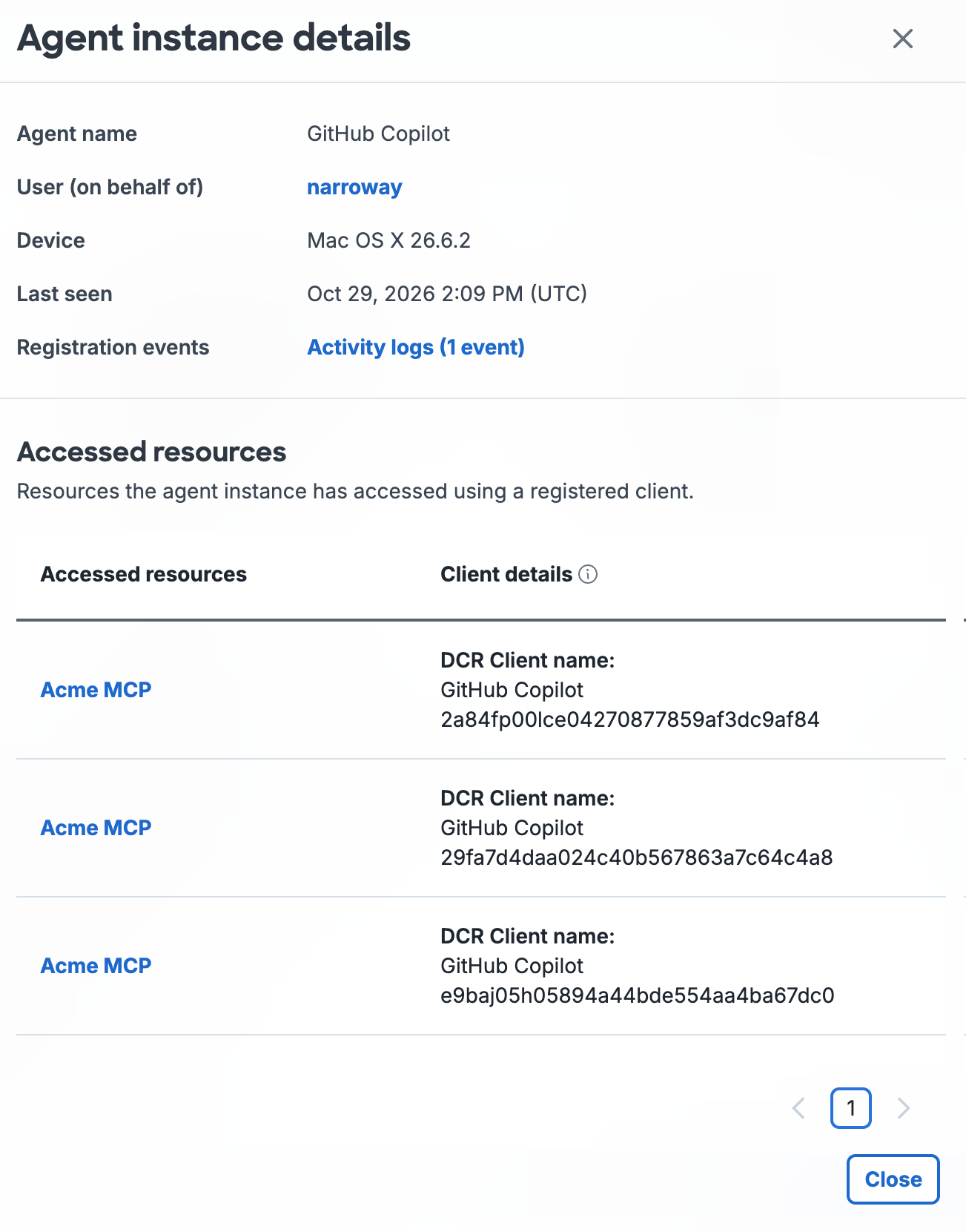
The "Agent instance details" section includes:
- Agent name: The registered agent this instance belongs to.
- User (on behalf of): The user the agent acts on behalf of, with a link to the user's details.
- Device: The operating system and version of the device where the agent runs.
- Last seen: The time of the most recent authentication.
- Registration events: A link to the Activity Log, filtered to show this instance's registration events from the last 30 days. These include the creation of the agent instance and its agent client instances. The number of events appears in parentheses.
The "Accessed resources" section includes:
- Accessed resources: The name of each application the agent accessed. Click the name to view that application. An information icon indicates that the application was deleted.
- Client details: The client details that matched one of the agent's client registration rules:
- CIMD Client ID URI: The client URI used for matching.
- DCR Client name: The client's registered name and client ID used for matching.
- Confidential Client: The preconfigured client name used for matching.
Edit a Registered Agent
To edit a registered agent:
-
Log in to the Duo Admin Panel and navigate to Applications → Agents.
-
Click a registered agent's name to view its details.
-
Click Edit in the "Agent identity" section to change the agent's details, accountable users or groups, or Agent status:
- Active: Allows agent instances to connect to OAuth 2.1 and MCP applications.
- Disabled: Blocks agent instances from connecting to OAuth 2.1 and MCP applications and revokes existing sessions.
Click Save to apply the updated agent details.
-
Click Edit in the "Client registration rules" section to change the agent's CIMD URIs, DCR strings, or confidential clients. Changes apply to new authentications only.
Click Save to apply the modified client registration rules.
Remove a Registered Agent
To remove a registered agent:
-
Log in to the Duo Admin Panel and navigate to Applications → Agents.
-
Click a registered agent's name to view its details.
-
Click Remove agent.
-
Click Remove agent again in the confirmation dialog to delete the agent. This change takes effect immediately, and you can't undo it.
Unregistered Agents
The Agent Directory also shows agent activity that Duo observes but that no administrator has registered. When an OAuth client authenticates to one of your Duo-protected resources without matching the client registration rules of your enabled registered agents, Duo records it as an unregistered agent. Review this activity and decide whether to register the agent using the detected information.
For clients that Duo recognizes, the Duo agent catalog supplies the agent name shown in the list. Duo doesn't generate agent activity log events for unregistered agents until you register them.
View Unregistered Activity
-
Log in to the Duo Admin Panel and navigate to Applications → Agents.
-
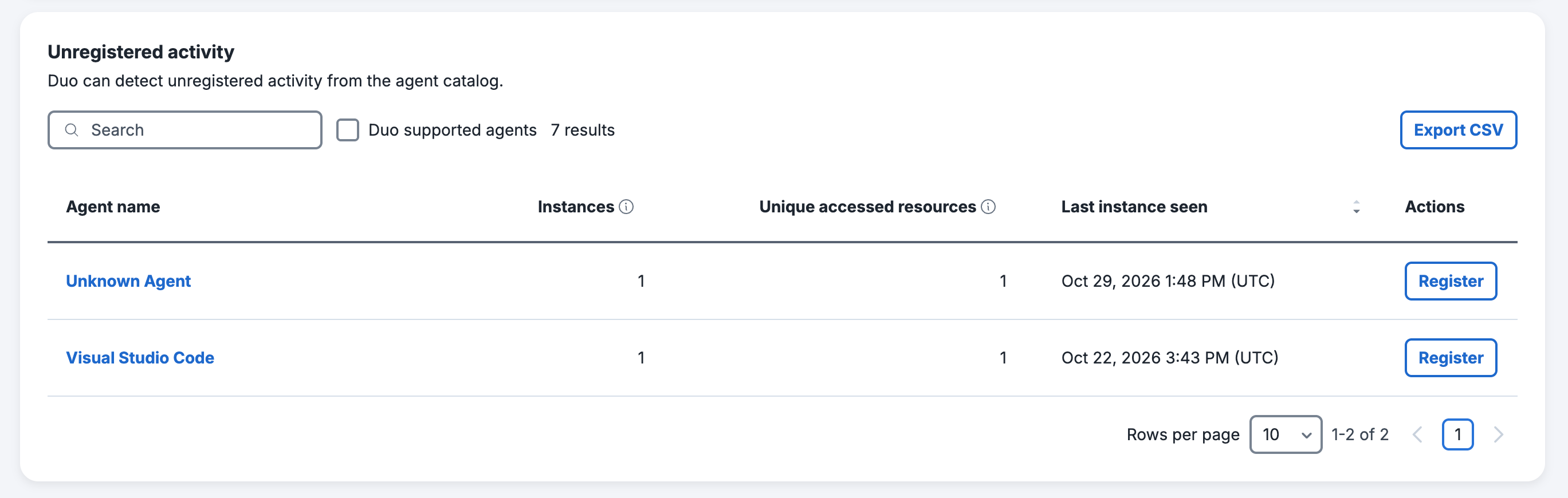
Locate the "Unregistered activity" table on the "Agents" page. The table shows the Agent name, Instances, Unique accessed resources, and Last instance seen for each unregistered agent, with a Register button in the Actions column.
You may search for an agent by name or select Duo supported agents to show only agents that Duo's agent catalog recognizes. Click Export CSV to download the current list.
-
Click an unregistered agent's name to open its details page. The details page shows the agent's identity and client registration rules as read-only information, the agent instances Duo observed, an "Unregistered" status tag, and a Register agent button.
The "Unregistered activity" table's Instances and Last instance seen values continue to update because Duo adds repeat authentications from the same client to the existing unregistered entry.
Duo groups every DCR client that registers without a usable client name into a single "Unknown Agent" entry. That entry's instance count can include unrelated agents. Register the "Unknown Agent" entry only if you want to treat all of these clients as one agent. Otherwise, ask the client owners to send a client_name value when they register.
Register an Unregistered Agent
Role required: Owner, Administrator, or User Manager.
To register an unregistered agent:
-
Log in to the Duo Admin Panel and navigate to Applications → Agents.
-
Locate the "Unregistered activity" table on the "Agents" page.
-
Click Register in the Actions column of the agent you want to register or click Register agent on that agent's details page.
-
Duo-supported catalog agents: Registration opens directly to the "Summary" step, with the identity and client registration rules that Duo inferred.
Click Register and enable to register the agent using the pre-populated information from the unregistered agent, click Manual edit to open the three-step registration process with the inferred information filled in, or click Cancel to leave the agent unregistered.
-
Other agents: Registration opens the three-step registration process at the "Identity" step. This includes agents without a name, agents with a name that Duo's agent catalog doesn't recognize, and all agents discovered through CIMD or a confidential client. The registration form populates some agent details from the unregistered agent.
Complete the steps to register this custom agent as described in Register an Agent.
-
When you click Register and enable, the agent's status changes from "Unregistered" to "Active", and the agent starts binding new authentications. The agent's existing observed instances move to the newly registered agent during a background process that runs about every six hours. The unregistered entry stays in the "Unregistered activity" list until that process runs.
Registration Conflicts
Before registering the agent, Duo checks it against your existing agents. One of these results occurs:
- No conflict: Duo registers and enables the agent.
- A conflict you can accept: Another active agent already has a DCR string that matches this agent's clients. Duo shows a "Register this agent?" dialog that lists the conflicts. Click Register and enable to continue or click Cancel.
- A conflict that blocks registration: Another active agent already uses the same CIMD URI or confidential client. Duo shows "This agent cannot be registered." and the reason on the summary page. Resolve the conflict and then try again.
Data Retention
The Agent Directory automatically removes inactive agent data:
- Duo permanently deletes an agent client instance after 30 days of inactivity.
- Duo removes an agent instance when it has no remaining active agent client instances.
- Duo removes an unregistered agent after removing its last instance. This happens during the same background process that moves instances to registered agents, which runs about every six hours. Duo doesn't remove an unregistered agent created in the last hour, even if it has no instances.
The 30-day retention period applies to both registered and unregistered agent data and isn't configurable. The Activity Log records automatic deletions of registered agents' data. Duo doesn't log automatic deletions of unregistered agents' data.
Troubleshooting
Need some help? Take a look at our Agent Directory Knowledge Base articles or Community discussions. For further assistance, contact Support.