
Duo Agentic Identity for Amazon Bedrock AgentCore Gateway
Last updated:
Overview
AI agents connected to tools via the Model Context Protocol (MCP) are part of enterprise workflows, executing complex tasks autonomously on behalf of users. Traditional access controls were not designed for agentic workloads, where an agent may invoke dozens of tools on a user's behalf with no native mechanism to enforce who can access what. Without tool-level authorization, enterprises risk over-privileged agents, ambiguous identity, and incomplete audit trails. This creates a critical security gap: how do you control what an AI agent can do and on whose behalf?
Amazon Bedrock AgentCore Gateway provides a managed gateway layer for MCP servers, and Duo serves as the identity and authorization engine. The Gateway Request Interceptor is an AWS Lambda function that intercepts every inbound request to the AgentCore Gateway. On each tool invocation, it extracts the Duo-issued access token from the authenticated request and evaluates the request against centrally managed authorization policies. Based on the allow-or-deny decision, the interceptor enforces fine-grained authorization before any MCP tool call reaches the back-end server.
Key capabilities:
- Inbound authentication via Duo OAuth 2.1/OIDC with Dynamic Client Registration (DCR) or Client ID Metadata Documents (CIMD).
- Gateway request interception using AWS Lambda for custom authorization logic.
- User identity extraction and Duo group membership lookup.
- Fine-grained tool-level authorization policies mapped to Duo user groups.
- Audit trail of all agent-to-tool invocations.
Duo Agentic Identity for Amazon Bedrock AgentCore Gateway requires a Duo Premier plan subscription.
Prerequisites
Before you begin, make sure you have the following:
- A Duo Premier plan subscription or an active Duo Premier trial.
- Access to the Duo Admin Panel as an administrator with the Owner or Administrator administrative role, or equivalent custom role.
- An AWS account with permissions to create and configure AgentCore Gateway resources, deploy Lambda functions, create IAM roles and policies, and manage Lambda layers.
- An Amazon Bedrock AgentCore Gateway created and accessible (refer to the AWS documentation).
- (Optional) Users and groups provisioned or synced to the Duo Directory. You may also manually create users and groups to target with your MCP tool access policies.
Create the MCP Application in Duo
This application handles inbound user authentication to the AgentCore Gateway using Duo Single Sign-On with Dynamic Client Registration (DCR) or Client ID Metadata Documents (CIMD).
-
Log in to the Duo Admin Panel and navigate to Applications → Application Catalog.
-
Locate the entry for Model Context Protocol (MCP) - Single Sign-On with the "SSO" label in the catalog. Click the + Add button to start configuring Model Context Protocol (MCP) - Single Sign-On. See Protecting Applications for more information about protecting applications with Duo and additional application options. You'll need the information on the Model Context Protocol (MCP) - Single Sign-On page later to complete your setup.
-
No active Duo users can log in to new applications until you grant access. Update the User access setting to grant access to this application to users in selected Duo groups, or to all users. Learn more about user access to applications. If you do not change this setting now, be sure to update it so that your test user has access before you test your setup.
This setting only applies to users who exist in Duo with "Active" status. This does not affect application access for existing users with "Bypass" status, existing users for whom the effective Authentication Policy for the application specifies "Bypass 2FA" or "Skip MFA", or users who do not exist in Duo when the effective New User Policy for the application allows access to users unknown to Duo without MFA. -
On the General tab, configure the following settings:
Setting Value Grant Type Select Authorization Codefor user AI agents. SelectClient Credentialsfor Duo to pull the tools list.Access Token Lifetime (Optional) Adjust the access token lifetime as needed. Minimum: 5 minutes. Sign-In Redirect URLs https://sso.duosecurity.com/oidc/default/callbackResource URL Your AgentCore Gateway URL ending with /mcp. If your Gateway URL does not already end with/mcp, append it.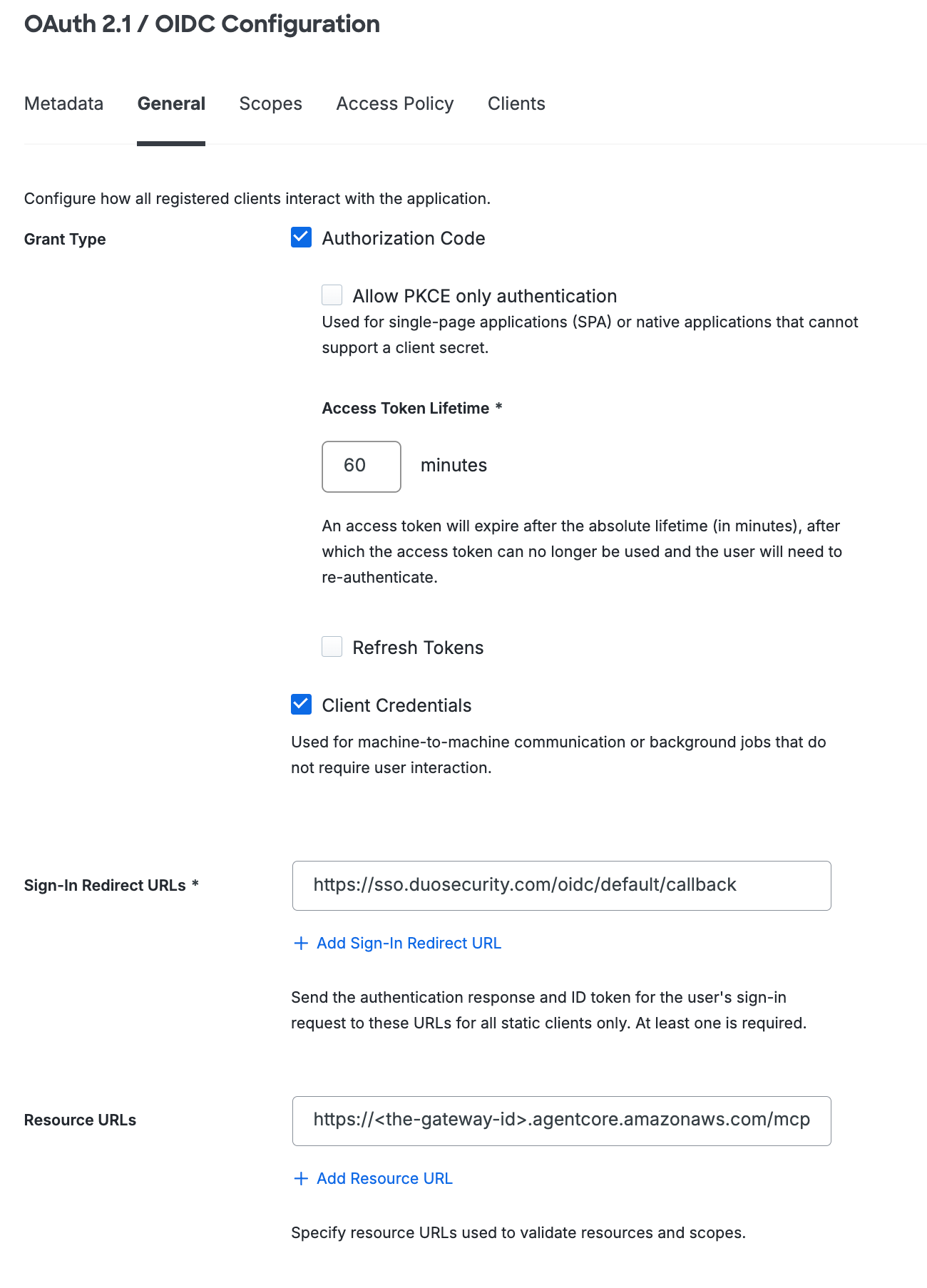
-
On the Scopes tab, optionally update the attribute mapping of the default scopes, add custom scopes, or configure claim transformations if needed.
-
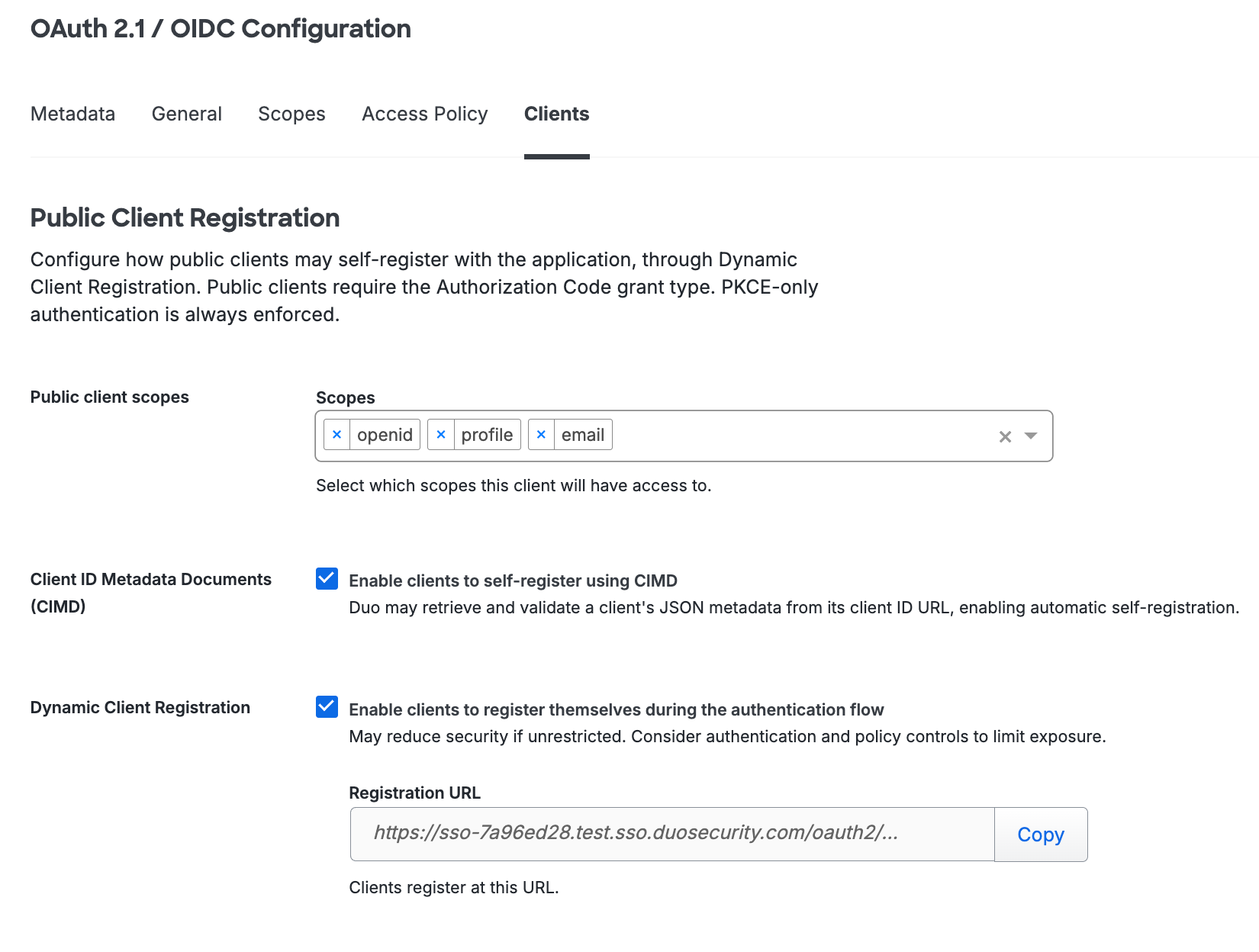
On the Clients tab, make these changes in the "Public Client Registration" section:
- Under "Public Client Registration", click in the Scopes field to add the
openid,profile, andemailscopes. - Enable one or both of the following registration options: Enable clients to self-register using CIMD and Enable clients to register themselves during the authentication flow.
Verify that your clients support CIMD registration before enabling that option.
- Under "Public Client Registration", click in the Scopes field to add the
-
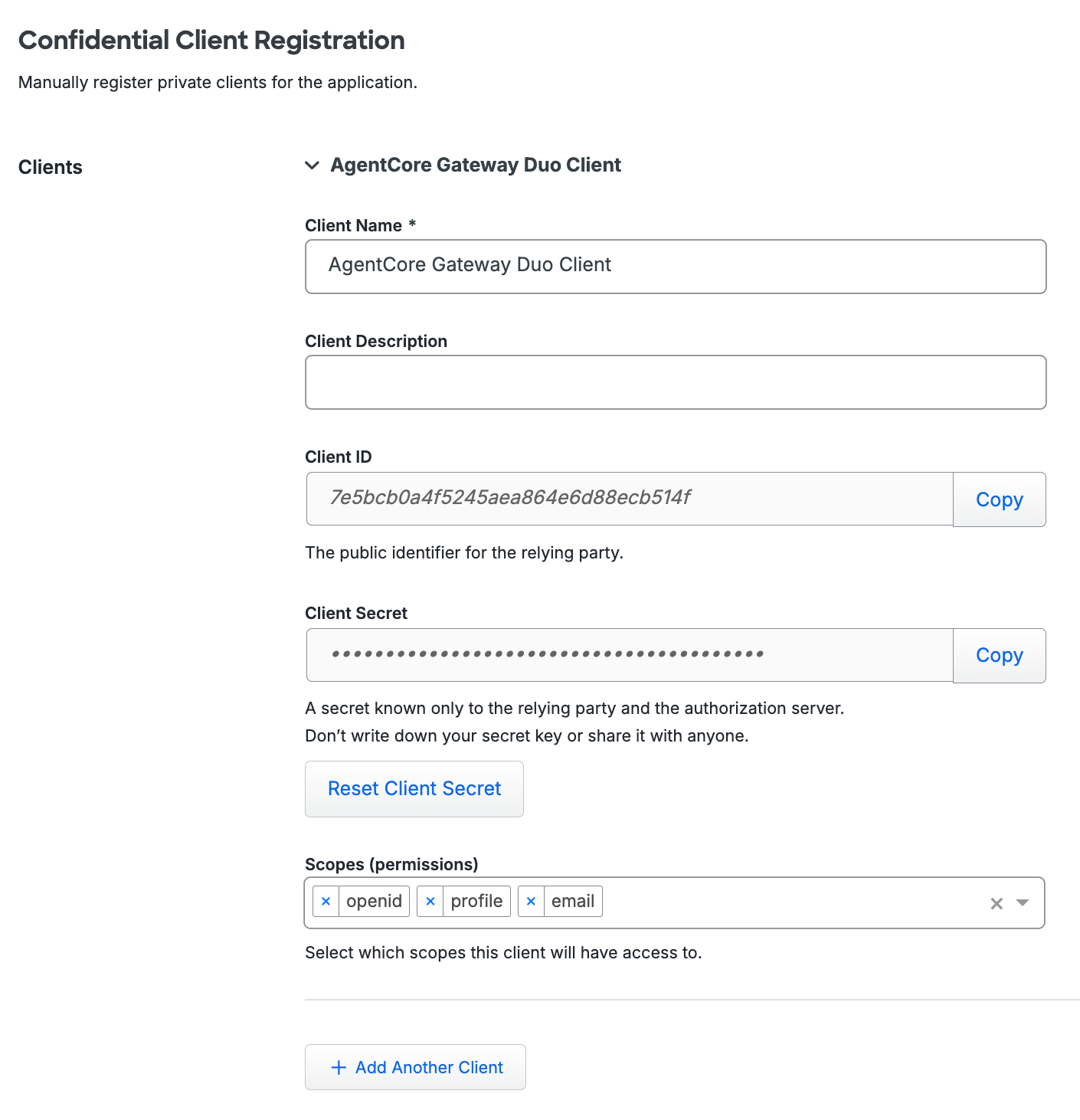
Scroll down to the "Confidential Client Registration" section, update the client name, and add the required scopes.
-
Adjust additional settings for your new MCP application at this time — like changing the application's name from the default value or assigning policies or administrative units.
-
Click Save.
Add Ownership and Risk Information
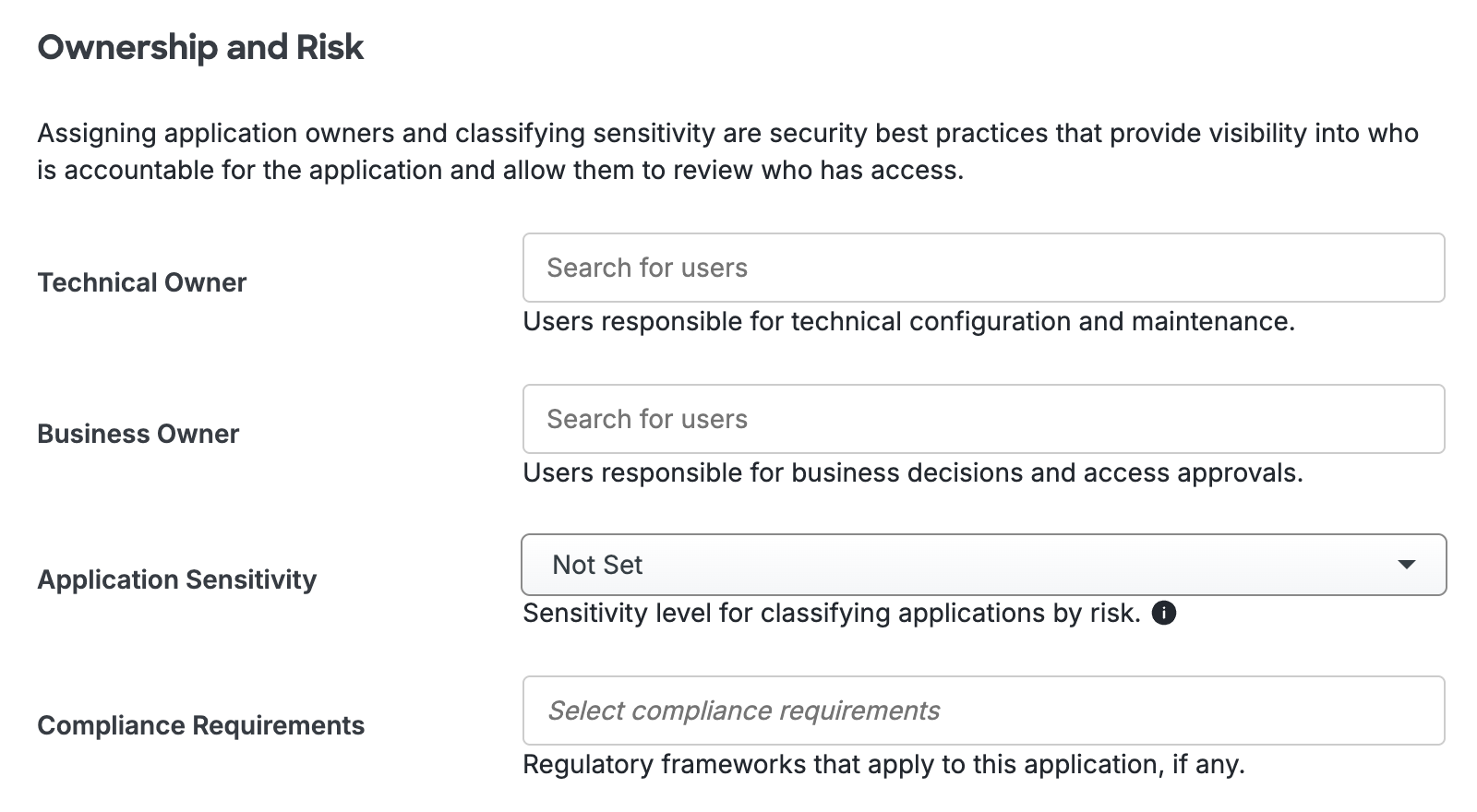
Go to the "Ownership and Risk" section of the application's page in the Duo Admin Panel to assign application owners and classify the application's risk level. Cisco Identity Intelligence automatically imports this information to populate relevant fields.
You may set any of the following:
- Technical Owner: Search for and assign Duo users responsible for technical configuration and maintenance of this application.
- Business Owner: Search for and assign Duo users responsible for business decisions and access approvals related to this application.
- Application Sensitivity: Select this application's risk level from the drop-down list. Default: Not Set.
- Compliance Requirements: Select any applicable regulatory frameworks for this application (SOX (Sarbanes-Oxley), HIPAA, PCI-DSS, etc.) from the list.
Scroll to the bottom of the page and click Save to apply your changes.
For detailed information about configuring the MCP application, refer to Duo Single Sign-On for Model Context Protocol (MCP).
Configure Inbound Authentication in AgentCore Gateway
Configure the AgentCore Gateway to use Duo Single Sign-On as the OAuth/OIDC identity provider for inbound MCP connections.
-
Log in to the Amazon Bedrock AgentCore console and select the appropriate AWS region.
-
Navigate to Gateways and select your gateway.
-
In the "Inbound Auth" section, click Edit and select "Use existing identity provider configurations".
-
Configure the following settings:
Setting Value Discovery URL Copy from the Metadata tab of your Duo MCP integration Allowed audiences Your Gateway resource URL ending with /mcpand the Confidential Client IDAllowed scopes All the scopes you assigned in the Duo MCP application -
Click Save.
Create the AgentCore Gateway Application in Duo
This application provides the API credentials that the Lambda interceptor uses for tool-level authorization decisions.
-
Log in to the Duo Admin Panel and navigate to Applications → Application Catalog.
-
Locate the entry for Amazon Bedrock AgentCore Gateway in the catalog. Click the + Add button to create the application, and get your integration key, secret key, and API hostname. You'll need this information to complete your setup. See Protecting Applications for more information about protecting applications with Duo and additional application options.
-
In the "Connect Duo Authorization to Gateway Authentication" section, use the Copy from existing integration drop-down to select the MCP integration you created earlier. The OAuth details auto-populate. In the example, selecting the MCP application that had VS Code added as a client shows that information in the details.
-
Populate the Amazon Bedrock AgentCore Gateway URLs information with your AgentCore Gateway URL ending with
/mcpin the URL field and provide a friendly name as the Gateway name. If your AgentCore Gateway URL does not already end with/mcp, append it. -
Adjust additional settings for your new AgentCore Gateway application at this time — like changing the application's name from the default value or assigning an administrative unit.
-
Click Save.
Add Ownership and Risk Information
Go to the "Ownership and Risk" section of the application's page in the Duo Admin Panel to assign application owners and classify the application's risk level. Cisco Identity Intelligence automatically imports this information to populate relevant fields.
You may set any of the following:
- Technical Owner: Search for and assign Duo users responsible for technical configuration and maintenance of this application.
- Business Owner: Search for and assign Duo users responsible for business decisions and access approvals related to this application.
- Application Sensitivity: Select this application's risk level from the drop-down list. Default: Not Set.
- Compliance Requirements: Select any applicable regulatory frameworks for this application (SOX (Sarbanes-Oxley), HIPAA, PCI-DSS, etc.) from the list.
Scroll to the bottom of the page and click Save to apply your changes.
Deploy the Gateway Request Interceptor
The Gateway Request Interceptor is an AWS Lambda function that enforces Duo authorization policies on every MCP tool invocation. A deployment script downloads the artifacts from dl.duosecurity.com, verifies integrity, uploads them to S3, and deploys a CloudFormation stack.
Use the same AWS region for the AgentCore Gateway, S3 artifact bucket, CloudFormation stack, Lambda function, Lambda layer, and Duo credentials secret in Secrets Manager to avoid cross-region deployment issues.
The deployment script requires AWS CLI access with permissions to manage S3, CloudFormation, IAM, Lambda, and Secrets Manager resources.
Prepare AWS Resources
The following AWS resources must exist before you run the deployment script.
S3 Bucket
Create a bucket in the same AWS region where you will deploy the stack. The deployment script uploads the Lambda function code and layer to this bucket. Refer to Creating a bucket in the AWS documentation if needed.
Secrets Manager Secret
Create a secret containing your Duo credentials as JSON. If needed, refer to Creating a secret in the AWS documentation.
-
Log in to the AWS Secrets Manager console and select the region where your AgentCore Gateway is deployed.
-
Click Store a new secret and select "Other type of secret".
-
Add the following key/value pairs in JSON, using the values from the Duo AgentCore Gateway integration you created earlier:
{ "DUO_API_HOSTNAME": "<your-duo-api-hostname>", "DUO_INTEGRATION_KEY": "<your-duo-integration-key>", "DUO_SECRET_KEY": "<your-duo-secret-key>" } -
Give the secret a descriptive name (e.g.,
duo-agentcore-gateway-secrets), and then click Next and Store.
KMS Key (Optional)
If a customer-managed KMS key encrypts your Secrets Manager secret, you will need its ARN. Refer to Creating KMS keys in the AWS documentation.
IAM Permissions
If your IAM user or role already has the AdministratorAccess managed policy attached, skip this section and proceed to downloading the deployment script.
Download the IAM Policy Template
Download the iam-policy.json sample IAM policy template file from Duo. View checksums for Duo downloads here.
For environments using least-privilege access, the IAM principal (user or role) running the deployment script needs permissions for S3, CloudFormation, IAM, Lambda, and Secrets Manager. Edit the downloaded iam-policy.json custom policy file iam-policy.json with the appropriate permissions, replacing the following placeholders:
| Placeholder | Replace with |
|---|---|
<YOUR_BUCKET> |
Your S3 bucket name |
<REGION> |
Target AWS region (e.g., us-east-1) |
<ACCOUNT_ID> |
Your 12-digit AWS account ID |
The CloudShellAccess statement in the policy is optional. Remove it if you are running the script locally instead of in AWS CloudShell.
Attach the policy you created to your IAM user or role:
aws iam create-policy \
  --policy-name DuoInterceptorDeployPolicy \
  --policy-document file://iam-policy.json

aws iam attach-user-policy \
  --user-name <USERNAME> \
  --policy-arn "arn:aws:iam::<ACCOUNT_ID>:policy/DuoInterceptorDeployPolicy"
Download the Deployment Script
Download the deploy-agentcore-gateway-interceptor.sh script from Duo. View checksums for Duo downloads here.
Run the Deployment Script
The deployment script accepts the following options:
| Option | Required | Default | Description |
|---|---|---|---|
--bucket |
Yes | — | S3 bucket name for deployment artifacts |
--secret-arn |
Yes | — | ARN of the Secrets Manager secret containing Duo credentials |
--region |
No | AWS_DEFAULT_REGION |
AWS region for deployment |
--version |
No | latest | Artifact version to deploy |
--kms-key-arn |
No | — | KMS key ARN if using customer-managed encryption |
--stack-name |
No | duo-agentcore-gateway-interceptor |
CloudFormation stack name |
--log-retention-days |
No | 14 | CloudWatch log retention period in days |
--no-logging |
No | — | Skip log group creation |
Deploy From AWS CloudShell
-
Open AWS CloudShell from the AWS console and select the region where your AgentCore Gateway resides (use the icon in the top navigation bar).
-
Click the Actions button and click Upload file to upload the
deploy-agentcore-gateway-interceptor.shscript downloaded earlier. -
Make the script executable and run it, specifying your actual bucket and secret information:
chmod +x deploy-agentcore-gateway-interceptor.sh
 ./deploy-agentcore-gateway-interceptor.sh \
   --bucket my-deployment-bucket \
   --secret-arn "arn:aws:secretsmanager:us-east-1:123456789012:secret:duo-credentials-AbCdEf" \
   --version v1.0.1
The
--regionflag is optional in CloudShell because it inherits the region from your console session.
Deploy From a Local Machine
Install these tools before you run the script:
- AWS CLI v2
- curl
- sha256sum (Linux) or shasum (macOS)
-
Install and configure AWS CLI with the IAM permissions listed above. For configuration instructions, refer to Configuring the AWS CLI.
-
Make the script executable and run it, specifying your actual bucket, region, and secret information:
chmod +x deploy-agentcore-gateway-interceptor.sh
 ./deploy-agentcore-gateway-interceptor.sh \
   --bucket my-deployment-bucket \
   --region us-east-1 \
   --secret-arn "arn:aws:secretsmanager:us-east-1:123456789012:secret:duo-credentials-AbCdEf" \
   --version v1.0.1
Update an Existing Deployment
To deploy a newer version of the interceptor to an existing CloudFormation stack, run the same deployment script with an incremented --version value. Replace n.n.n with the version number for the desired release, as shown in the Duo AgentCore Lambda Interceptor checksums information. The script automatically detects whether the stack exists and performs an update:
./deploy-agentcore-gateway-interceptor.sh \
  --bucket my-deployment-bucket \
  --region us-east-1 \
  --secret-arn "arn:aws:secretsmanager:us-east-1:123456789012:secret:duo-credentials-AbCdEf" \
  --version vn.n.n
Verify Deployment
After the script completes, verify that the CloudFormation stack status shows CREATE_COMPLETE or UPDATE_COMPLETE in the AWS console under CloudFormation → Stacks.
Attach the Interceptor to the AgentCore Gateway
-
Open the Amazon Bedrock AgentCore console.
-
Navigate to Gateways and select your gateway.
-
Click Edit.
-
Under the "Gateway details" section, expand "Additional configurations".
- In the "Request interceptor configuration" section, select the Lambda function ARN for the interceptor you deployed.
- Set "Pass request header" to True.
-
Click Save.
Configure Authorization Policy
Define which Duo user groups can invoke which MCP tools through the AgentCore Gateway. The MCP gateway allows no tool use without configured rules or policy.
Create User Groups
You may use Duo user groups managed via directory sync or inbound SCIM in your authorization policy. Assign users to the target groups in the external directory and sync the changes into Duo.
If you need to create authorization groups manually:
-
Log in to the Duo Admin Panel and navigate to Users → Groups.
-
Create groups that correspond to the tool-level access you want to enforce. For example:
Group Description Engineering Access to code generation and repository tools Finance Access to financial reporting and analytics tools Admin Access to all available tools -
Assign users to the appropriate groups.
For more information about creating and managing Duo groups, refer to Using Groups.
Set Up Tool-Level Authorization
-
In the Duo Admin Panel, navigate to Applications → MCP Gateways and Servers.
-
On the "MCP Gateways and Servers" page, locate the Amazon Bedrock AgentCore Gateway server you created, and click Configure policy.
-
Enter the policy details describing the intent of the new policy.
-
In the "Configure Policy" section, click + Add another rule.
-
Use the For user groups drop-down to select one or more Duo groups. Users in any of the selected groups receive the specified access.
-
Click Select tools in the "Allow tools" box to choose which tools members of the selected groups can invoke. Make your selections from the available tools list on the right to add them to the rule. Click Close on the "All Tools" list when you complete your tool selections.
-
Verify your group and tool selections in the new rule.
-
-
Click + Add another rule to create additional rules as needed for other group and tool combinations or Remove rule to delete a rule from the policy.
-
Click Save policy after creating your tool rules.
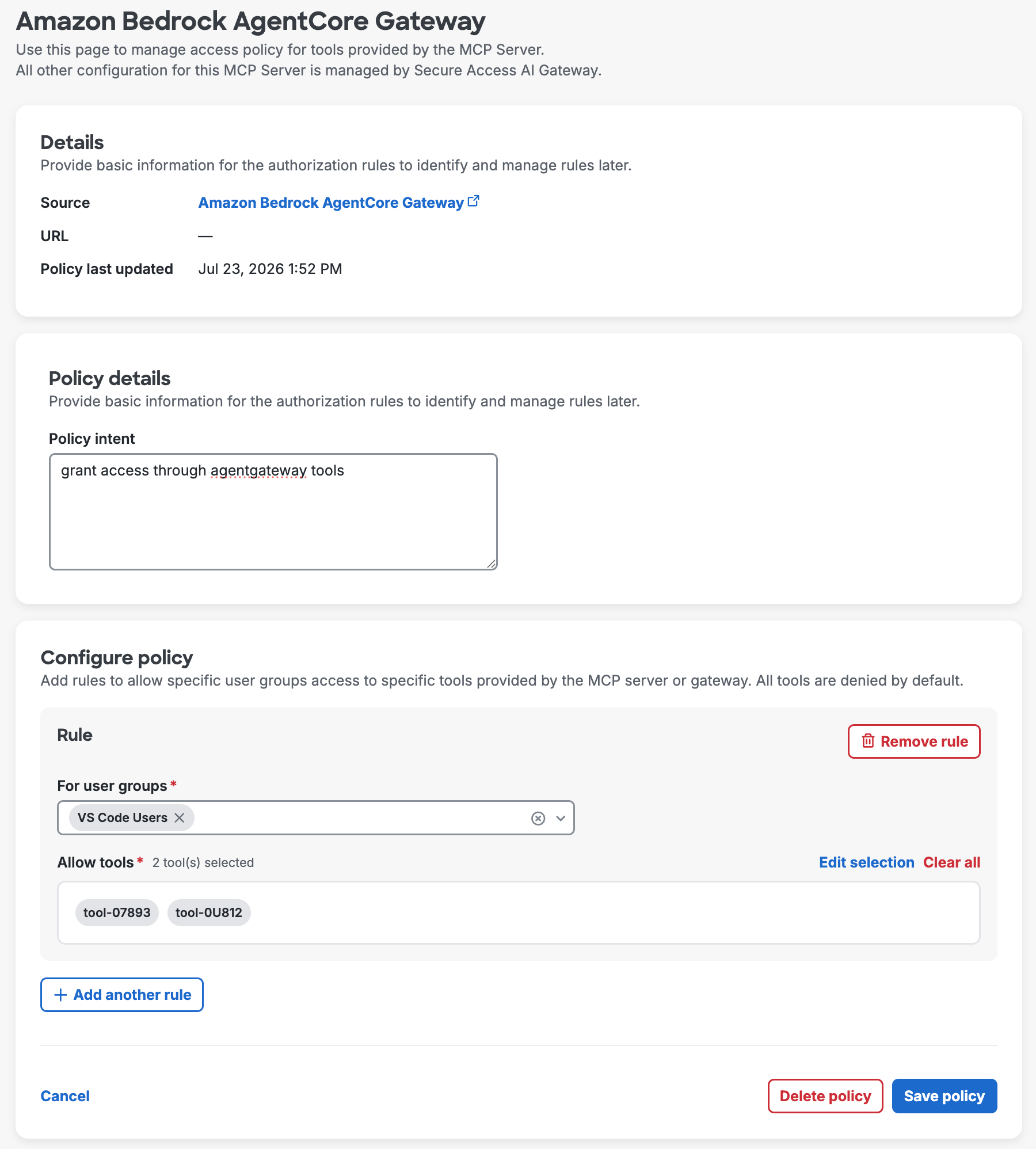
The Gateway denies access to all MCP tools for users who are not members of any group with tool permissions.
Test Your Setup
Configure an MCP Client
This example uses Visual Studio Code (VS Code) as the MCP client. You can substitute any MCP-compatible client.
-
Create a new directory and open it in VS Code.
-
Create a
.vscode/mcp.jsonfile with the following content. Replace<gateway-id>with your AgentCore Gateway ID.{ "servers": { "my-agentcore-server": { "url": "https://<gateway-id>.agentcore.amazonaws.com/mcp", "type": "http" } } } -
Click the Start link in VS Code to connect to the MCP server via the AgentCore Gateway.
Verify Authentication
-
Confirm the Authorization Server points to a Duo Security SSO URL. Click Copy URIs & Proceed.
-
Click Allow to start the OAuth 2.1 authorization code flow.
-
Click Open to launch the browser for Duo authentication.
-
Enter your username and complete Duo Passwordless authentication, or enter your password and complete Duo two-factor authentication.
-
After authentication, the browser redirects back to VS Code. Click Open Visual Studio Code.
The MCP server now shows as running with available tools listed in VS Code.
Verify Tool-Level Authorization
-
Open the Chat pane in VS Code and click the Tools icon. Confirm the available tools match your group permissions.
-
Invoke a tool that your group has access to. The request succeeds and returns results.
-
Invoke a tool that your group does not have access to. The request returns a 403 Forbidden error.
End-to-End MCP Authorization Flow Summary
The complete authorization flow works as follows:
-
The MCP client (e.g., VS Code) initiates a connection to the AgentCore Gateway MCP endpoint.
-
The AgentCore Gateway redirects the user to Duo Single Sign-On for authentication via OIDC.
-
The user authenticates with primary credentials and completes Duo two-factor authentication.
-
Duo issues an access token (JWT) to the MCP client.
-
The MCP client sends a tool invocation request to the AgentCore Gateway, including the Duo access token.
-
The AgentCore Gateway triggers the Lambda interceptor before executing the tool.
-
The interceptor extracts the user identity from the token and calls Duo to evaluate the request against authorization policies.
-
Duo evaluates the user's group membership against tool-level policies and returns an allow-or-deny decision.
-
If allowed, the Gateway executes the MCP tool and returns results to the client. If denied, the Gateway returns a 403 Forbidden response.
Duo logs all decisions (allow and deny), user identity, requested tool, and matched policy rule for audit purposes.
View Interceptor Lambda Logs
-
In the AWS console, navigate to CloudWatch → Log groups.
-
Find the log group for the interceptor Lambda function (typically
/aws/lambda/DuoAgentCoreGatewayInterceptorLambdaFunction). -
Review recent log streams for error messages or authorization decisions. Each invocation logs the request ID, user identity, requested tool, policy evaluation result, and any errors.
View MCP Client Traces
In VS Code, set the trace option in the output section to capture detailed MCP communication logs. Run a request and capture the requestId from the output for cross-referencing with CloudWatch logs.
Troubleshooting
Need some help? Take a look at our AWS Bedrock AgentCore gateway Knowledge Base articles or Community discussions. For further assistance, contact Support.
Common Issues
| Symptom | Possible Cause | Resolution |
|---|---|---|
| 401 Unauthorized | Token validation failure | Verify the Discovery URL and Gateway URL match in both the Duo MCP application and AgentCore Gateway inbound auth configuration. |
| 403 Forbidden for an authorized user | Group membership not found or policy misconfiguration | Check the user's group membership in the Duo Admin Panel under Users → Groups and verify the authorization policy. |
| Lambda timeout | Duo Admin API call too slow or network connectivity issue | Increase the Lambda timeout setting and verify network connectivity to your Duo API hostname. |
| Tools not discovered | MCP server not responding | Verify the MCP server is running and accessible from the AgentCore Gateway. |
| "No updates needed" during deployment | CloudFormation stack already at the specified version | This is expected behavior if you run the script with the same version. |
| Checksum verification failed | Corrupted download | Re-download the deployment artifacts. |
| Stack in ROLLBACK_COMPLETE state | Previous deployment failed | Delete the stack and wait for deletion to complete, then re-run the deployment script (see commands below). |
| Permission denied errors | Insufficient IAM permissions | Verify your IAM principal has all required permissions. Run aws sts get-caller-identity to confirm which identity is being used. |
| "Invalid client" error | DCR or CIMD misconfiguration | Verify client registration settings on the MCP application Clients tab. |
To resolve a stack in ROLLBACK_COMPLETE state (specify your actual region):
aws cloudformation delete-stack --stack-name duo-agentcore-gateway-interceptor --region us-east-1
aws cloudformation wait stack-delete-complete --stack-name duo-agentcore-gateway-interceptor --region us-east-1
Re-run the deployment script after deleting the stack.
Set Up CloudWatch Alarms
Configure CloudWatch alarms for the interceptor Lambda function to monitor for failures. Treat interceptor failures as security-impacting signals because interceptor errors can affect authorization enforcement and gateway availability.
-
Open the CloudWatch console in the same AWS region where the interceptor Lambda is deployed.
-
Navigate to Alarms → All alarms, then click Create alarm.
-
Select the Lambda metric namespace and choose the interceptor function (e.g.,
DuoAgentCoreGatewayInterceptorLambdaFunction). -
Create alarms for the following recommended metrics:
- Errors: Alarm when the sum is greater than or equal to 1 for one or more evaluation periods.
- Throttles: Alarm when the sum is greater than or equal to 1, which may indicate concurrency limits or burst traffic.
- Duration: Alarm when average or p95 duration is close to the Lambda timeout, so you can increase the timeout or investigate slow API calls.
-
Configure an SNS topic or another notification target so operations or security teams receive alerts.
-
Optionally, add a CloudWatch Logs metric filter for application-level deny or error log messages if you want alarms on specific interceptor failure patterns.