User Attributes
Last updated:
Overview
Duo Directory includes a basic list of user attributes. Extend your Duo Directory schema with custom user attributes and populate attribute values manually or from external directories.
Default User Attributes
The default Duo Directory user attributes are:
|
Attribute |
Description |
Can mark as private? |
|---|---|---|
| Username |
The user's primary Duo username. Typically this matches the external application username or primary authentication login name your users submit to Duo. This is the only attribute required to have a value for all users. |
No |
| Display Name |
The full name of the user. |
Yes |
| Email Address |
The user's email address. |
Yes |
| First Name |
The user's given name. |
Yes |
| Last Name |
The user's surname or family name. |
Yes |
| Entra Federated User ID |
Used with Microsoft 365 Duo SSO applications. |
Yes |
| Date of Birth |
The user's birthdate. Values must use the format |
Yes |
| Phones |
The phone devices associated with a user. |
Yes |
| Notes |
Free text field for additional user information. |
Yes |
These default attributes are assigned to the built-in "Primary Attributes" attribute category. You may assign them to other attribute categories you create later if you wish.
Custom Attributes
Custom attributes may contain any additional information about your users that your organization wants to store in Duo. These custom attributes might provide useful information to your administrators or help desk as they assist users. They may contain information you need to provide to external applications via provisioning. Custom attributes are yours to use however you need them.
Learn how to add a custom attribute.
Private Attributes
You can mark most default attributes and any custom attributes you create as private to protect sensitive information from view by specific administrator roles.
Setting an attribute to private has these effects:
-
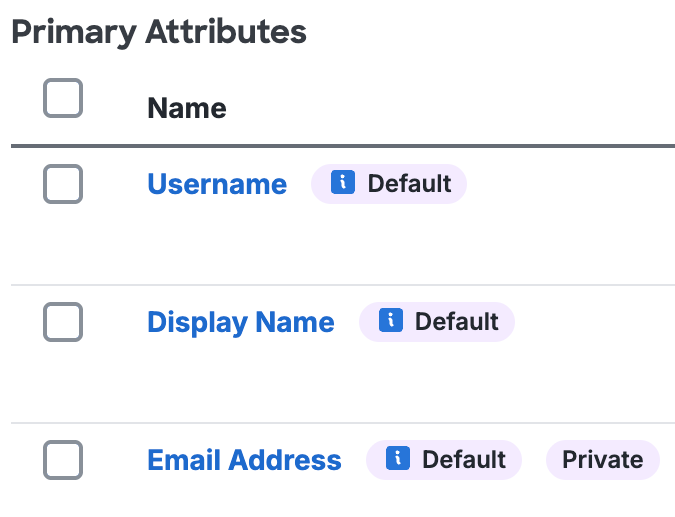
The attribute receives a "Private" label on the "User Attributes" page (email marked private in this example).
-
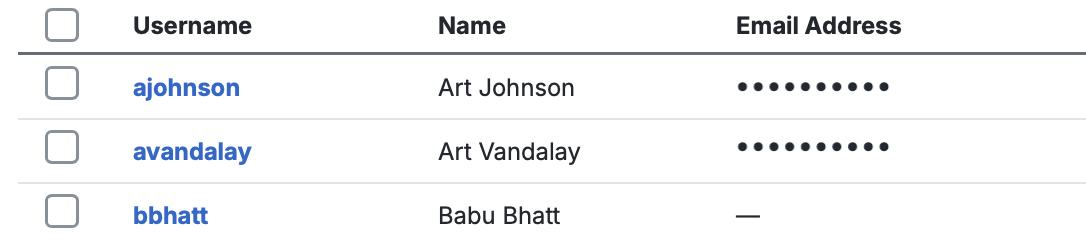
Administrators assigned built-in or custom roles without the "View and set attribute values marked as private" permission may not view the values of these attributes anywhere in the Admin Panel, and instead see the information obscured. Continuing the example of the email attribute marked as private, an administrator without the necessary permission can't view user emails in the "Users" table.
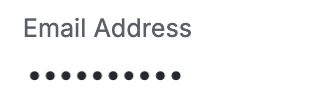
The restricted admin also can't see email addresses on an individual user's details page.
-
Administrators assigned roles that would otherwise let them modify the values of the attributes marked as private may not update the private attribute values. For example, an admin with privileges to update and manage phones and users but without the private attribute permission won't be able to attach a user to a phone with the "Phones" attribute private.
Set an attribute to private at creation, or by editing it.
View User Attributes and Categories
-
Log in to the Duo Admin Panel.
-
Navigate to Users → User Attributes.
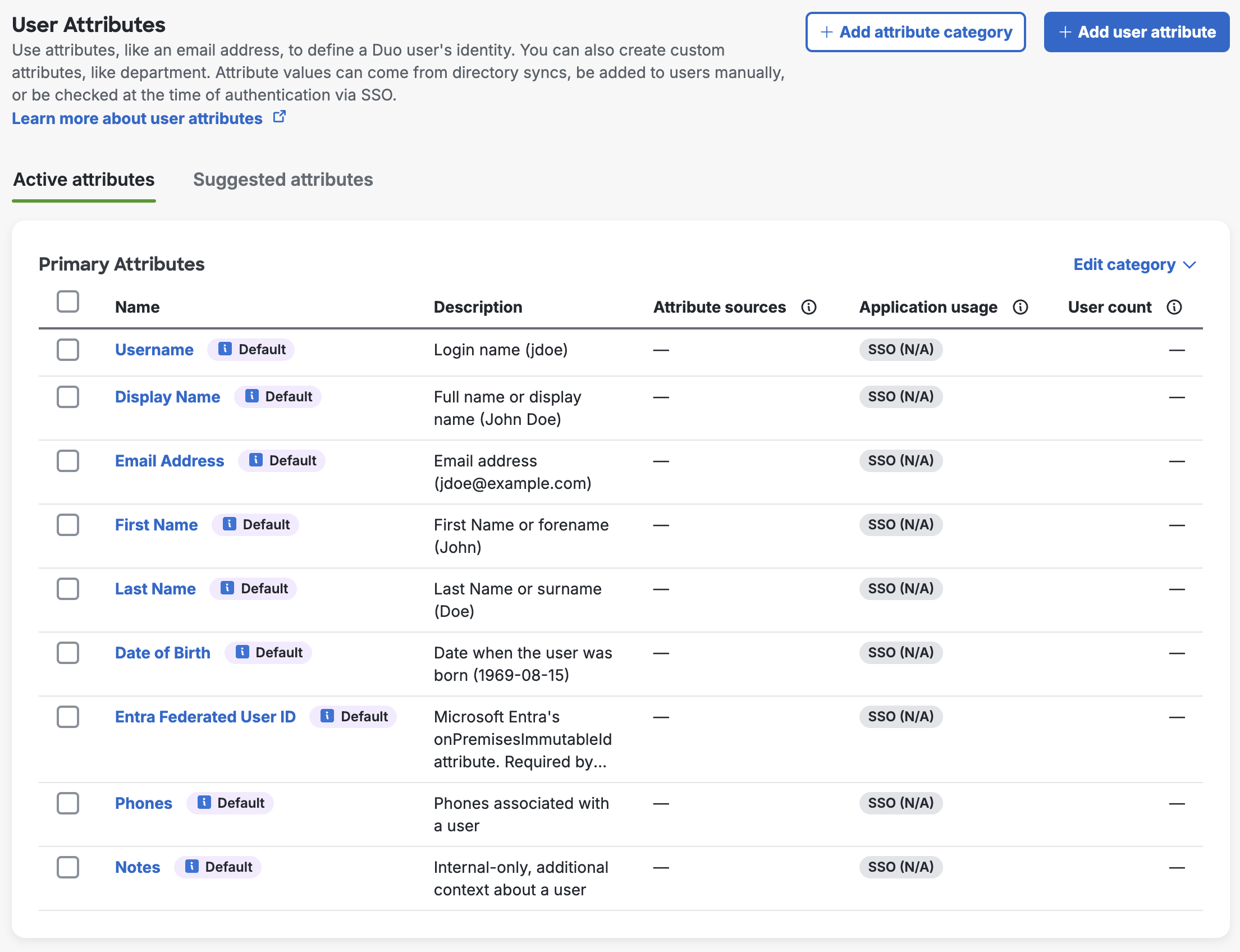
The "Primary Attributes" table shows information about Duo default attributes (indicated with a badge) and any custom attributes created without a category, such as the attribute's name, a short description, sources for attribute values, application usage, and the number of users who have values for the attribute. Private attributes show a "Private" badge.
Manage Attribute Categories
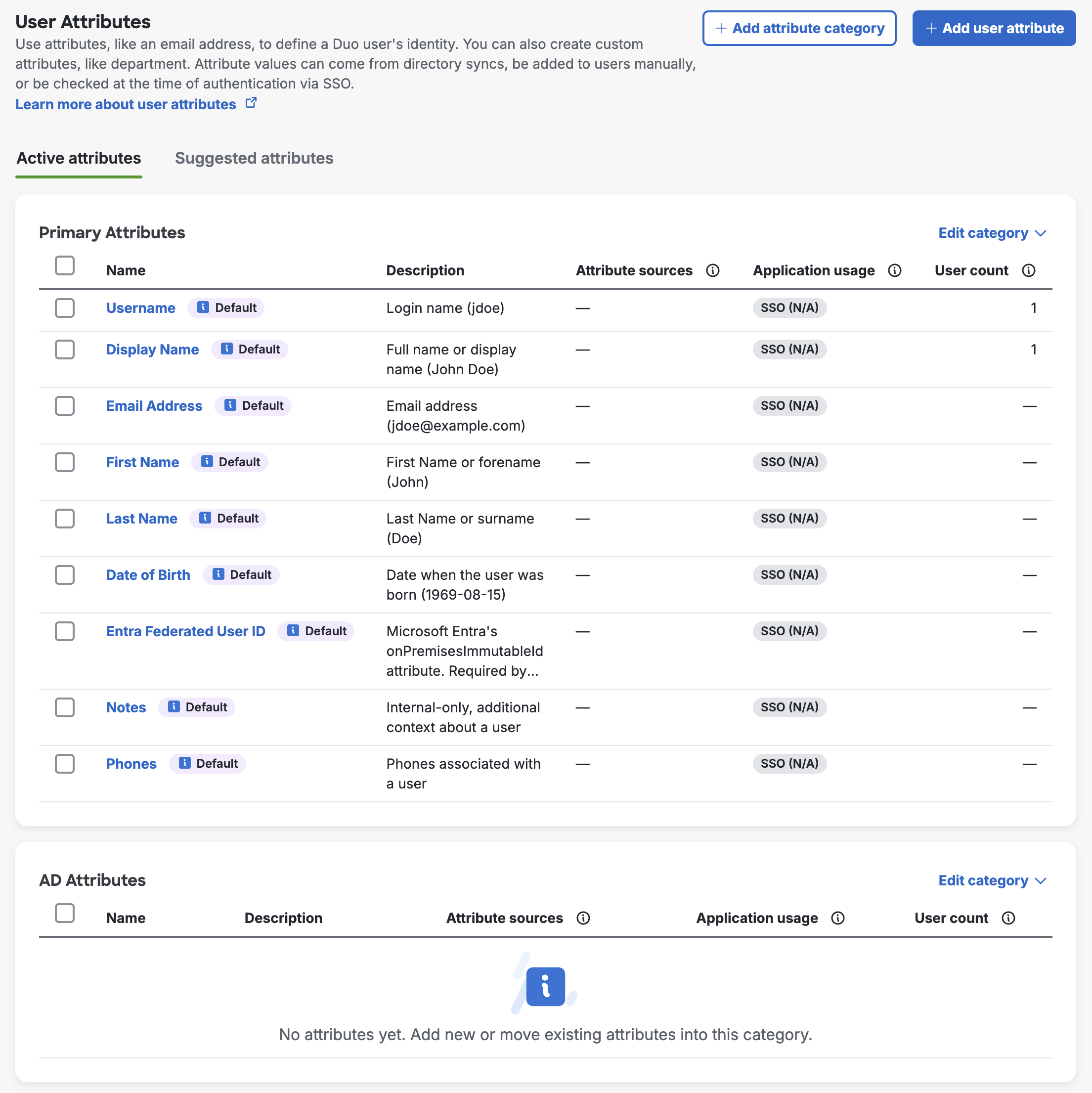
Your Duo account has one default attribute category defined, called "Primary Attributes". You may rename the "Primary Attributes" category to something else, or create additional attribute categories. For example, you may want to identify user attributes you import from Active Directory which are unique to AD, like msDS-PrincipalName. You can create an "AD Attributes" attribute category, and then assign a custom attribute for msDS-PrincipalName to the "AD Attributes" category when you create it.
Add an Attribute Category
Role required: Owner, Administrator, or User Manager.
-
Log in to the Duo Admin Panel.
-
Navigate to Users → User Attributes.
-
Click + Add attribute category.
-
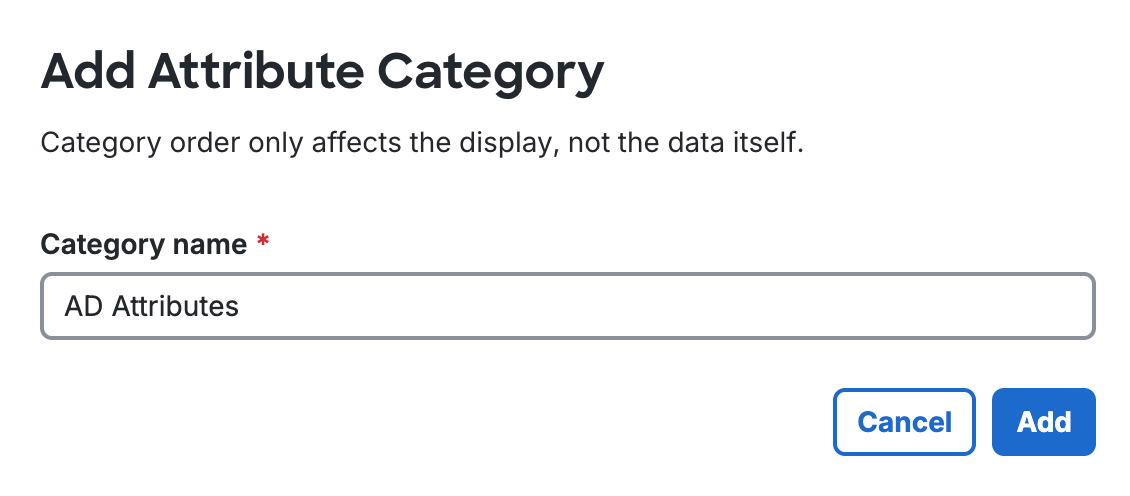
Enter a unique name for the new attribute category and click Add.
The new, empty attribute category is shown below your existing categories.
Rename an Attribute Category
Role required: Owner, Administrator, or User Manager.
You may rename the default "Primary Attributes" category or any custom category you create.
-
Log in to the Duo Admin Panel.
-
Navigate to Users → User Attributes.
-
Locate the attribute category you want to rename and click Edit category in the upper-right of that table.
-
Choose Rename category from the drop-down menu.
-
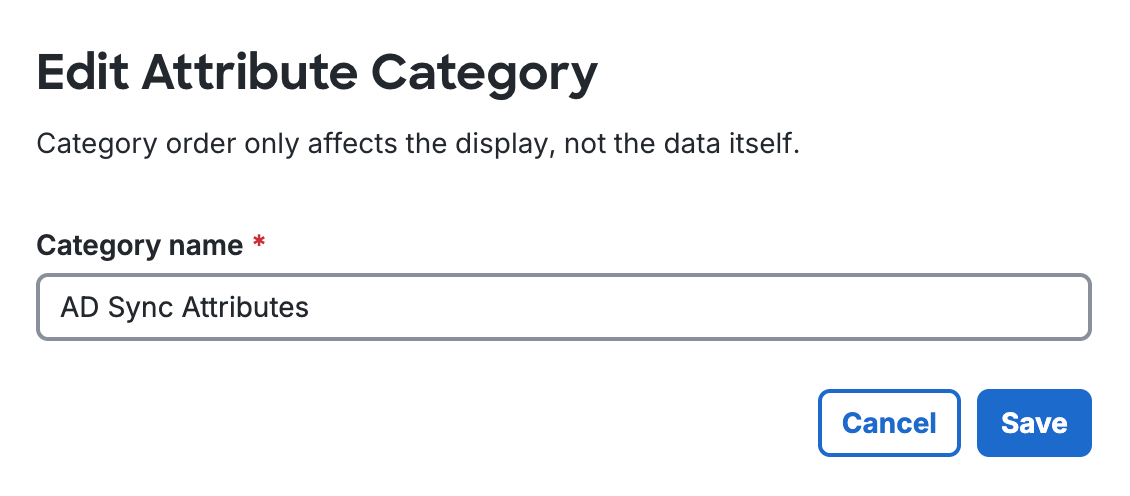
Enter a new and unique name for the attribute category and click Save.
Reorder Attribute Categories
Role required: Owner, Administrator, or User Manager.
Change the display order of your attribute categories on the "User Attributes" page.
-
Log in to the Duo Admin Panel.
-
Navigate to Users → User Attributes.
-
Locate the attribute category you want to move on the page and click Edit category in the upper-right of that table.
-
Choose Move up or Move down from the drop-down menu to put your categories in your desired display order.
Delete an Attribute Category
Role required: Owner, Administrator, or User Manager.
You cannot delete the default "Primary Attributes" category (even if you've renamed it).
-
Log in to the Duo Admin Panel.
-
Navigate to Users → User Attributes.
-
Locate the attribute category you want to delete and click Edit category in the upper-right of that table.
-
Choose Delete category from the drop-down menu.
-
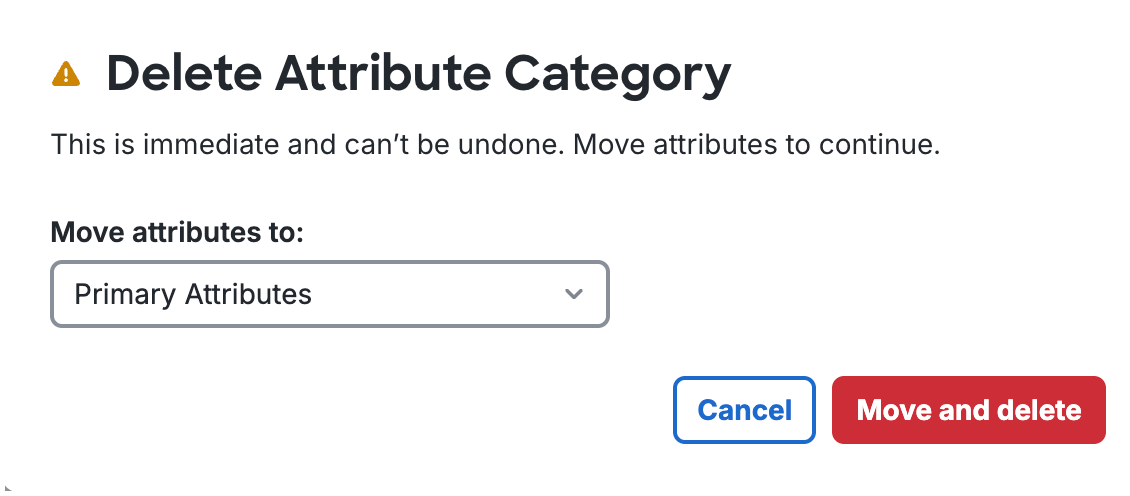
If the category currently contains no attributes, click Delete. If the category does contain attributes, choose a destination attribute category for the user attributes in the category to delete under Move attributes to:, and then click Move and delete.
Manage User Attributes
Suggested Attributes
We've identified some commonly-used additional user attributes you may want to enable on the "Suggested attributes" tab. You can move any of the suggested attributes from this tab into an attribute category to make them active.
Role required: Owner, Administrator, or User Manager.
-
Log in to the Duo Admin Panel.
-
Navigate to Users → User Attributes. The attribute category tables on the "Active attributes" tab list your existing attributes.
-
Click the Suggested attributes tab.
-
Select any of the suggested attributes individually or select an entire suggested attribute group with the checkboxes to the left.
-
Click Move to in the upper-right of that table and select an attribute category to add the suggested attributes to from the drop-down list.
-
The "Active attributes" tab now includes the suggested attributes you moved into an attribute category.
This example adds all but one of the suggested attributes in the "Common attributes" table to the custom attribute category "Acme Required".

You can click Undo in the success message shown to revert the change. Deleting a suggested attribute from its category restores it to the "Suggested attributes" tab, so you can move it back to an attribute category again in the future.
Add a Custom User Attribute
Role required: Owner, Administrator, or User Manager.
-
Log in to the Duo Admin Panel.
-
Navigate to Users → User Attributes. The attribute category tables on the "Active attributes" tab list your existing attributes.
-
Click + Add user attribute.
-
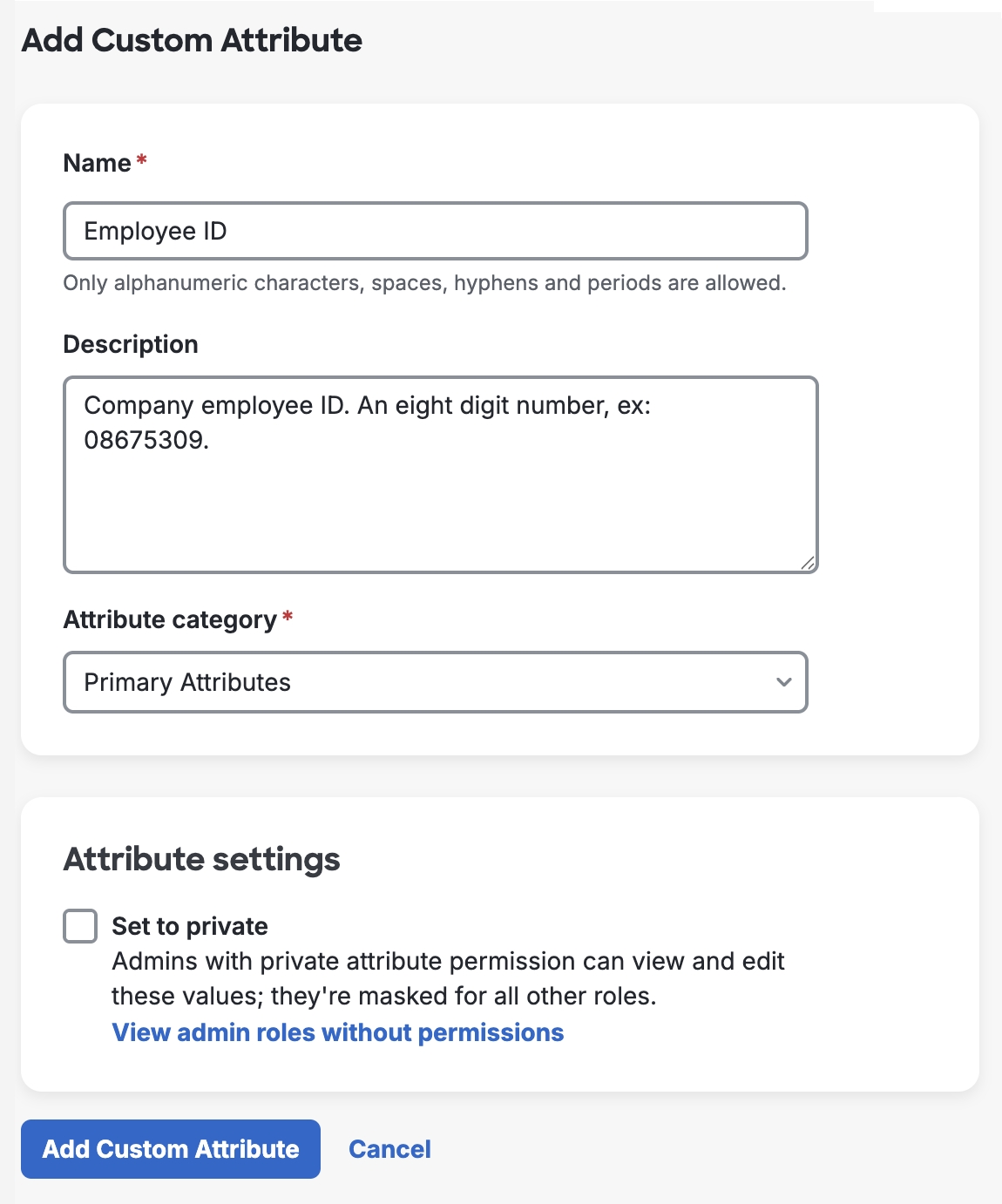
Enter a name for your new attribute in the Name field. The name you enter can contain a maximum of 256 alphanumeric characters, spaces, hyphens, and periods. You may also enter a description up to 256 characters.
-
Select an Attribute category for the new attribute. The default selection is the built-in "Primary Attributes" category, even if you have renamed it to something else.
-
Select Set to private in "Attribute settings" to create the new attribute as private. Hover over View admin roles without permissions to see a list of standard and custom admin roles without private attribute privileges.
You can edit the new attribute to change its privacy setting after creation.
-
Click Add Custom Attribute to save your new attribute.
This example adds a custom non-private attribute to the default "Primary Attributes" category to hold an employee ID value.
Edit a User Attribute
Role required: Owner, Administrator, or User Manager.
You may not change the name or description of any default Duo user attributes.
-
Log in to the Duo Admin Panel.
-
Navigate to Users → User Attributes.
-
Locate the attribute you want to edit and click its name.
-
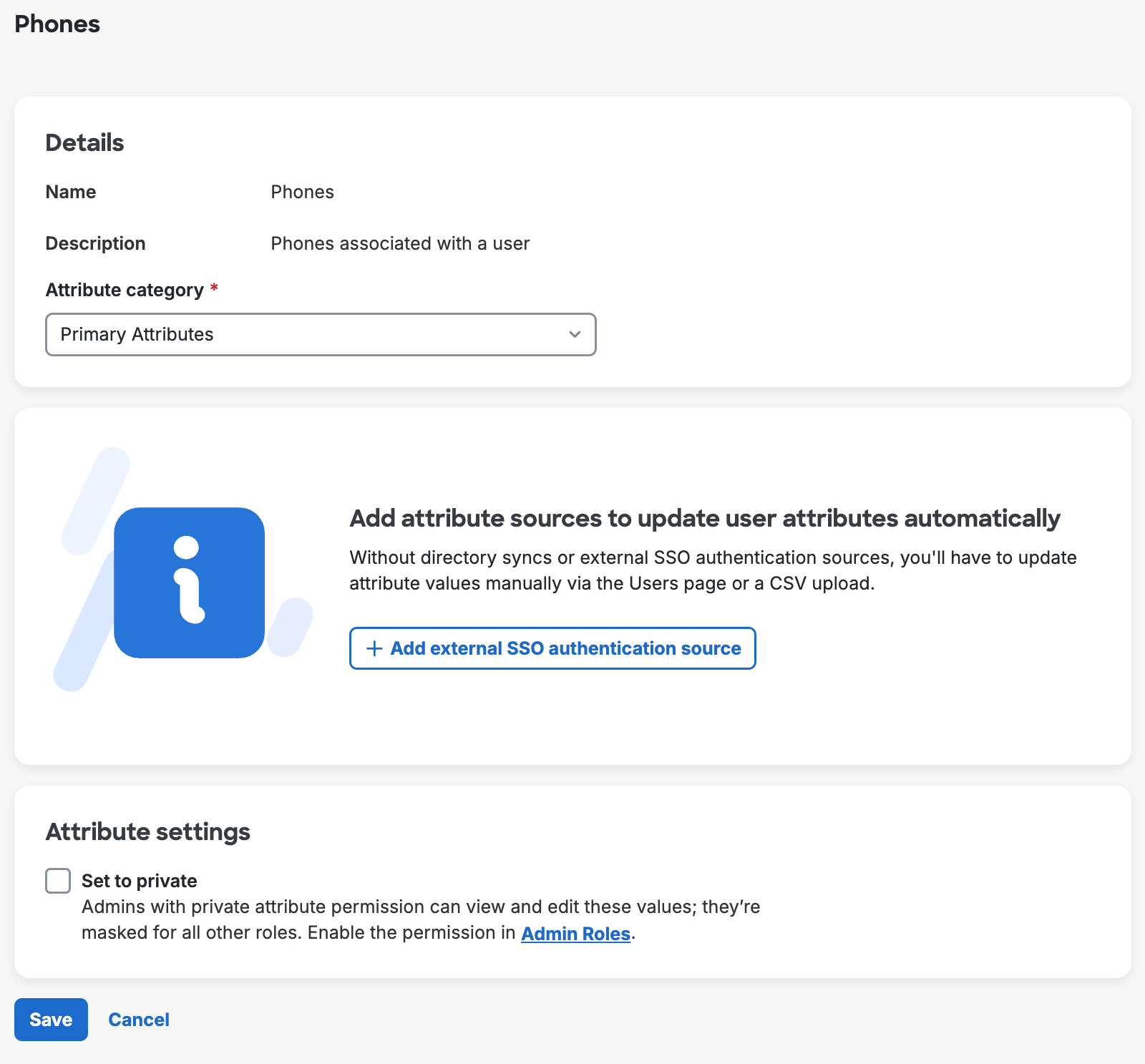
You can update the Name, Description, or choose a different Attribute category in the "Details" section if you're editing a custom user attribute. If it is a default Duo attribute, then you can only choose a different category.
-
Mark the attribute as private with the Set to private option under "Attribute settings" if the attribute allows it. Hover over View admin roles without permissions to see a list of standard and custom admin roles without private attribute privileges.
-
Click Save.
Move User Attributes
Role required: Owner, Administrator, or User Manager.
Change the display order of your user attributes within an attribute category or reassign attributes to a different category on the "User Attributes" page.
-
Log in to the Duo Admin Panel.
-
Navigate to Users → User Attributes.
-
Select the user attribute or attributes you want to move in one of your attribute category tables and click Move to in the upper-right of that table.
-
You can choose a new destination attribute category from the drop-down menu to move the selected attributes to that category, or choose to move the selected attributes up, down, to the top, or to the bottom of their current category to update the display order.
Delete a User Attribute
Role required: Owner, Administrator, or User Manager.
You cannot delete any default Duo user attributes.
-
Log in to the Duo Admin Panel.
-
Navigate to Users → User Attributes.
-
Select the custom user attribute or attributes you want to delete in one of your attribute category tables and click Delete in the upper-right of that table. You will be asked to confirm deletion of the attribute(s). Click Cancel to leave the attribute(s) intact.
Custom Attribute Uses
Import Attribute Values with Directory Sync
Your external directory sync configurations can import values for your custom attributes from external directories.
-
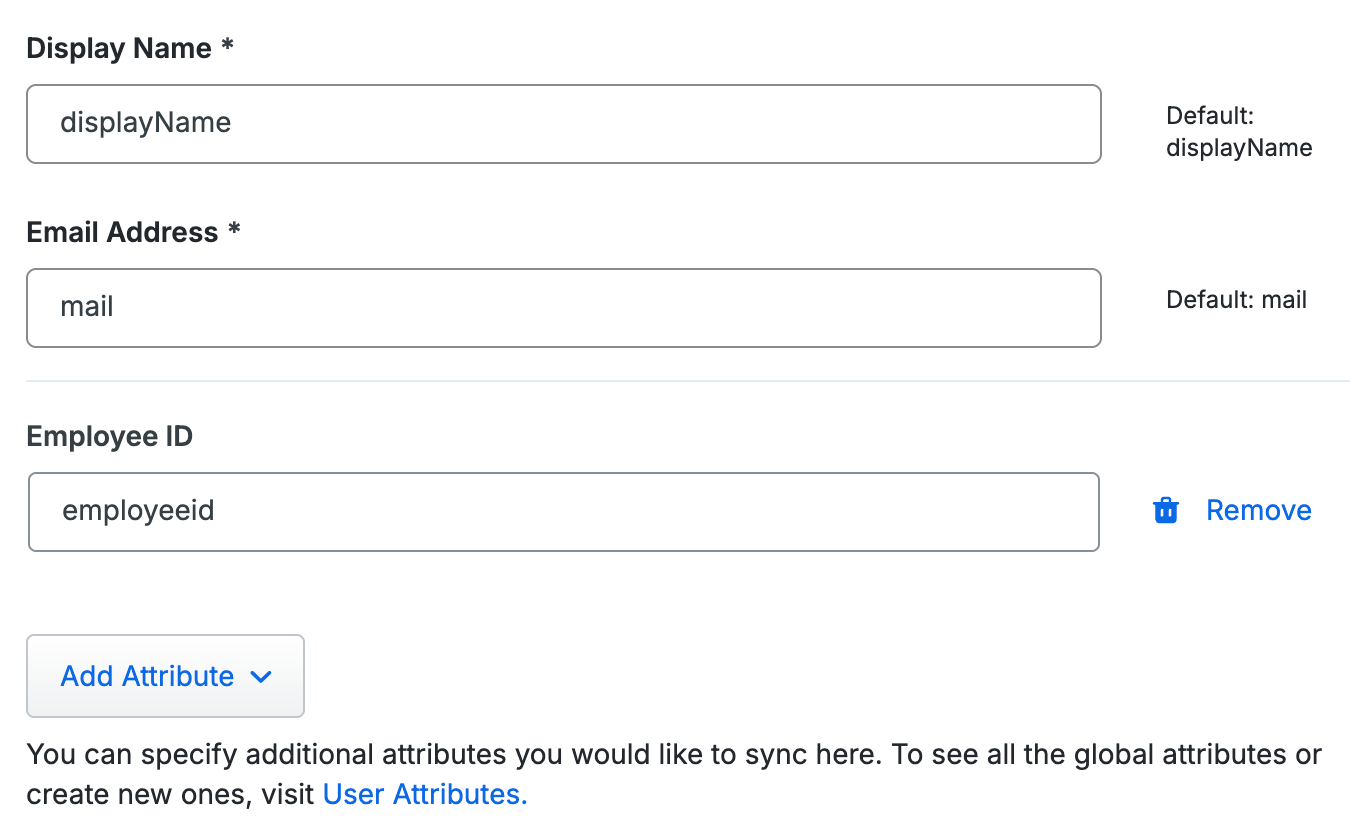
When creating a new directory sync, or while viewing the details of an existing directory sync, scroll down to the "Synced Attributes" section of the page.
-
Click the Add Attribute button and select the custom attribute you would like to add to this directory sync from the list.
-
Enter the external directory source attribute's name in the text field.
This example imports the employeeid attribute from an external directory into Duo as the "Employee ID" custom attribute.
Add Custom Attributes to Users from the Admin Panel
You can update individual users to add additional user attribute values from the Admin Panel. Identify user attributes that were manually added by the presence of a Remove action to the right of the input field.
Role required: Owner, Administrator, or User Manager.
-
Locate the user you want to edit using the search tool at the top of the page, or navigate to Users → Users. Click the username to view their details page.
-
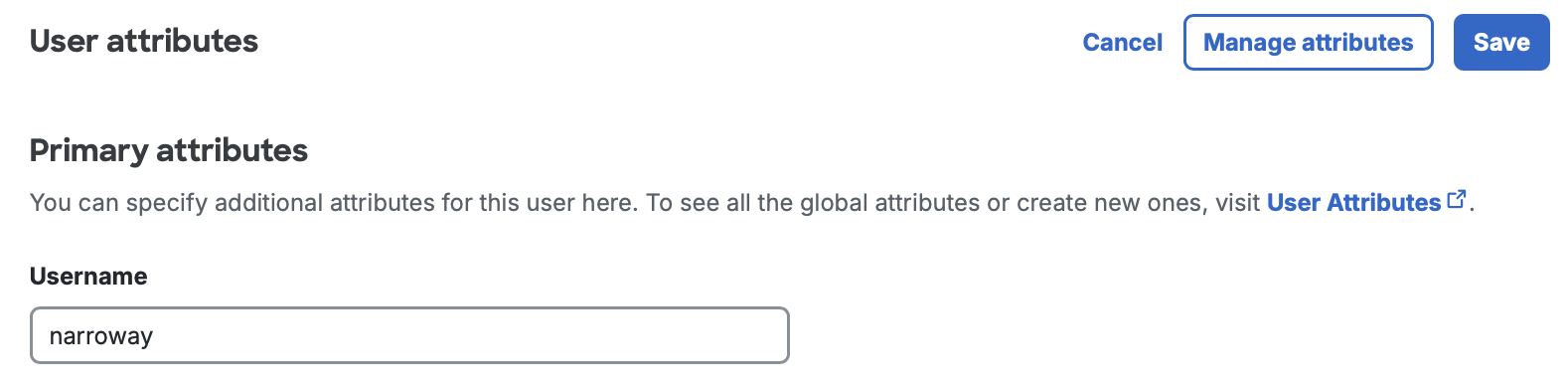
In the "User details" section, click Edit and click Manage attributes.
-
Select an available user attribute from the list and click Update.
-
Enter your desired value for that attribute in the text field.
-
Click Save.
The "Employee ID" custom attribute has already been added to the user with a value.
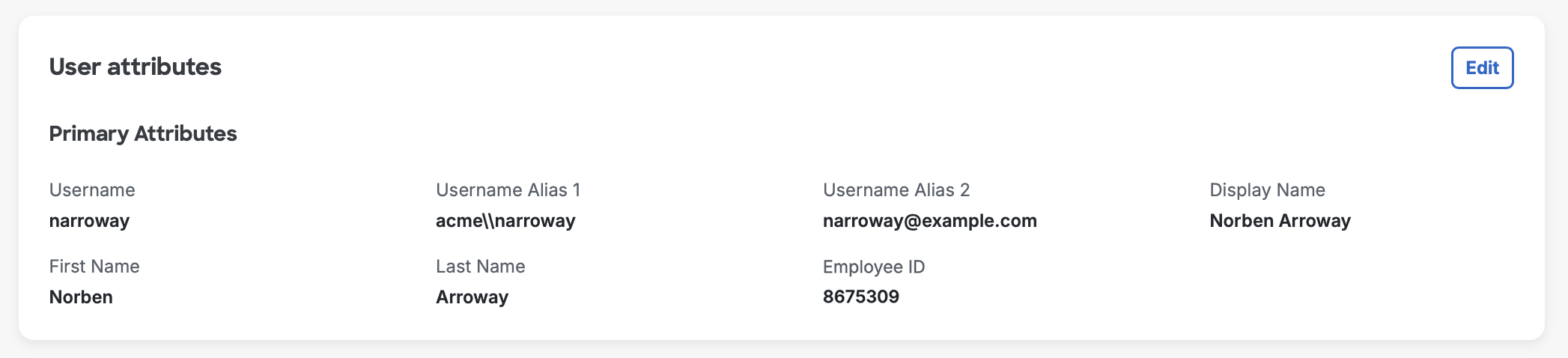
When you add a new user in the Admin Panel, you can add additional attributes immediately after user creation.
Delete Attributes from Users
To delete an additional attribute from a user:
-
In the "User details" section, click Edit and click Manage attributes.
-
Uncheck the user attribute(s) from the list and click Update.
-
Click Save.
Import Attribute Values from CSV Files
You can import values for any custom attributes you create via CSV file import. See Importing Users for more information.
Map Attributes from External SSO Sources
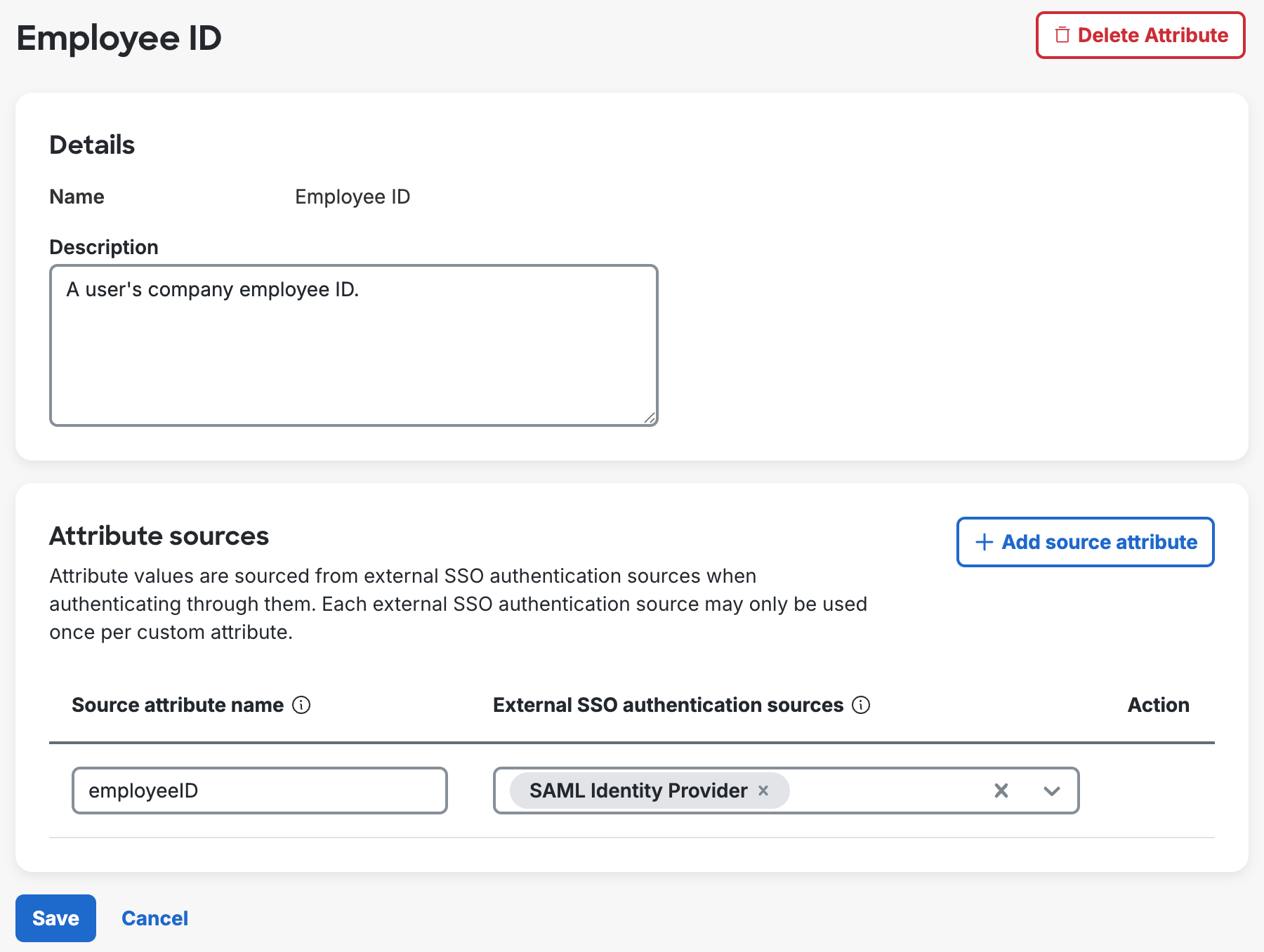
If you use an external authentication source with Duo Single Sign-On, such as Active Directory or a SAML identity provider, you can map custom user attributes to attributes that exist in your external authentication source. You can then configure your Duo SSO SAML applications to send your mapped custom attribute values from the external authentication source to the application when users sign in.
This example maps the "Employee ID" custom attribute to an employeeID attribute in an external SSO SAML authentication source.
Outbound Provisioning
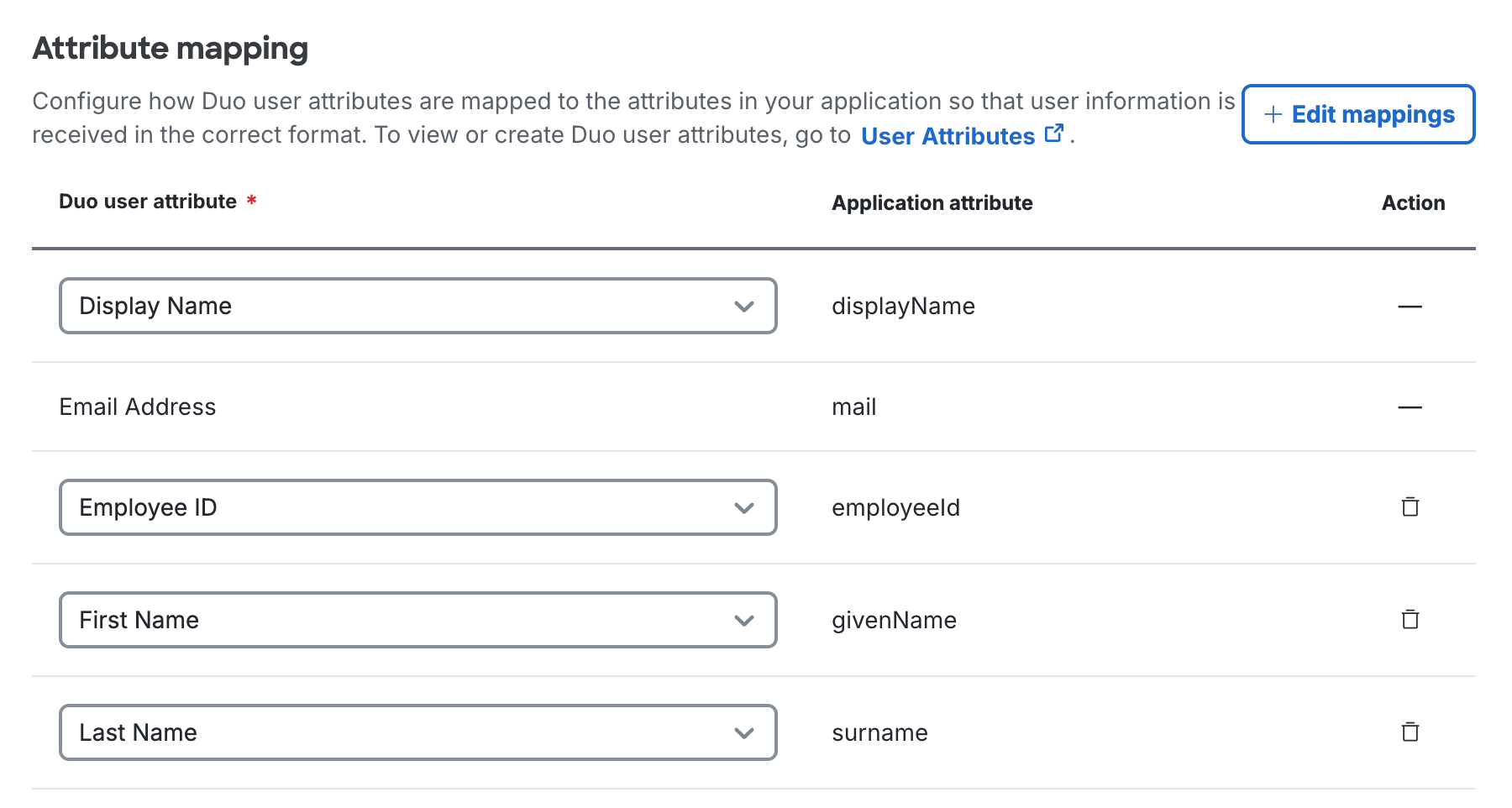
When configuring outbound provisioning for an application, user attributes can be mapped to application attributes. In this example, both default user attributes and the custom "Employee ID" attribute have been mapped to attributes supported by the external application.