
Duo Single Sign-On for Jenkins
Last updated:
Overview
As business applications move from on-premises to cloud hosted solutions, users experience password fatigue due to disparate logons for different applications. Single sign-on (SSO) technologies seek to unify identities across systems and reduce the number of different credentials a user has to remember or input to gain access to resources.
While SSO is convenient for users, it presents new security challenges. If a user's primary password is compromised, attackers may be able to gain access to multiple resources. In addition, as sensitive information makes its way to cloud-hosted services it is even more important to secure access by implementing two-factor authentication and zero-trust policies.
About Duo Single Sign-On
Duo Single Sign-On is our cloud-hosted SSO product which layers Duo's strong authentication and flexible policy engine on top of Jenkins logins. Duo Single Sign-On acts as an identity provider (IdP), authenticating your users using existing on-premises Active Directory (AD) or another SSO IdP. Duo SSO prompts users for two-factor authentication and performs endpoint assessment and verification before permitting access to Jenkins.
Duo Single Sign-On is available in Duo Premier, Duo Advantage, and Duo Essentials plans, which also include the ability to define policies that enforce unique controls for each individual SSO application. For example, you can require that Salesforce users complete two-factor authentication at every login, but only once every seven days when accessing Jenkins. Duo checks the user, device, and network against an application's policy before allowing access to the application.
Configure Single Sign-On
Before configuring Jenkins with Duo SSO using Security Assertion Markup Language (SAML) 2.0 authentication you'll first need to configure a working authentication source.
Once you have your SSO authentication source working, continue to the next step of creating the Jenkins application in Duo.
Create the Jenkins Application in Duo
-
Log in to the Duo Admin Panel and navigate to Applications → Application Catalog.
-
Locate the entry for Jenkins with the "SSO" label in the catalog. Click the + Add button to start configuring Jenkins. See Protecting Applications for more information about protecting applications with Duo and additional application options. You'll need the information on the Jenkins page later to complete your setup.
-
No active Duo users can log in to new applications until you grant access. Update the User access setting to grant access to this application to users in selected Duo groups, or to all users. Learn more about user access to applications. If you do not change this setting now, be sure to update it so that your test user has access before you test your setup.
This setting only applies to users who exist in Duo with "Active" status. This does not affect application access for existing users with "Bypass" status, existing users for whom the effective Authentication Policy for the application specifies "Bypass 2FA" or "Skip MFA", or users who do not exist in Duo when the effective New User Policy for the application allows access to users unknown to Duo without MFA. -
Jenkins uses the Mail attribute, First name attribute, and Last name attribute when authenticating. We've mapped these attributes to external authentication source attributes as follows:
Default Attribute Active Directory SAML IdP <Email Address> mail Email <First Name> givenName FirstName <Last Name> sn LastName If you are using non-standard attributes for your authentication source, check the Custom attributes box and enter the name of the attributes you wish to use instead.
-
You can adjust additional settings for your new SAML application at this time — like changing the application's name from the default value, enabling self-service, or assigning a group policy.
-
Keep the Duo Admin Panel tab open. You will come back to it later.
Duo Universal Prompt
The Duo Universal Prompt provides a simplified and accessible Duo login experience for web-based applications, offering a redesigned visual interface with security and usability enhancements.
| Universal Prompt | Traditional Prompt |
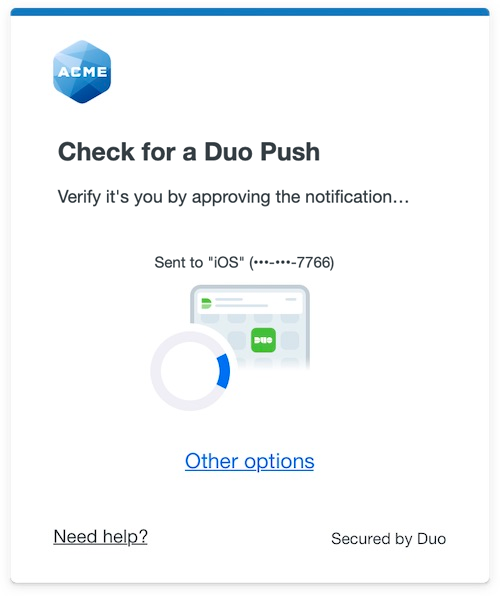 |
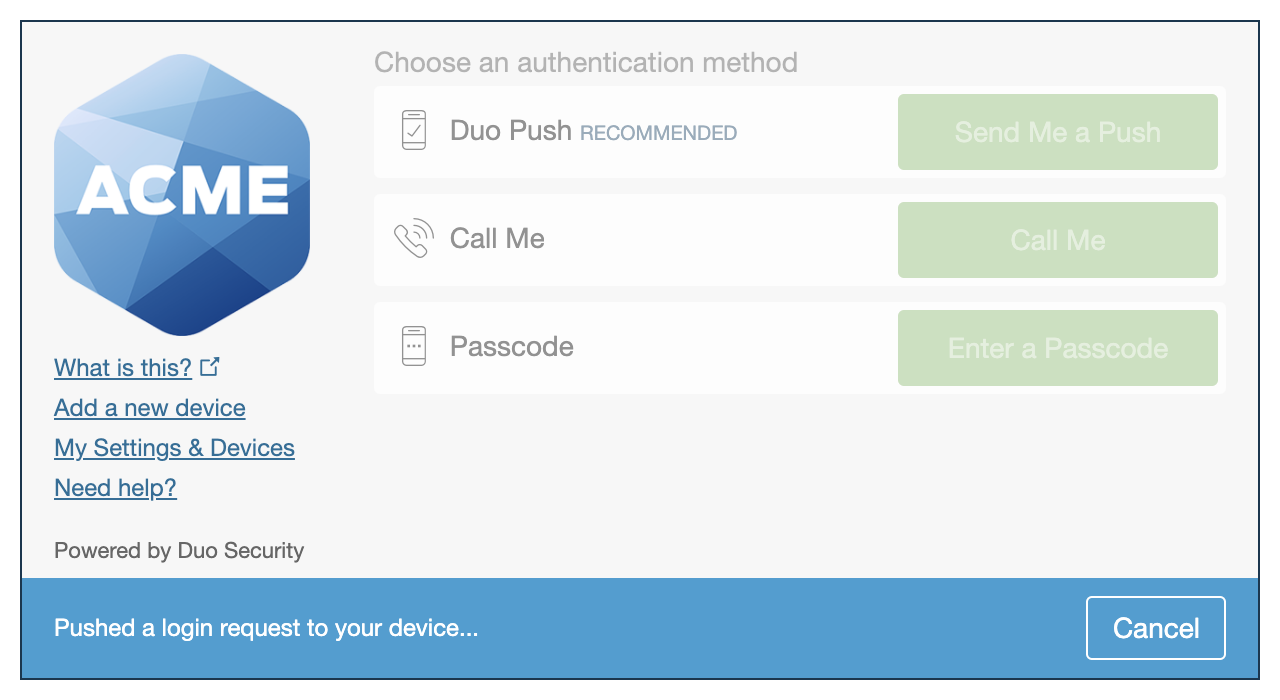 |
The Duo Jenkins application supports the Universal Prompt by default, so there's no additional action required on your part to start using the newest authentication experience.
Activate Universal Prompt
Activation of the Universal Prompt is a per-application change. Activating it for one application does not change the login experience for your other Duo applications. Universal Prompt is already activated for new Jenkins applications at creation.
The "Universal Prompt" area of the application details page shows that this application's status is "Activation complete", with these activation control options:
- Show traditional prompt: Your users experience Duo's traditional prompt via redirect when logging in to this application.
- Show new Universal Prompt: (Default) Your users experience the Universal Prompt via redirect when logging in to this application.
The application's Universal Prompt status shows "Activation complete" both here and on the Universal Prompt Update Progress report.
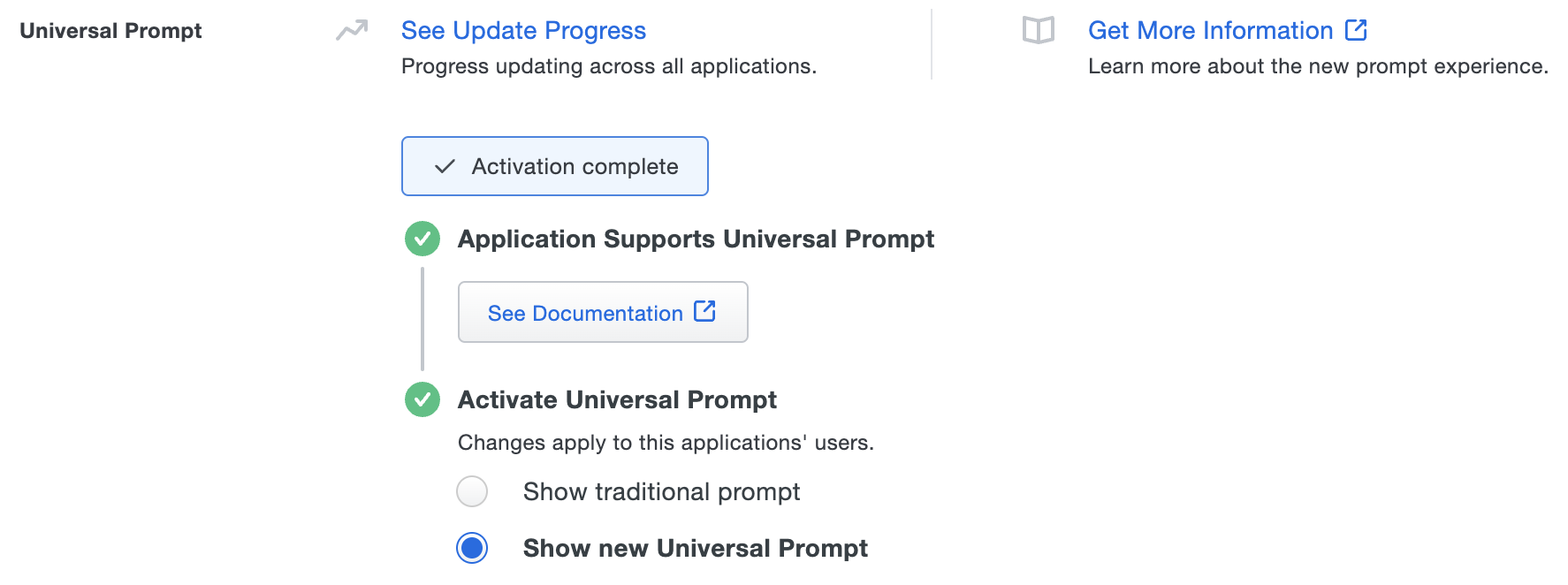
For the time being, you may change this setting to Show traditional prompt to use the legacy experience. Keep in mind that support for the traditional Duo prompt ended for the majority of applications in March 2024. This option will be removed in the future.
Universal Update Progress
Click the See Update Progress link to view the Universal Prompt Update Progress report. This report shows the update availability and migration progress for all your Duo applications. You can also activate the new prompt experience for multiple supported applications from the report page instead of visiting the individual details pages for each application.
Install the SAML Plugin
Before you can enable Jenkins for SSO, you need to install the SAML plugin.
-
Log in to your Jenkins account as an administrator.
-
In the top-right corner of the page, click the Manage Jenkins gear icon. The "Manage Jenkins" page opens.
-
Under "System Configuration", click Plugins. The "Plugins" page opens.
-
In the sidebar menu, click Available plugins.
-
In the search bar, search for SAML. In the search results, click the checkbox next to SAML Plugin.
-
In the top-right corner of the page, click the Install drop-down menu and select Install after restart. The "Download progress" page opens.
-
Click the Restart Jenkins when installation is complete and no jobs are running checkbox.
-
When the installation is complete, you will be prompted to log back into Jenkins.
Enable Jenkins for SSO
-
Log in to your Jenkins account as an administrator.
-
In the top-right corner of the page, click the Manage Jenkins gear icon. The "Manage Jenkins" page opens.
-
Under "Security", click Security. The "Security" page opens.
-
Under "Authentication", click the Security Realm drop-down menu and select SAML 2.0.
-
Return to the Duo Admin Panel. Under "Metadata", copy the Metadata URL and paste it into the Jenkins IdP Metadata URL field.

-
In Jenkins, click Validate IdP Metadata URL.
-
Type username into the Username Attribute field.
-
Type email into the Email Attribute field.
-
Click the Data Binding Method drop-down menu and select HTTP-POST.
-
Click the Authorization drop-down menu and select your desired value.
-
At the bottom of the page, click Save. You will return to the "Manage Jenkins" page.
-
Under "Security", click Security. The "Security" page opens.
-
Scroll down to the bottom of the "Security Realm" section. Right-click the Service Provider Metadata link and save the link as an XML file.
Example: sp_metadata.xml
-
Return to the Duo Admin Panel. Under "Service Provider", click Choose File and open the XML file you saved from Jenkins earlier.
-
In the Duo Admin Panel, scroll down to the bottom of the page and click Save.
Group Mapping
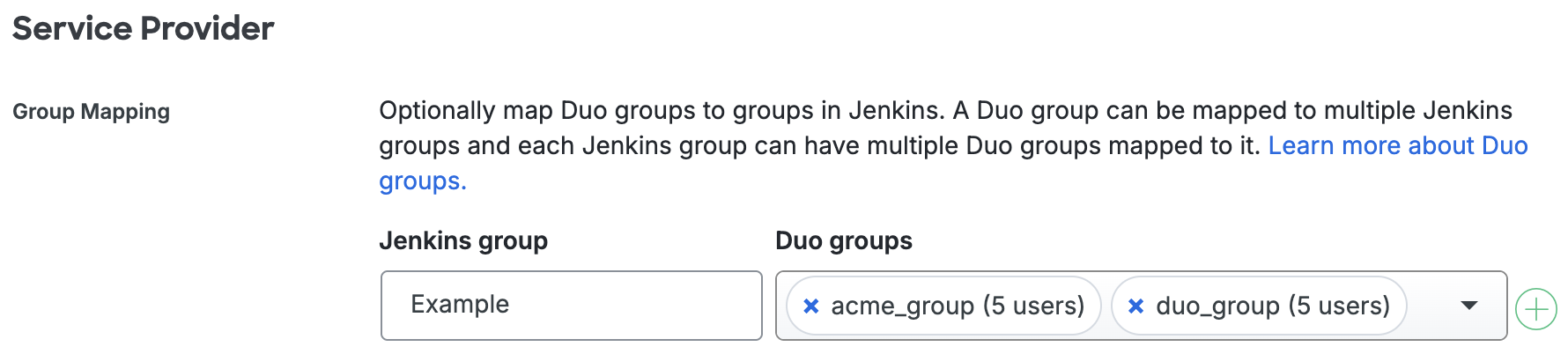
You have the option to map Duo groups to different groups in Jenkins. You need to download and configure a plugin in Jenkins to use for group mapping.
-
Log in to your Jenkins account as an administrator.
-
Locate and make note of the group that you created in Jenkins using your preferred Jenkins plugin.
-
Return to the Duo Admin Panel. Under "Service Provider", enter the name of the Jenkins group you noted earlier into the Jenkins group field.
-
In the Duo Admin Panel, click the Duo groups drop-down menu and select the Duo group(s) you want to map.
-
Scroll down to the bottom of the page and click Save.
Learn more about Jenkins SSO at Jenkins Documentation.
Using SSO
You can log in to Jenkins by navigating to your Jenkins SSO page using your Jenkins endpoint. In the top-right corner of the page, click Sign In to be automatically redirected to Duo Single Sign-On to begin authentication.
Duo SSO Login
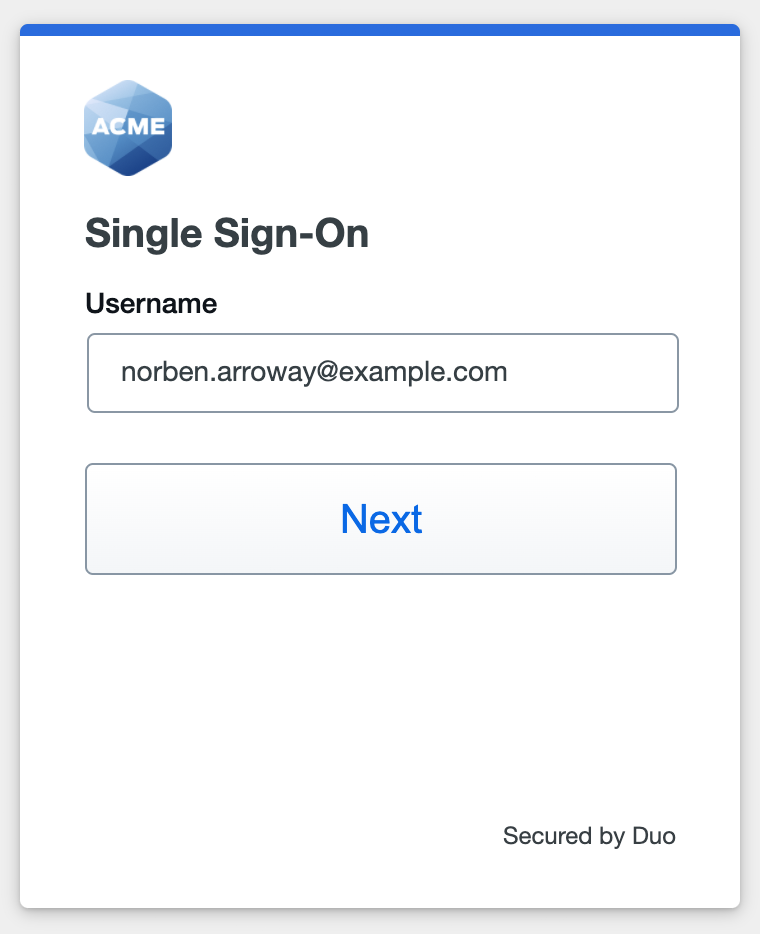
Enter the primary username (email address) on the Duo SSO login page and click or tap Next.
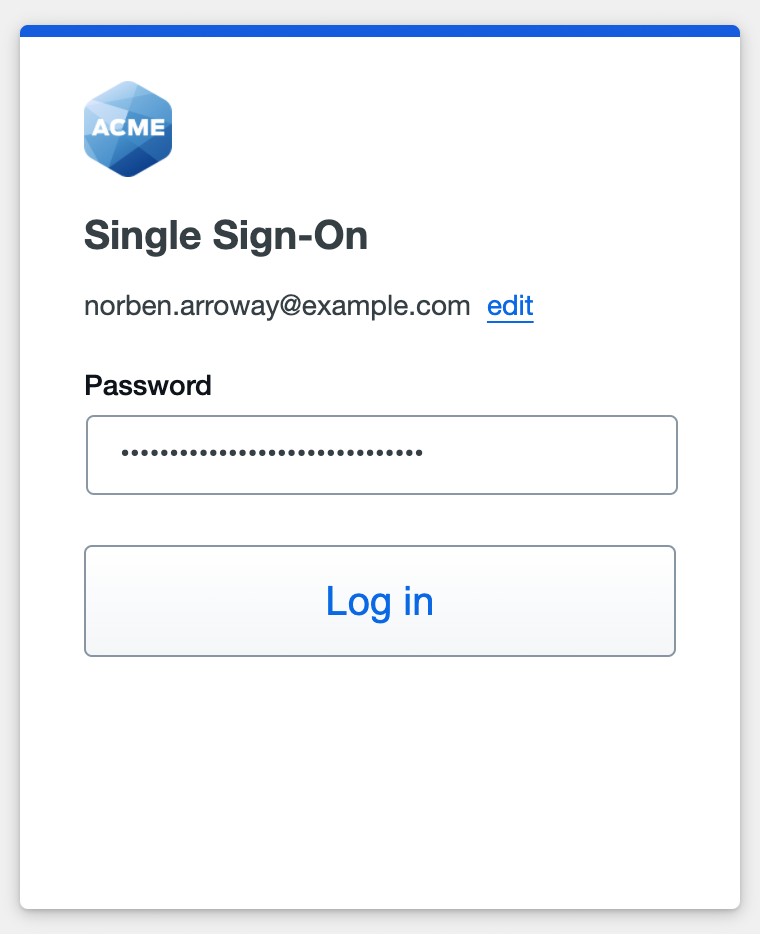
Enter the Duo Directory or AD primary password and click or tap Log in to continue.
Enable Duo Passwordless to log in to Duo SSO without entering a password in the future.
SAML Login
The SAML login experience depends on your Duo SSO routing rules configuration.
With another SAML identity provider as the only enabled Duo SSO authentication source and the default routing rule in place, Duo SSO immediately redirects the login attempt to that SAML IdP for primary authentication. Users do not see the Duo SSO primary login screen.
If you have multiple enabled SAML authentication sources or custom routing rules in place, then users enter their primary username (email address) on the Duo SSO login page and then will be redirected to the correct external SAML identity provider.
Duo Authentication
Successful verification of your primary credentials redirects back to Duo. Complete Duo two-factor authentication when prompted and then you'll return to Jenkins to complete the login process.
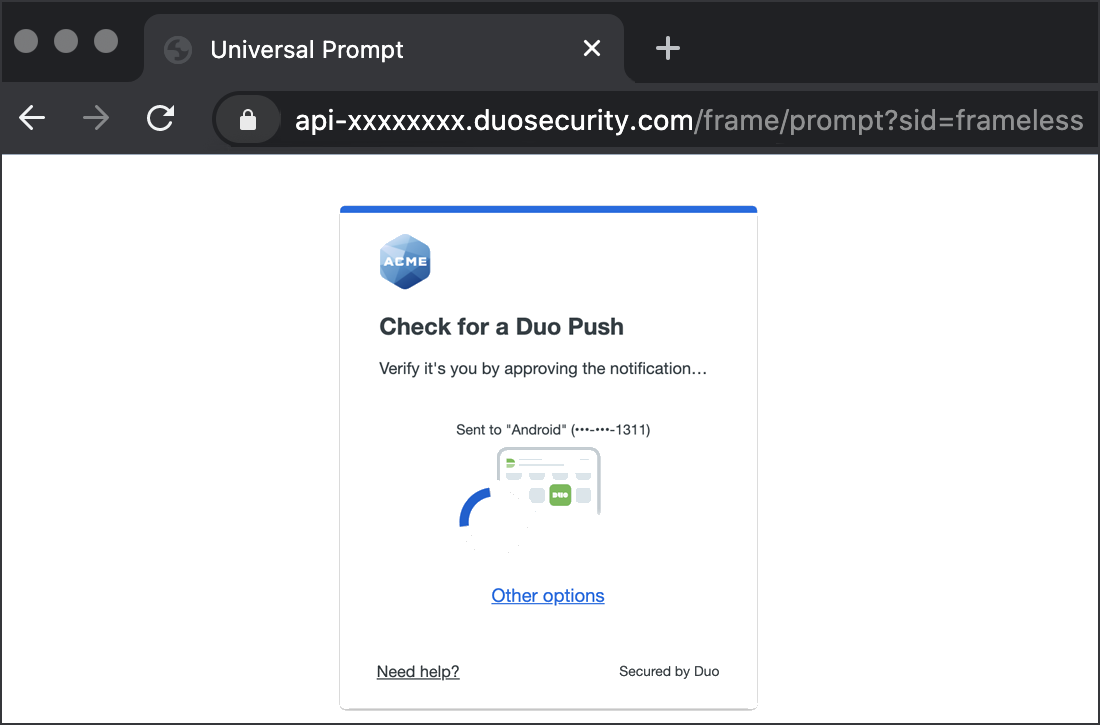
* Universal Prompt experience shown.
You can also log in to Jenkins using Duo Central, our cloud-hosted portal which allows users to access all of their applications in one spot. Link to Jenkins in Duo Central by adding it as an application tile. Once the tile has been added, log in to Duo Central and click the tile for IdP-initiated authentication to Jenkins.
Congratulations! Your Jenkins users now authenticate using Duo Single Sign-On.
See the full user login experience, including expired password reset (available for Active Directory authentication sources) in the Duo End User Guide for SSO.
Grant Access to Users
If you did not already grant user access to the Duo users you want to use this application be sure to do that before inviting or requiring them to log in with Duo.
Enable Remembered Devices
To minimize additional Duo two-factor prompts when switching between Jenkins and your other Duo Single Sign-On SAML applications, be sure to apply a shared "Remembered Devices" policy to your SAML applications.
Add Ownership and Risk Information
Go to the "Ownership and Risk" section of the application's page in the Duo Admin Panel to assign application owners and classify the application's risk level. Cisco Identity Intelligence automatically imports this information to populate relevant fields for Duo Advantage and Premier customers. Duo Essentials plans exclude Cisco Identity Intelligence features.
You may set any of the following:
- Technical Owner: Search for and assign Duo users responsible for technical configuration and maintenance of this application.
- Business Owner: Search for and assign Duo users responsible for business decisions and access approvals related to this application.
- Application Sensitivity: Select this application's risk level from the drop-down list. Default: Not Set.
- Compliance Requirements: Select any applicable regulatory frameworks for this application (SOX (Sarbanes-Oxley), HIPAA, PCI-DSS, etc.) from the list.
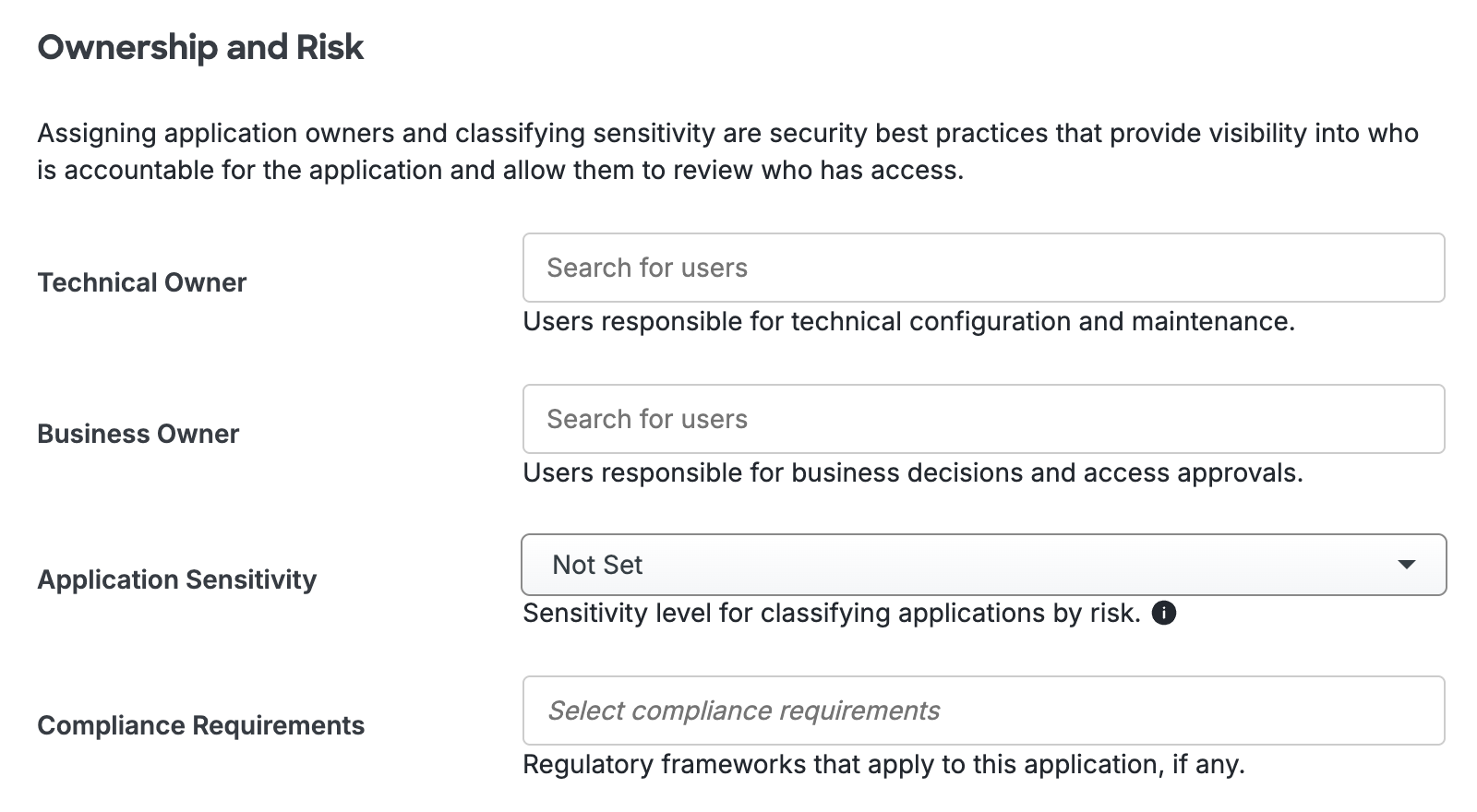
Scroll to the bottom of the page and click Save to apply your changes.
Automated Provisioning
You may be able to create, manage, and delete users and groups in this application automatically from Duo using SCIM 2.0 provisioning. See Automated Provisioning to learn how.
Troubleshooting
Need some help? Try searching our Knowledge Base articles or Community discussions. For further assistance, contact Support.