
Duo Trusted Endpoints - CrowdStrike Falcon
Last updated:
Overview
Duo's Trusted Endpoints feature secures your sensitive applications by ensuring that only known devices can access Duo-protected services. When a user authenticates via the Duo Prompt, we'll check for the access device's management status. You can monitor access to your applications from trusted and untrusted devices, and optionally block access from devices not trusted by your organization.
Trusted Endpoints is part of the Duo Essentials, Duo Advantage, and Duo Premier plans.
Before enabling the Trusted Endpoints policy on your applications, you'll need to allow REST API access for Duo to your managed devices. This guide walks you through the CrowdStrike Falcon MDM configuration.
Requirements
-
Access to the CrowdStrike Falcon console with the rights to create new API clients.
-
Access to the Duo Admin Panel with privileges to create new integrations, change policies, and create and delete new users. For more information, see Duo administrative roles.
-
CrowdStrike Falcon Sensor installed and running on your endpoints.
-
Deploy Duo Desktop for Windows 10 and later or macOS to your endpoints. Refer to the Duo Desktop documentation to learn about different options for deploying the application.
Note that you do not need to configure a Duo Desktop policy in order to use CrowdStrike Falcon with Duo Desktop.
Create the API Client in the CrowdStrike Falcon Console
-
Log in to the CrowdStrike Falcon console.
-
Click on the menu icon and go to Support and resources → API clients and keys.
-
Create a new API client by clicking on the Create API client button.
-
Enter a Client name and an optional Description.
-
In the "API Scopes" section, check the box to grant Read permission to the "Hosts" scope.
-
Click Create.
-
Keep the API client page open. You will provide the Client ID, Secret, and Base URL values to Duo later.
macOS
This integration relies on having Duo Desktop present on your CrowdStrike-managed macOS endpoints. When users authenticate to applications protected with Duo's browser-based prompt, Duo matches the device identifiers reported by Duo Desktop with managed device information obtained from CrowdStrike Falcon in a nightly sync via read-only API access (note this sync can't be manually initiated or rescheduled at this time).
Create the CrowdStrike Falcon Integration
- Log in to the Duo Admin Panel and navigate to Devices → Trusted Endpoints.
- If this is your first management integration, click the Get started button at the bottom of the Trusted Endpoints introduction page. If you're adding another management integration, click the Add Integration button you see at the top of the page instead.
- On the "Add Trusted Endpoint Integrations" page, locate CrowdStrike Falcon in the list of integrations.
- Choose macOS from the "Select operating system" drop-down, and then click the Add button.
The new CrowdStrike Falcon integration is created in the "Disabled" state. You'll turn it on when you're ready to apply your Duo trusted endpoints policy.
Please note that this integration requires Duo Desktop to be installed on the device to be considered trusted.
Enter CrowdStrike Falcon Info in Duo
-
Return to the API client you created earlier in the CrowdStrike Falcon console.
-
Copy the Client ID value from CrowdStrike and paste it into the Client ID field in the Duo Admin Panel.
-
Copy the Secret value from CrowdStrike and paste it into the Client Secret field in the Duo Admin Panel.
-
Copy the Base URL value from CrowdStrike and paste it into the API Hostname field in the Duo Admin Panel.
-
Click Test Configuration to verify CrowdStrike Falcon API access. You'll receive a "Configuration Successful!" message if everything's correct. If the test fails, verify that you entered the right information in the Duo Admin Panel.
-
After you successfully test your configuration, click the Save & Configure button.
At this point the configured integration is disabled and applies to no users until you finish your deployment.
Windows
This integration relies on having Duo Desktop present on your CrowdStrike-managed Windows endpoints. When users authenticate to applications protected with Duo's browser-based prompt, Duo matches the device identifiers reported by Duo Desktop with managed device information obtained from CrowdStrike Falcon in a nightly sync via read-only API access (note this sync can't be manually initiated or rescheduled at this time).
Create the CrowdStrike Falcon Integration
- Log in to the Duo Admin Panel and navigate to Devices → Trusted Endpoints.
- If this is your first management integration, click the Get started button at the bottom of the Trusted Endpoints introduction page. If you're adding another management integration, click the Add Integration button you see at the top of the page instead.
- On the "Add Trusted Endpoint Integrations" page, locate CrowdStrike Falcon in the list of integrations.
- Choose Windows from the "Select operating system" drop-down, and then click the Add button.
The new CrowdStrike Falcon integration is created in the "Disabled" state. You'll turn it on when you're ready to apply your Duo trusted endpoints policy.
Please note that this integration requires Duo Desktop to be installed on the device to be considered trusted.
Enter CrowdStrike Falcon Info in Duo
-
Return to the API client you created earlier in the CrowdStrike Falcon console.
-
Copy the Client ID value from CrowdStrike and paste it into the Client ID field in the Duo Admin Panel.
-
Copy the Secret value from CrowdStrike and paste it into the Client Secret field in the Duo Admin Panel.
-
Copy the Base URL value from CrowdStrike and paste it into the API Hostname field in the Duo Admin Panel.
-
Click Test Configuration to verify CrowdStrike Falcon API access. You'll receive a "Configuration Successful!" message if everything's correct. If the test fails, verify that you entered the right information in the Duo Admin Panel.
-
After you successfully test your configuration, click the Save & Configure button.
At this point the configured integration is disabled and applies to no users until you finish your deployment.
Finish Trusted Endpoints Deployment
After creating the CrowdStrike Falcon Trusted Endpoints management integration, set the Trusted Endpoints policy to start checking for managed device status as users authenticate to Duo-protected services and applications.
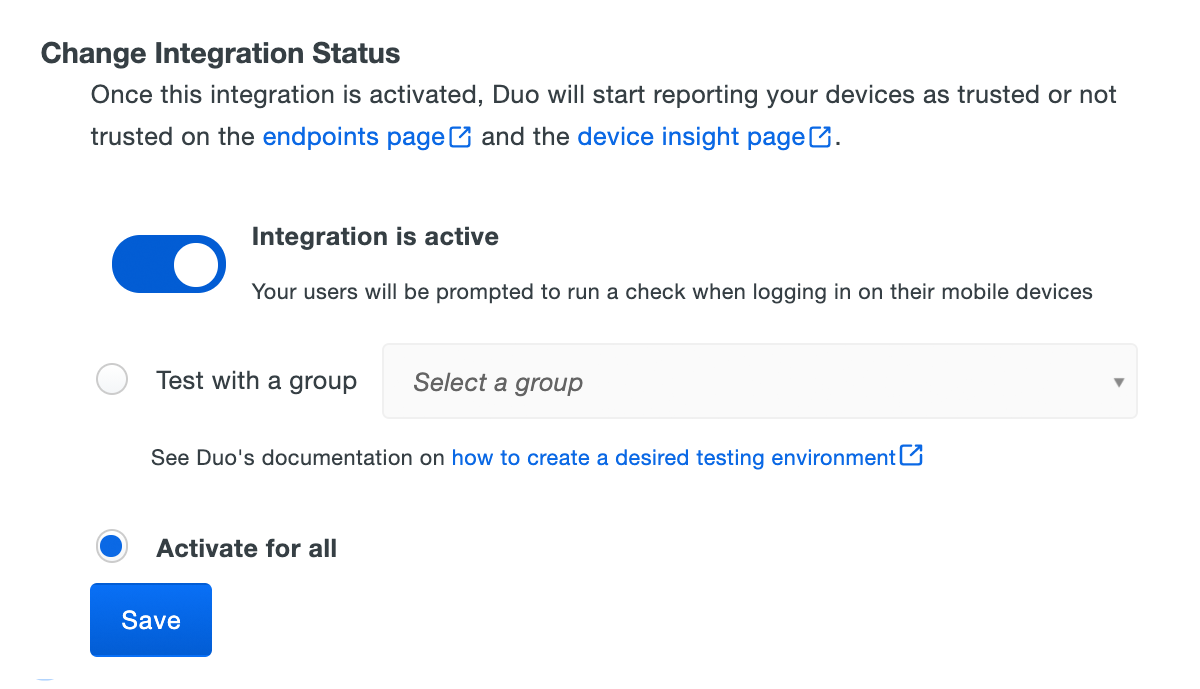
When your trusted endpoints policy is applied to your Duo applications, return to the CrowdStrike Falcon trusted endpoint management integration in the Admin Panel. The "Change Integration Status" section of the page shows the current integration status (disabled by default after creation). You can choose to either activate this integration only for members of a specified test group or groups, or activate for all users. If you created more than one CrowdStrike Falcon management integration, you must activate each one individually.
Duo Premier and Duo Advantage plans: The Device Insight and Endpoints pages in the Duo Admin Panel show which access devices are verified.
Device data syncs from CrowdStrike to Duo periodically. It may take up to 24 hours for newly enrolled devices to appear.
Verify Your Setup
When Windows or macOS users access Duo-protected resources, the installed Duo Desktop agent reports a device identifier that Duo matches against your synced CrowdStrike inventory. If the information from the device matches the information in CrowdStrike Falcon, Duo grants access to the trusted device.
Search for Device Identifiers
You can search for specific device identifiers to verify that the identifier information for a given trusted device exists in Duo. This can be useful to verify if a device you expect to be trusted was imported from CrowdStrike into Duo.
To search for a device identifier in Duo:
-
Log in to the Duo Admin Panel and navigate to Devices → Trusted Endpoints.
-
Locate the CrowdStrike Falcon integration you want to search for a device identifier in the list and click on it to view its details.
-
In the Check if devices have synced section, enter the identifier for the device you want to check and click Search.
-
A message appears indicating if the device identifier was either found or not found. If the device identifier is not found, check your API configuration and wait 24 hours.
Use these instructions to find the device identifier to search in CrowdStrike:
-
Log in to the CrowdStrike administration center, navigate to Asset inventory → Asset overview → Managed assets, and select a device to view. The table you see includes a list of the managed devices that have installed the CrowdStrike Falcon Sensor related to your organization.
-
The "Asset ID", which is the same as the CrowdStrike "Agent ID", is the device identifier. Copy this value and use it to perform the search in Duo.
Remove the CrowdStrike Falcon Integration
Be sure to unassign your trusted endpoints policy from all applications or remove the "Trusted Endpoints" configuration item from your global policy before deleting an existing CrowdStrike integration from "Trusted Endpoints Configuration".
Leaving the policy settings in place after deleting a trusted endpoint integration may inadvertently block user access to applications.
Troubleshooting
Need some help? Take a look at our Trusted Endpoints Knowledge Base articles or Community discussions. For further assistance, contact Support.