
Duo Trusted Endpoints - Desktop Registration as Trust
Last updated:
Duo's Trusted Endpoints feature secures your sensitive applications by ensuring that only known devices can access Duo-protected services. When a user authenticates via the Duo Prompt, we'll check for the access device's management status. You can monitor access to your applications from trusted and untrusted devices, and optionally block access from devices not trusted by your organization.
Trusted Endpoints is part of the Duo Essentials, Duo Advantage, and Duo Premier plans.
Desktop Registration as Trust
Duo considers a desktop device registered with the Duo Desktop app trusted when a Desktop Registration as Trust management integration is active for the relevant operating system, provided that all policies are correctly configured. When a user authenticates via the Duo Prompt, we'll check for the presence of Duo Desktop on that endpoint, and verify the endpoint is a registered device.
Devices registered and enrolled in this integration appear in the Registered Devices table on the "Device Registration" page in the Duo Admin Panel. Here, you can monitor access to your applications from trusted and untrusted devices and optionally remove or block devices not trusted by your organization. Removing a registered device allows it to register again. Blocking a device prevents future registration.
Note: The device registration policies allow a many-to-many relationship between devices and users. This means that multiple users can be registered to a single device, and multiple endpoint devices can be registered to a user. This Trusted Endpoints integration uses automatic registration, which limits your ability to add and remove trusted devices. See the Registered Devices table to audit your registered devices.
Prerequisites
- Access to the Duo Admin Panel as an administrator with the Owner or Administrator administrative roles.
- Deploy Duo Desktop to your Linux, macOS, and Windows endpoints. Refer to the Duo Desktop documentation to learn about different options for deploying the application.
- Edit your global policy or apply a custom group or application policy with these Duo Desktop policy settings:
- Require Duo Desktop: Set to Require the app for macOS, Linux, and Windows.
- Device Registration: Enable both Require devices to be registered using Duo Desktop and Block devices presenting already registered device identifiers.
- New user enrollment: Desktop Registration as Trust cannot be enforced during new user enrollment. Users must complete the initial Duo enrollment before they can register their device with Duo Desktop. To onboard new users, either temporarily exclude them from Desktop Registration as Trust enforcement or use Trusted Endpoints test groups to phase in enforcement after enrollment is complete.
Linux
Create the Desktop Registration as Trust Integration
- Log in to the Duo Admin Panel and navigate to Devices → Trusted Endpoints.
- If this is your first management integration, click the Get started button at the bottom of the Trusted Endpoints introduction page. If you're adding another management integration, click the Add Integration button you see at the top of the page instead.
- On the "Add Trusted Endpoint Integrations" page, locate Desktop Registration as Trust in the list of integrations.
- Choose Linux from the "Select operating system" drop-down, and then click the Add button.
The new Desktop Registration as Trust integration is created in the "Disabled" state. You'll turn it on when you're ready to apply your Duo trusted endpoints policy.
On creation, the integration is disabled and applies to no users until you finish your deployment.
macOS
Create the Desktop Registration as Trust Integration
- Log in to the Duo Admin Panel and navigate to Devices → Trusted Endpoints.
- If this is your first management integration, click the Get started button at the bottom of the Trusted Endpoints introduction page. If you're adding another management integration, click the Add Integration button you see at the top of the page instead.
- On the "Add Trusted Endpoint Integrations" page, locate Desktop Registration as Trust in the list of integrations.
- Choose macOS from the "Select operating system" drop-down, and then click the Add button.
The new Desktop Registration as Trust integration is created in the "Disabled" state. You'll turn it on when you're ready to apply your Duo trusted endpoints policy.
On creation, the integration is disabled and applies to no users until you finish your deployment.
Windows
Create the Desktop Registration as Trust Integration
- Log in to the Duo Admin Panel and navigate to Devices → Trusted Endpoints.
- If this is your first management integration, click the Get started button at the bottom of the Trusted Endpoints introduction page. If you're adding another management integration, click the Add Integration button you see at the top of the page instead.
- On the "Add Trusted Endpoint Integrations" page, locate Desktop Registration as Trust in the list of integrations.
- Choose Windows from the "Select operating system" drop-down, and then click the Add button.
The new Desktop Registration as Trust integration is created in the "Disabled" state. You'll turn it on when you're ready to apply your Duo trusted endpoints policy.
On creation, the integration is disabled and applies to no users until you finish your deployment.
Finish Trusted Endpoints Deployment
Once your managed computers have Duo Desktop installed and you've made the required Duo Desktop policy changes, you can update the Trusted Endpoints policy to start checking for management status as users authenticate to Duo-protected services and applications.
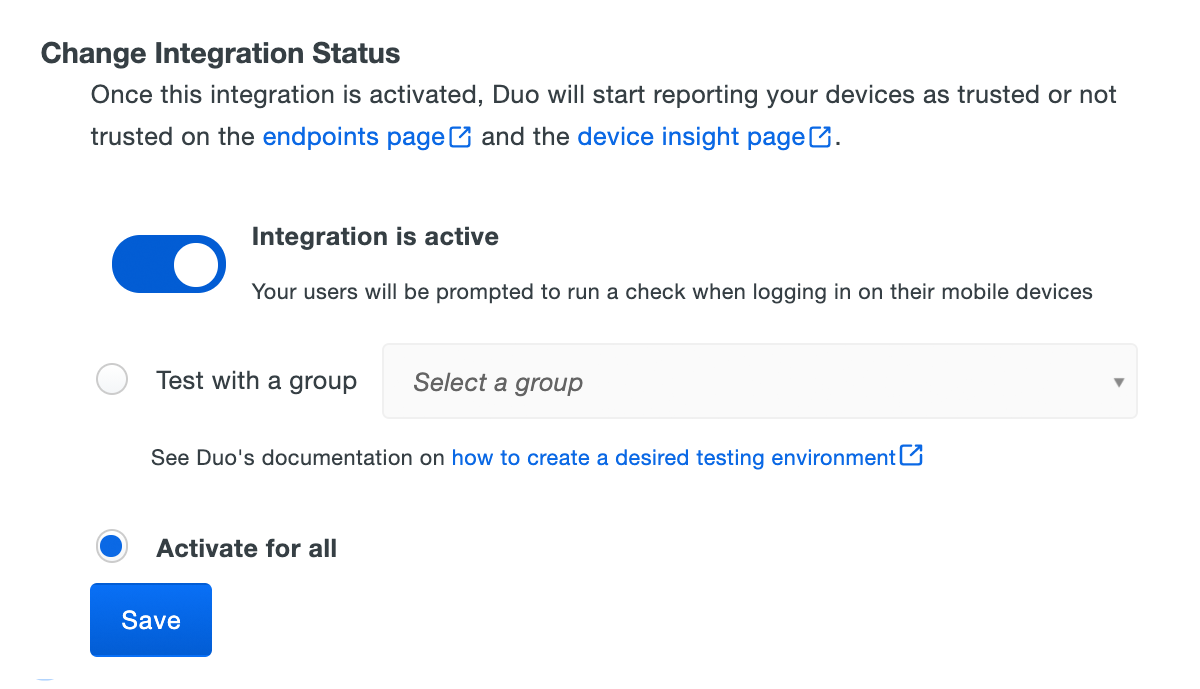
When your trusted endpoints policy is applied to your Duo applications, return to the "Desktop Registration as Trust" integration in the Duo Admin Panel. The "Change Integration Status" section of the page shows the current integration status (disabled by default after creation). You can choose to either activate this management integration only for members of a specified test group, or activate for all users. If you created more than one Duo Desktop integration, you must activate each one individually. You will still be able to edit your inventory when the integration is activated.
The Device Insight and Endpoints pages in the Duo Admin Panel show trusted and untrusted access device status.
Verify Your Setup
When users access Duo-protected resources, Duo Desktop provides device information to Duo. If the trusted endpoints policy blocks access from unmanaged devices and Duo successfully verifies the device information against the required policy settings, then the user receives access to the protected application.
If Desktop Registration as Trust is configured and enforced, and the endpoint is set up as required, Duo prompts users to authenticate twice from an unregistered device: once to complete registration and once to authenticate.
Remove the Desktop Registration as Trust Integration
Deleting a trusted endpoints management tool integration from the Duo Admin Panel can prevent user authentication. Be sure to unassign your trusted endpoints policy from all applications or remove the "Trusted Endpoints" configuration item from your global policy before deleting an existing Desktop Registration as Trust integration from "Trusted Endpoints Configuration".
Leaving the policy settings in place after deleting a management tools integration may inadvertently block user access to applications.
Troubleshooting
Need some help? Take a look at our Trusted Endpoints Knowledge Base articles or Community discussions. For further assistance, contact Support.