Legacy Policy Editor
Last updated:
Using the Legacy Policy Editor
The legacy policy editor opens as a floating editor over the current page. Click Save Policy when your edits are complete.
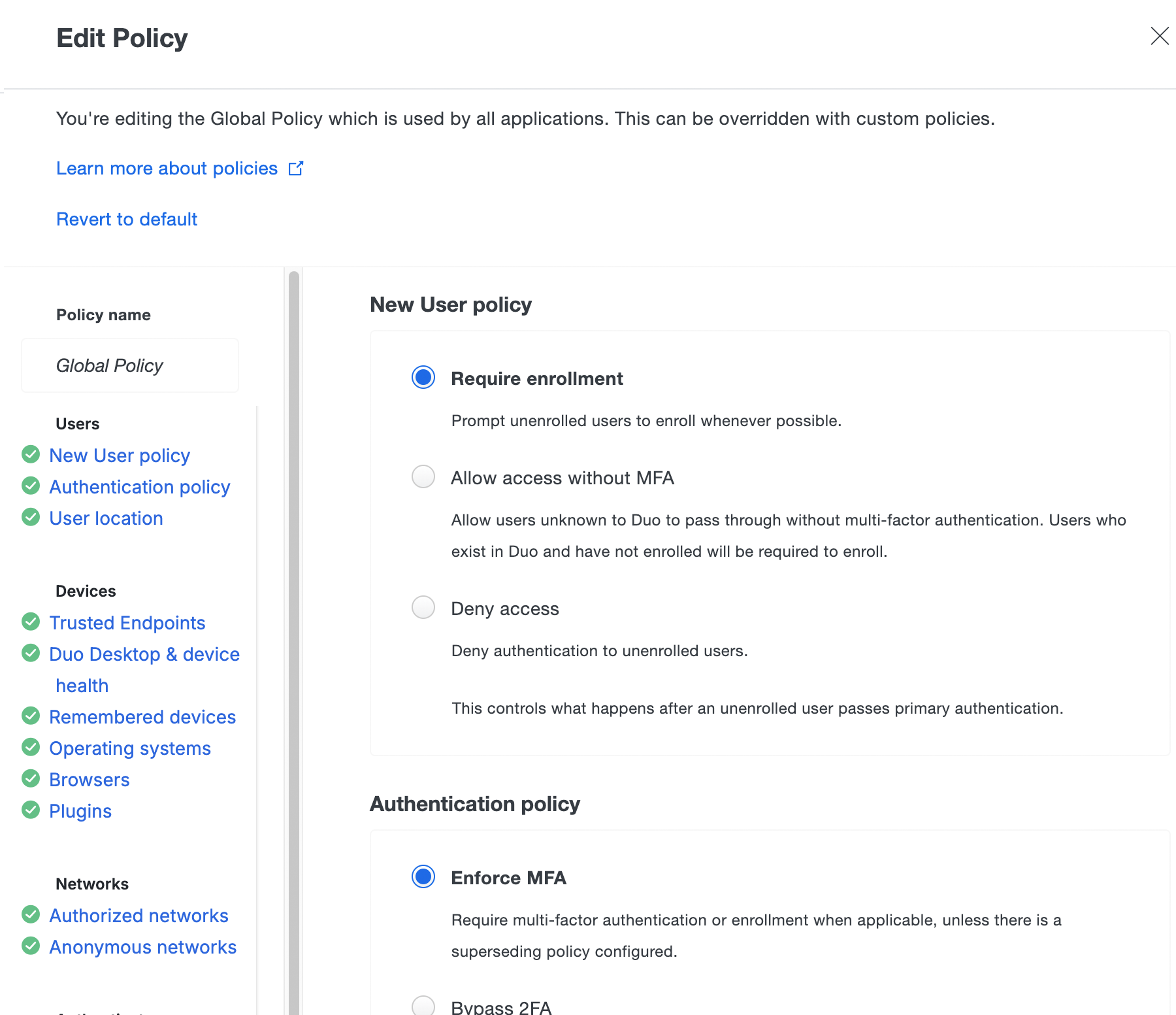
If you are editing the Global Policy and want to restore the original settings, click the Revert to default link at the top of the "Edit Policy" window. Click Save Policy to apply the Global Policy defaults.
To remove a setting from a custom policy, click the X in the top-right corner of that policy section.
Users Policy Settings
New User Policy
Available in: Duo Free, Duo Essentials, Duo Advantage, and Duo Premier
The new user policy controls authentication for unknown users, in other words, users not yet enrolled in Duo. In Duo, an enrolled user is someone who exists in the service and has at least one authentication device attached, which can be a phone, hardware token, etc. The new user policy can be one of the following:
-
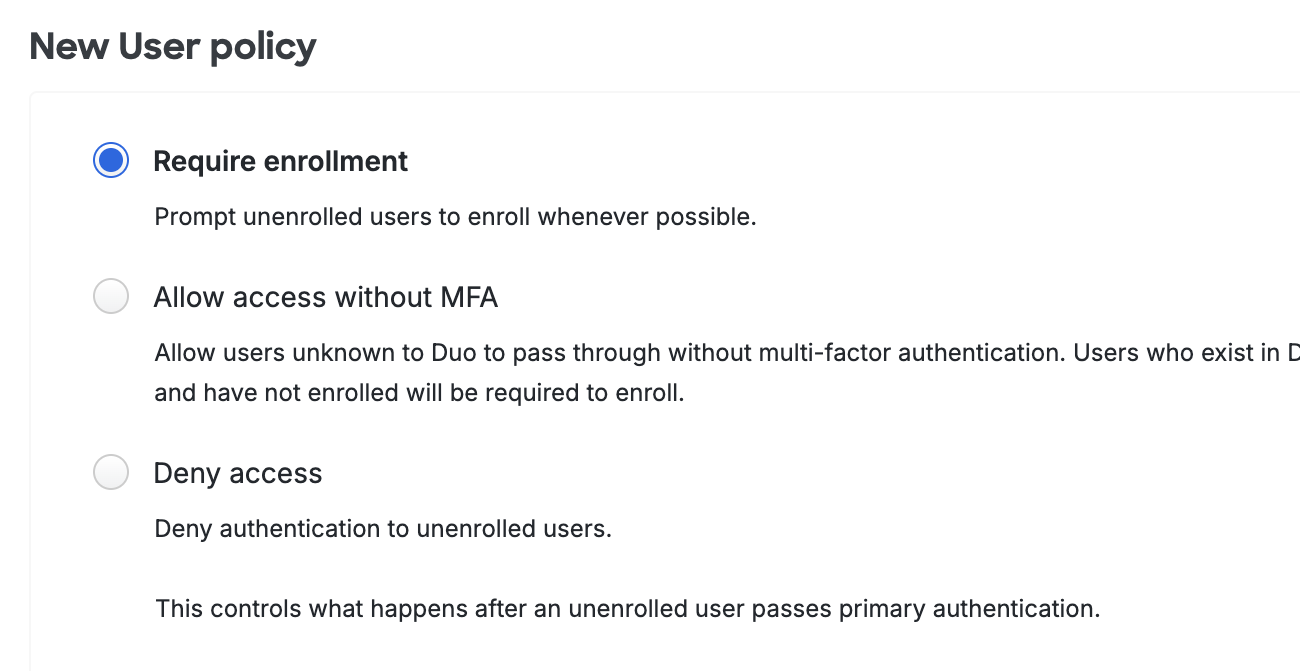
Require enrollment: Users who are not enrolled in Duo see the inline self-enrollment setup process after entering their primary username and password. Users who are already enrolled in Duo are prompted to complete two-factor authentication. This is the default policy for new applications.
-
Allow access without MFA: Users who are already enrolled in Duo must use two-factor authentication. Users who do not exist in Duo are not prompted to complete enrollment and are granted access without two-factor authentication. Duo Premier, Duo Advantage, and Duo Essentials plan customers see events for users that access an application without two-factor authentication as a result of this setting in the Authentication Log.
-
Deny access: Access is denied to users not enrolled in Duo. Users must be enrolled before attempting authentication, by using one of the automatic enrollment options, bulk self-enrollment, or manual enrollment by a Duo administrator.
A new, unenrolled user may access an application when this setting allows access and user access for that application is restricted to selected permitted groups.
To change the new user policy, click the radio button next to the desired setting.
Authentication Policy
Available in: Duo Essentials, Duo Advantage, and Duo Premier
Configure this policy to change how both existing Duo users and unenrolled/new users access a Duo-protected application or to change access to selected applications. This overrides less-restrictive authentication policy settings configured at the global, application, or group level. More restrictive policy settings, such as a user location policy denying access to a specific country, still apply.
-
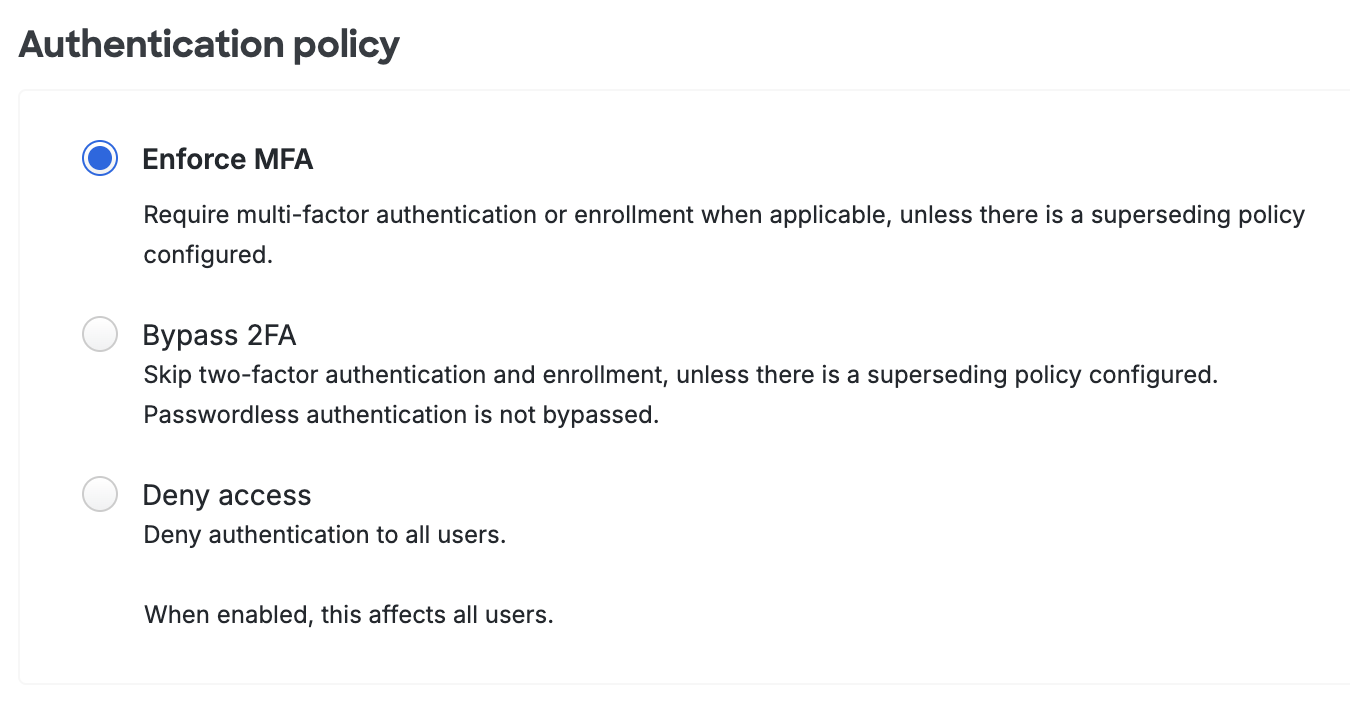
Enforce MFA: Two-factor authentication required unless another policy does not require it. This is the default.
-
Bypass 2FA: Users may log in without completing two-factor authentication or enrollment unless another policy requires it. Bypass status only applies to Duo MFA and does not skip Duo Passwordless authentication.
-
Deny access: Blocks all users from authenticating.
Changing the authentication policy setting from the default prevents new users from completing inline self-enrollment while authenticating to applications. When set to "Bypass 2FA", users not enrolled in Duo have no opportunity for self-enrollment when accessing the application. If authentication to the application is blocked with the "Deny access" setting, new users cannot self-enroll in that scenario either.
A new, unenrolled user may access an application when this setting permits bypass and user access for that application is restricted to selected permitted groups.
End users who receive enrollment links via email (like those sent by the directory sync process) may complete the Duo enrollment process via the emailed link regardless of the authentication policy setting.
As you deploy Duo throughout your organization, you may need to let designated users access a certain application without Duo authentication, while requiring that they complete Duo 2FA when accessing any other protected application.
Accomplish this by first creating a Duo group (manually or via Directory Sync) containing those users.
Next, view the application which you want those group members to bypass Duo authentication in the Admin Panel. Click on Apply a policy to groups of users to create a new policy with the authentication policy set to Bypass 2FA and then attach that new policy to your bypass group.
When the users in that Duo group access that application, they'll pass through to the application after successful verification of primary credentials. All other users accessing that application are subject to any other access policy settings applied to that application or in the global policy.
You can use the same process with the authentication policy set to Deny access to block users from accessing a selected application while still permitting them access to other Duo applications.
If you apply the authentication policy to an application as an application policy (instead of a group policy), then the configured bypass or deny access setting applies to all users of that application. Again, this overrides any other access policy set at the global level, and access to other Duo applications is unchanged.
Configuring the authentication policy within Duo's global policy affects all Duo applications and all users — whether the user is enrolled in Duo or not. If you set the authentication policy to deny in the global policy, then no users can access any of your Duo-protected applications (unless another policy setting permits access). Conversely, if you set the authentication policy to allow access in the global policy, then all users can access any application without completing Duo two-factor authentication (unless another policy requires 2FA).
User Location
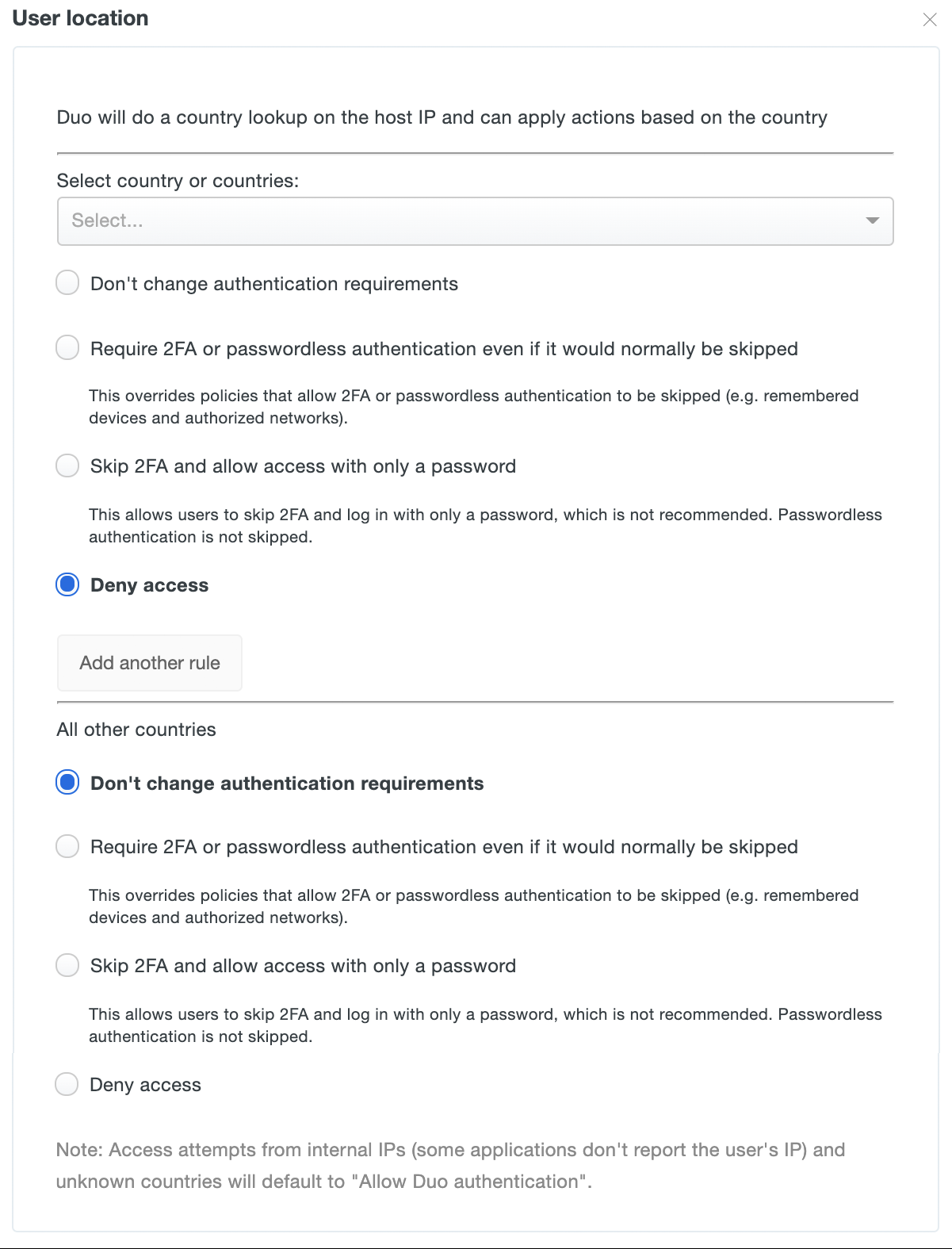
To change the user location policy, start typing in a country name to select it from the list, then choose the desired setting for that country. The available settings are:
-
Don't change authentication requirements: Permits Duo authentication from the chosen country. This is the default policy setting for all locations. This is also the setting applied when an authentication has no location (i.e., the IP address of the access device is reported as 0.0.0.0, which cannot be geolocated).
-
Require 2FA or passwordless authentication even if it would normally be skipped: Always require two-factor or passwordless authentication for IP addresses originating from the selected country. This supersedes other effective policies that would permit access without 2FA or passwordless authentication.
-
Skip 2FA and allow access with only a password: Do not require Duo 2FA authentication for access requests from the named country. This setting has no effect for passwordless authentication.
-
Deny access: Prevents all Duo 2FA and passwordless authentication attempts from IP addresses originating from the specified country.
Click Add another rule to apply a different setting to a specific country or countries.
The "All other countries" settings apply when a country has no explicit rule settings applied.
Devices Policy Settings
Trusted Endpoints
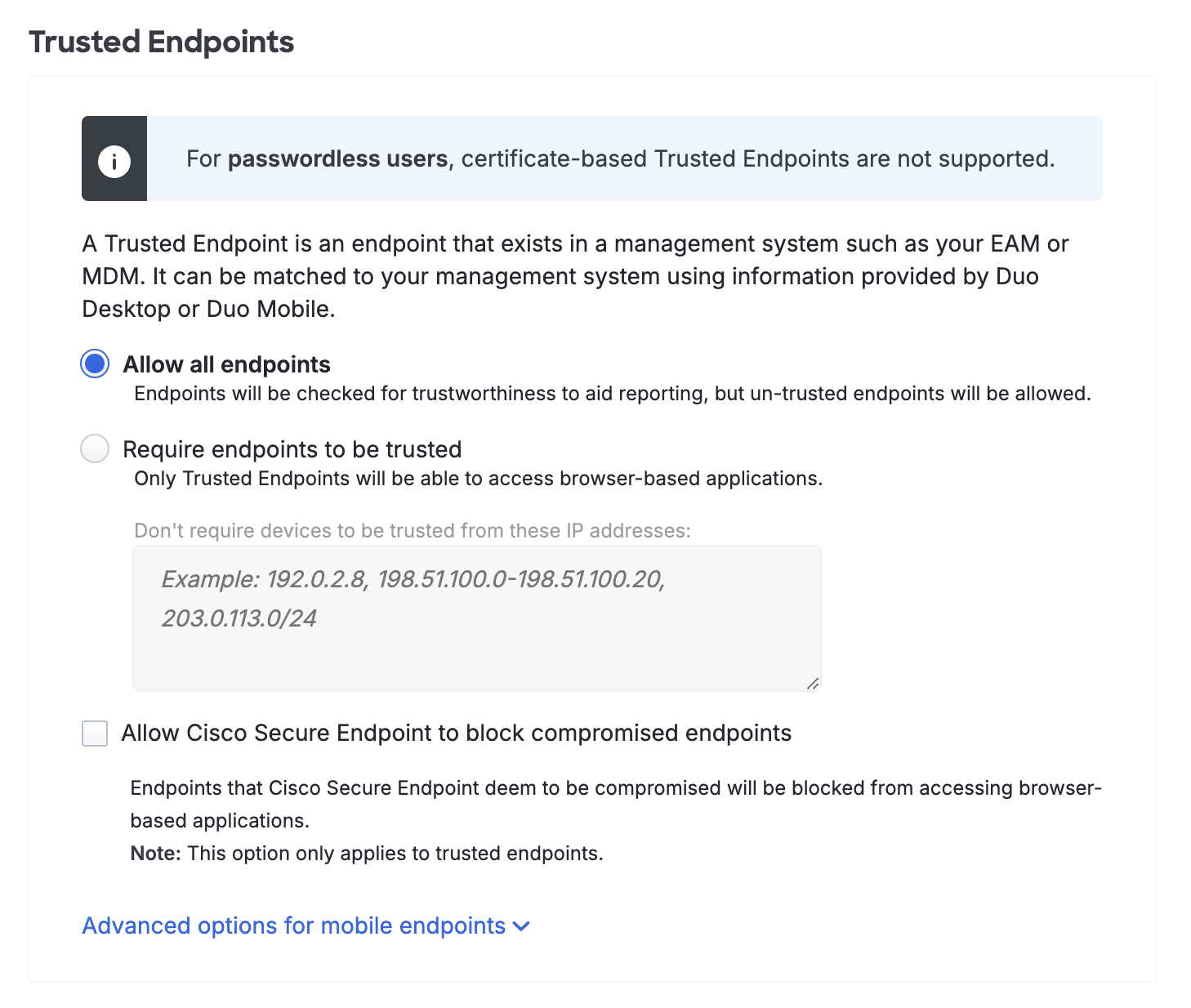
The primary endpoint policy options are:
-
Allow all endpoints: Duo checks the endpoint for validation of trusted device status from your endpoint management software, Duo Desktop, or Duo Mobile installed on the device, and records the endpoint's trusted status. No endpoints are blocked. This is the default.
-
Require endpoints to be trusted: Duo prevents access from endpoints that fail the endpoint management system, Duo Desktop, or Duo Mobile verification check.
- Don't require devices to be trusted from these IP addresses: Users attempting to access Duo-protected resources from these endpoints will bypass the trusted device check. Specify a block of IP addresses, IP ranges, or CIDRs as a comma-separated list.
-
Allow Cisco Secure Endpoint to block compromised endpoints: Duo verifies Windows and macOS endpoint status in Cisco Secure Endpoint and blocks access from endpoints which Cisco Secure Endpoint identifies as "compromised". Learn more about Duo and Cisco Secure Endpoint.
It's possible to apply different trusted endpoint policies to mobile devices than to computers. For example, you may want to track the status of application access by unmanaged or untrusted workstations without blocking access, while at the same time preventing application access from unmanaged or untrusted mobile endpoints.
If you'd like to enable this functionality, click on Advanced options for mobile endpoints to expose these additional selections:
-
Allow all mobile endpoints: All mobile endpoints may access web-based applications. Duo checks the mobile endpoint for validation of trusted device status from an MDM or the Duo Mobile app installed on the device, and records the endpoint's trusted status.
-
Require mobile endpoints to be trusted: Duo prevents access from mobile endpoints that fail the MDM or Duo Mobile verification check.
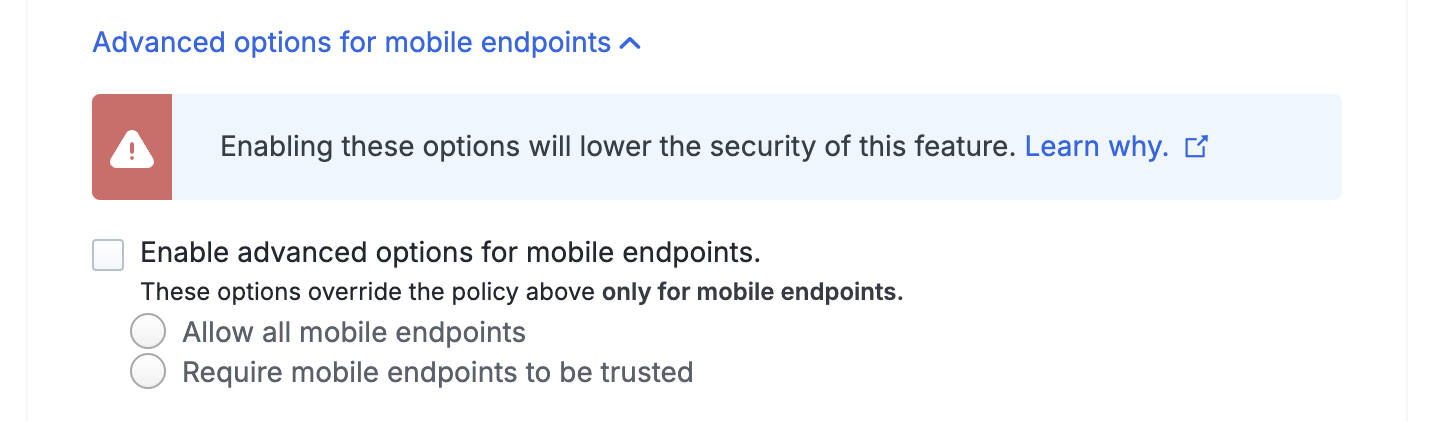
Changing the trusted mobile endpoint option could potentially make your overall trusted endpoints deployment less secure. Learn more about the security implications of enabling mobile endpoint options in your trusted endpoints policy.
Duo Desktop & Device Health
Duo Desktop & device health policy options in Duo Advantage and Duo Premier
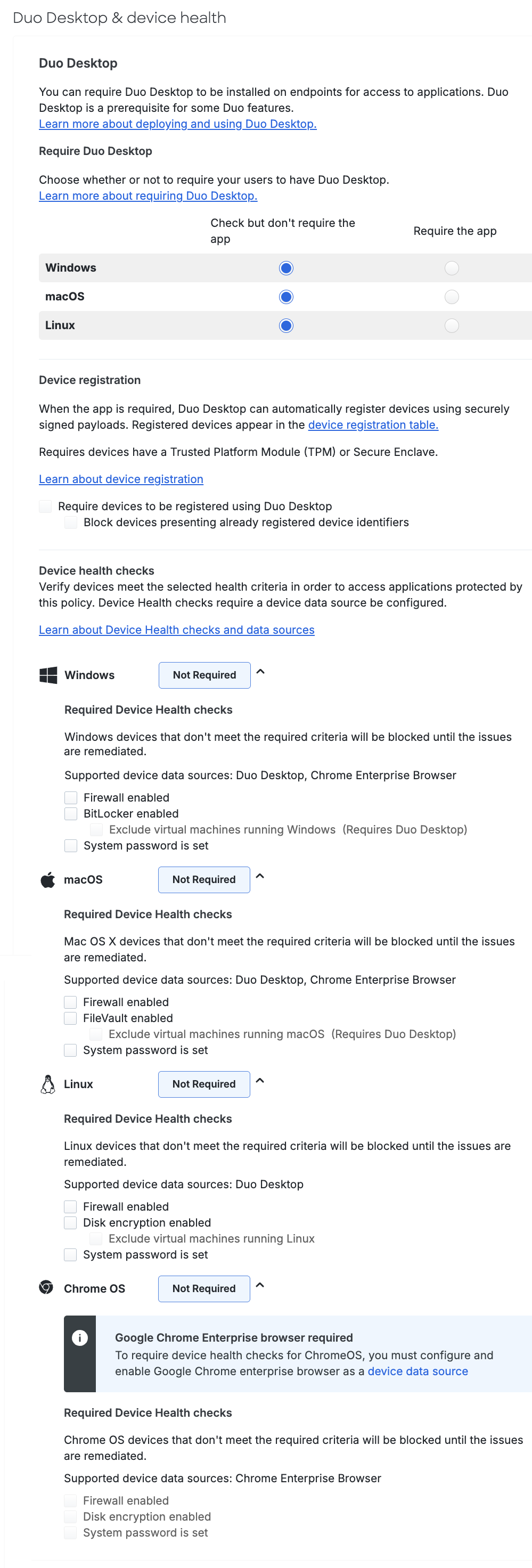
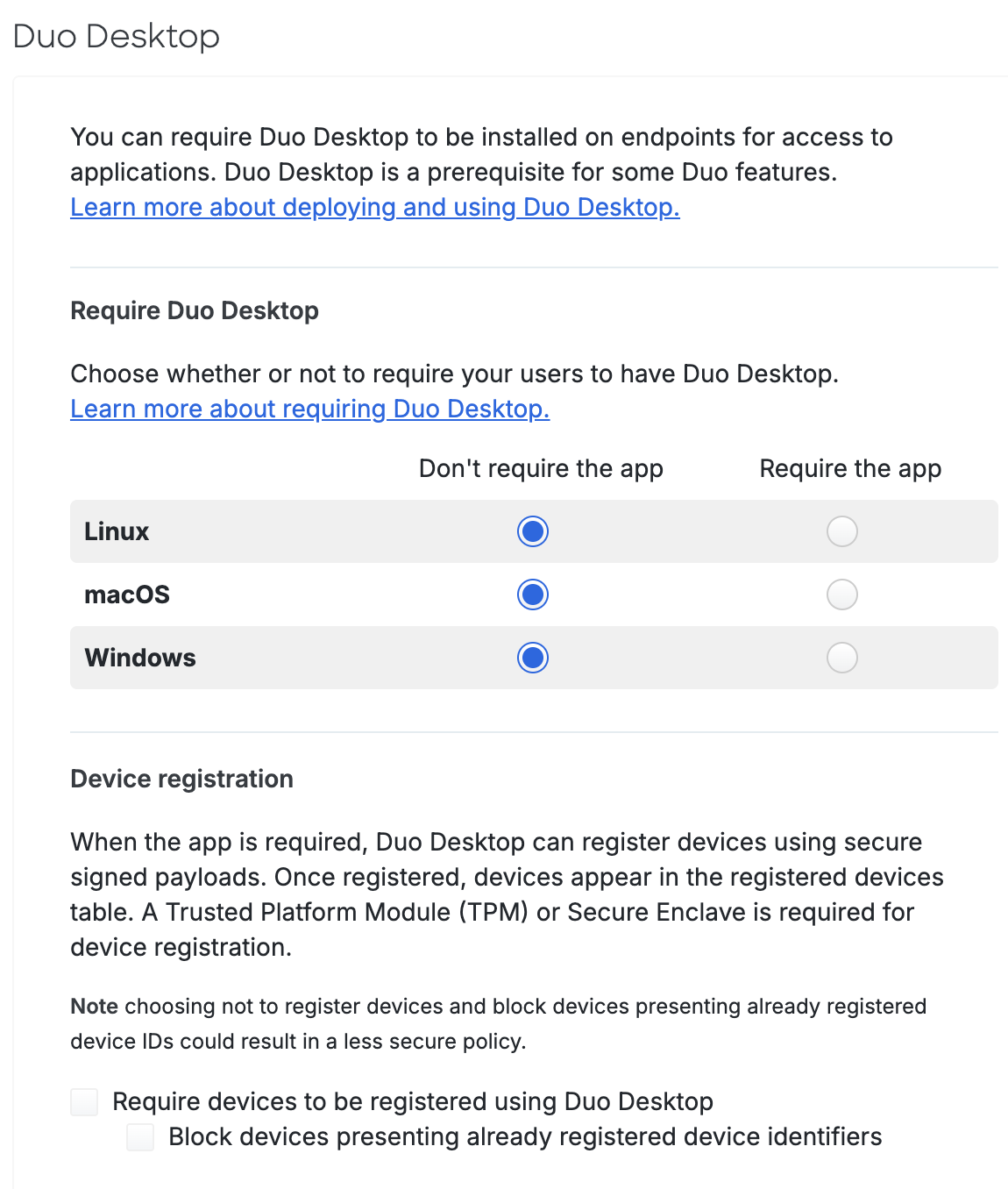
Duo Essentials policy options include requiring the Duo Desktop app and device registration, but no device health check options.
Duo Desktop policy options in Duo Essentials
Device Health Check Options
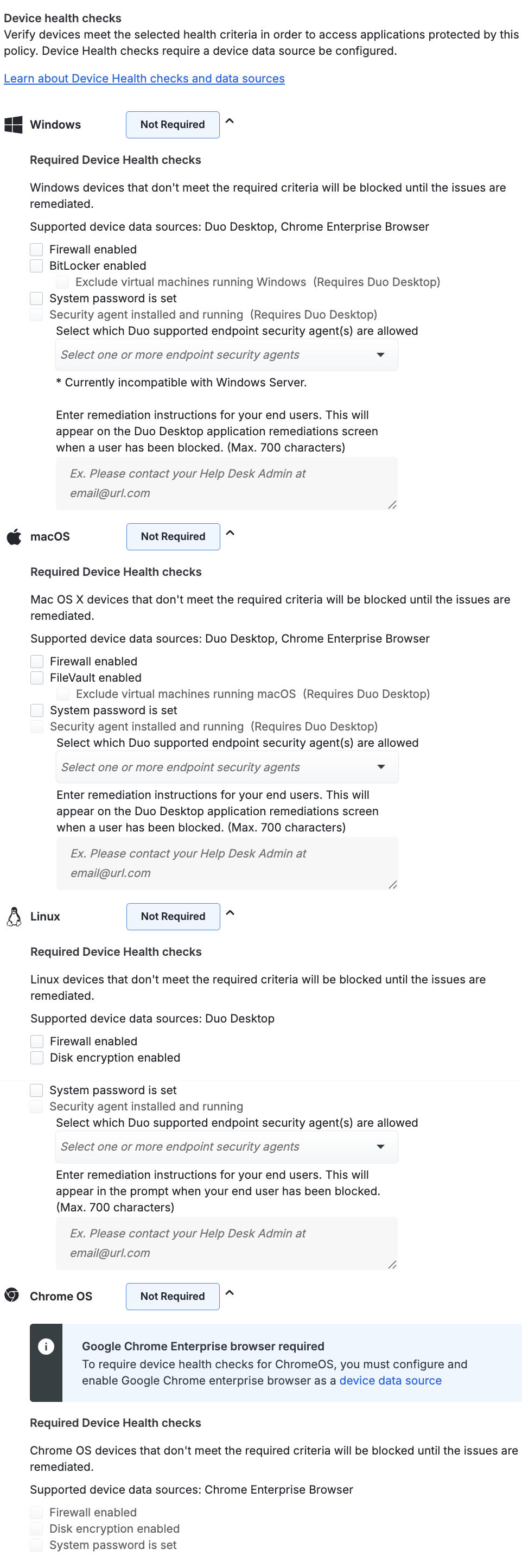
You can enforce the following health requirements for each OS:
- Firewall enabled: Blocks access if the firewall is disabled on the endpoint.
- Linux requires Duo Desktop. ChromeOS requires Chrome Enterprise browser.
- BitLocker enabled: Only for Windows endpoints. Blocks access if BitLocker is disabled on the Windows endpoint.
- Exclude virtual machines running Windows: If Duo Desktop detects that it's running on a Windows virtual machine, BitLocker enforcement is skipped. Requires Duo Desktop.
- FileVault enabled: Only for macOS endpoints. Blocks access if FileVault is disabled on the macOS endpoint.
- Exclude virtual machines running macOS: If Duo Desktop detects that it's running on a macOS virtual machine, FileVault enforcement is skipped. Requires Duo Desktop.
- Disk encryption enabled: Only for Linux endpoints. Blocks access if disk encryption is disabled on the Linux endpoint. Requires Duo Desktop.
- Exclude virtual machines running Linux: If Duo Desktop detects that it's running on a Linux virtual machine, disk encryption enforcement is skipped.
- System password is set: Blocks access if the system password is not set on the endpoint.
- Linux requires Duo Desktop. ChromeOS requires Chrome Enterprise browser.
- Security agent installed and running: Only available for Duo Premier plan customers. See Security Agent Verification to learn more.
Duo Desktop & device health policy options in Duo Premier
Security Agent Verification
Duo Premier plan customers can use Duo Desktop's antivirus/anti-malware agent device health checks to verify that endpoints have one of these supported security solutions listed below in place before accessing an application:
- BitDefender Endpoint Security
- Check Point Endpoint Security (macOS and Windows)
- Cisco Secure Endpoint (previously known as Cisco AMP for Endpoints)
- CrowdStrike Falcon Sensor
- Cynet Endpoint Security (macOS and Windows)
- CylancePROTECT
- ESET Security (Windows)
- Forcepoint One (macOS and Windows)
- HarfangLab (macOS)
- Huntress (macOS and Windows)
- Microsoft Defender for Endpoint (macOS and Linux)
- Nessus (macOS and Windows)
- Netskope (macOS and Windows)
- Palo Alto Cortex XDR
- Qualys Cloud Agent
- SentinelOne
- Sophos AV (macOS and Windows)
- Sophos Home (macOS and Windows)
- Symantec Endpoint Protection
- Trellix Endpoint Security (previously known as McAfee Endpoint Security)
- Trend Micro Apex One (macOS and Windows)
- VMware Carbon Black Cloud
- Windows Defender (Windows)
- Xcitium (Windows)
If your organization needs to verify security agents not already listed above, use the Security Agent Detection Utility to collect agent detection information and submit it to Duo Support for inclusion in a future Duo Desktop release.
All security agent checks for Windows, macOS, and Linux require Duo Desktop, with the Require the app option selected to activate the Security agent installed and running control.
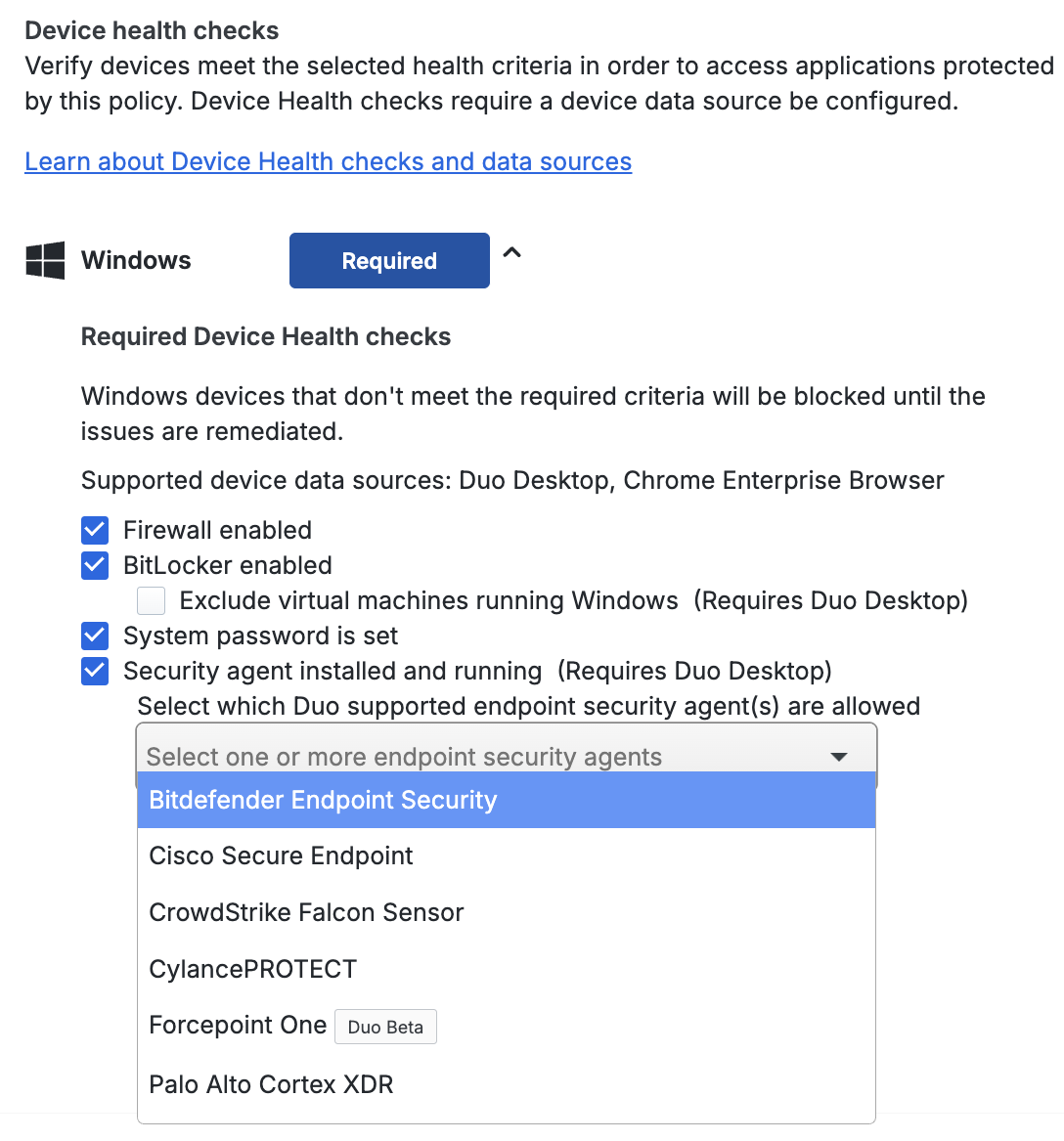
Security agent verification is unavailable for ChromeOS.
See our full Duo Desktop guide for more information and step-by-step deployment instructions.
Remembered Devices
Duo Essentials Policy Options
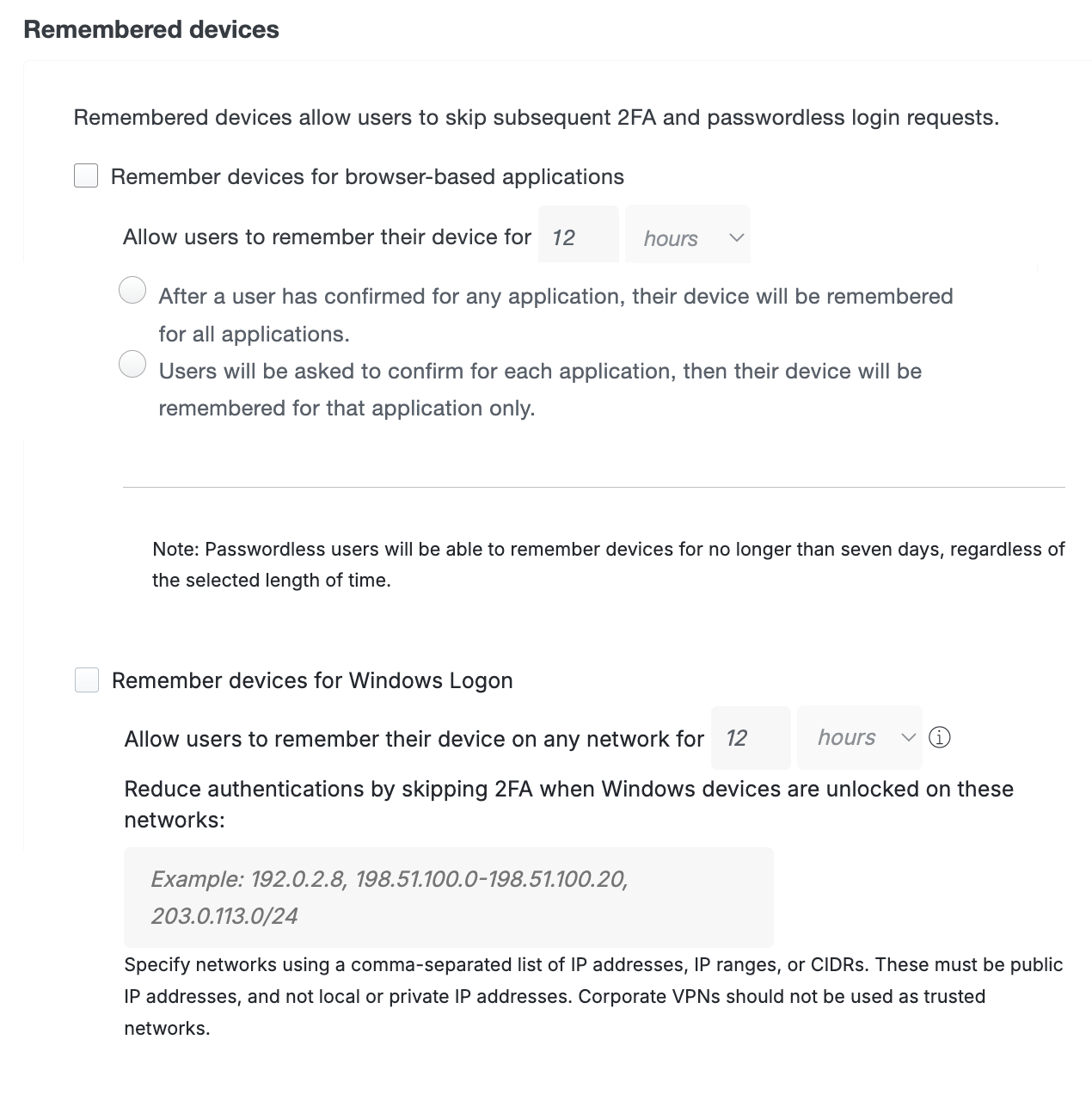
The Remember devices for browser-based applications setting works with applications that show the Duo Prompt in a browser.
-
Allow users to remember their device for nn: This enables traditional remembered devices. Default setting: off. Enter the desired number of days or hours — up to 365 days — for the setting and then choose one of these options:
-
After a user has confirmed for any application, their device will be remembered for all applications.: When a user checks the "Remember me" box on the traditional Duo Prompt or opts to remember this browser on your device on the Universal Prompt, it creates a trusted session for that user, client browser, and endpoint after successful Duo authentication. Duo won't prompt for authentication again for the duration specified if a user logs in to that or any other web applications assigned a remembered device policy with this same option selected when the trusted session is still valid and the authenticator used to create the session is also permitted for the additional application.
This is especially helpful for users of Duo Single Sign-On. In this scenario, you would create a policy with remembered devices for all applications and then apply that same policy to each Duo-protected SAML application for which you don't want additional 2FA prompts. When a user logs in to one of the protected SAML apps with that policy, like Google Workspace, and chooses to remember that device, the user isn't prompted for Duo access again when accessing other SAML apps via Duo Single Sign-On which also allow remembered devices for all applications in their effective policy.
In practice, we recommend configuring your remembered devices policy for browser-based applications at the global policy level, and then creating application and group level policies without remembered devices to override an existing trusted login session for those sensitive or restricted-access web applications where you want your users to perform Duo authentication again.
If a user has started a remembered device session for any browser-based application, Duo revokes the session and the user must perform two-factor authentication again the next time they try to log in to a browser-based application with that remembered devices policy if you revoke the user's remembered devices session from the user's properties page in the Duo Admin Panel, or you delete or remove any device from that user from the Admin Panel.
-
Users will be asked to confirm for each application, then their device will be remembered for that application only.: When a user opts in to remembering their browser in an application, then it only applies to that individual Duo-protected service or application. Subsequent access of the same application will not require 2FA after a user checks the "Remember me" box on the traditional Duo Prompt or opts to remember this browser on your device on the Universal Prompt, but if a user accesses a different application protected by Duo then the user will have to approve a Duo login request again for those other applications.
-
The Remember devices for Windows Logon setting works with Duo Authentication for Windows Logon version 4.2.0 and later. When enabling remembered devices for local Windows logons, enter the desired number of days or hours — up to 365 days — for the Allow users to remember their device for setting. Default setting: off.
Client network changes, such as moving between Wi-Fi networks, invalidate a Windows logon remembered devices session. You can allow persistent remembered devices sessions across trusted networks by entering network IPs, IP ranges, or CIDRs under Reduce authentications by skipping 2FA when Windows devices are unlocked on these networks. Duo Authentication for Windows Logon 5.2.0 or later will not invalidate a remembered devices session as long as the client is authenticating from a network you specify here.
-
This policy setting only affects "Microsoft RDP" Duo applications. If you configure this setting in your global policy, or assign it to any application types other than Microsoft RDP, it has no effect on other application types and users will not see the remembered device option during Duo authentication from those other applications.
-
Additionally, remembered devices settings do not apply to remote access Windows logins over RDP; the "Remember me" option shown for local console logins won't be present at RDP login. If you want to bypass Duo authentication for RDP connections, consider applying an Authorized Networks policy to the application.
-
When a user logs in to Windows at the local workstation or server console and checks the "Remember me" box during Duo authentication, it creates a trusted session for that user on that host with that IP address after successful Duo authentication. Duo won't prompt for authentication again when the user locks and unlocks the workstation, or for credentialed UAC elevation by that user, for the duration specified in the policy setting.
-
Duo Authentication for Windows Logon invalidates the local trusted session on that Windows system before it expires if the user logs out of Windows or reboots, if the user cancels a remembered authentication in process, if the user authenticates with offline access for Windows logon, or if the network state of the system changed from the network state at session creation and the new network isn't allowed to continue the remembered device session.
-
Administrators may revoke use of trusted Duo sessions by disabling or unassigning a remembered devices policy for Windows Logon from a Microsoft RDP application, or by deleting the registry entry for the user session from the Windows client. Learn more about this in the Windows Logon FAQ.
Learn more about remembered devices for Windows Logon in the application documentation.
Duo Advantage and Premier Policy Options
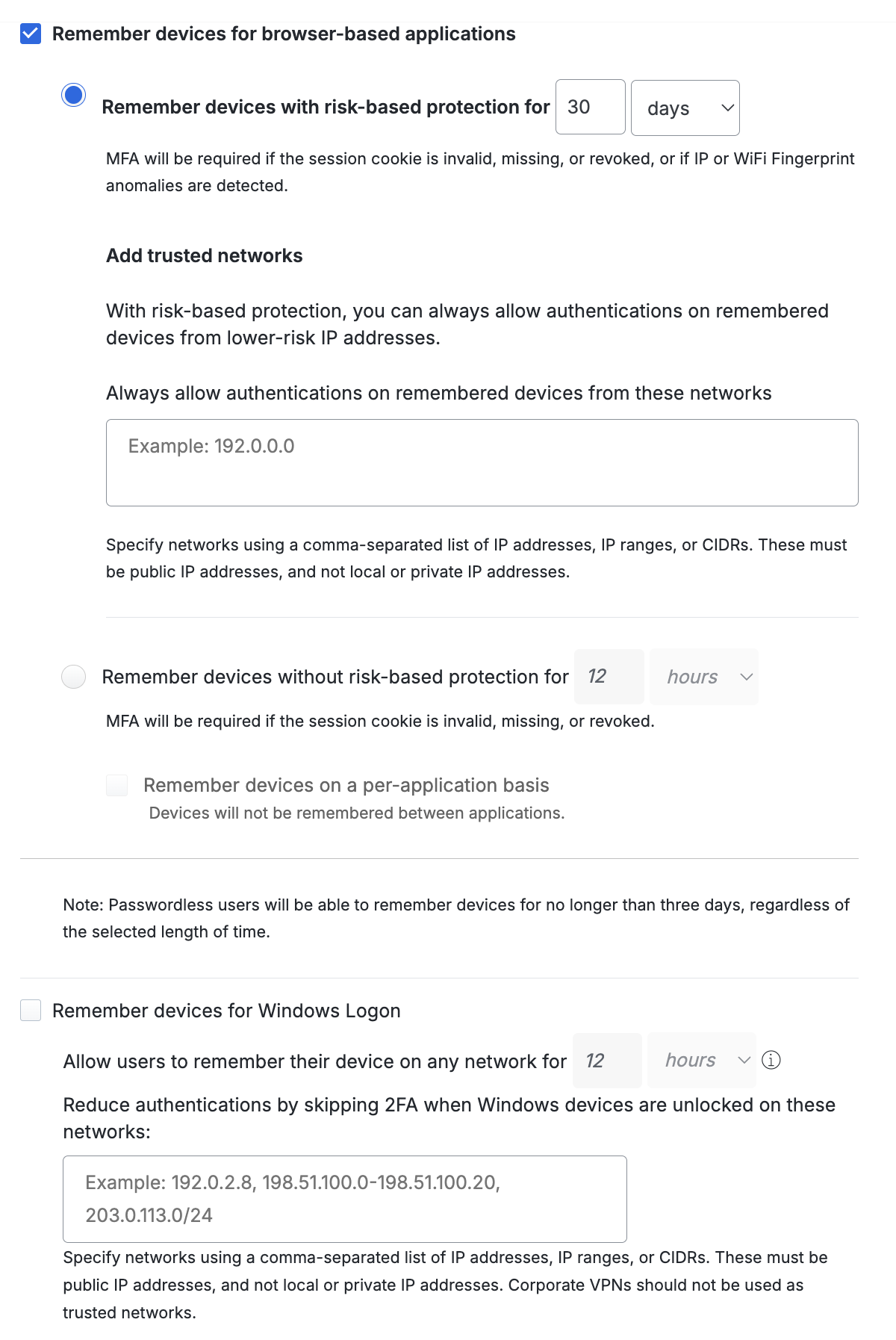
The Remember devices for browser-based applications setting works with applications that show the Duo Prompt in a browser. Choose between Risk-Based Remembered Devices or traditional remembered devices, where the user opts-in during authentication. Risk-Based Remembered Devices is enabled by default for Duo Advantage and Duo Premier customers.
Passport Users: All applications that should be able to share Passport sessions must use the same remembered devices setting. An application using Remember devices with risk-based protection for _nn_days and an application using Remember devices without risk-based protection for _nn_hours cannot share sessions.
-
Remember devices with risk-based protection for _nn_days: This setting applies Risk-Based Remembered Devices, which analyzes user authentications for IP and device patterns and either suppresses additional two-factor authentication prompts after the initial login for the duration defined (default: 30 days), or prompts for two-factor authentication before the defined duration expires if anomalous access is detected. Default setting: enabled.
See our full Risk-Based Authentication documentation for more information and step-by-step deployment instructions.
-
You can define low-risk network IPs and ranges under Add trusted networks.
-
Remember devices without risk-based protection for _nn_hours: This enables traditional remembered devices. Default setting: off. Enter the desired number of days or hours — up to 365 days — for the setting and then choose:
-
Remember devices on a per-application basis When a user opts in to remembering their browser in an application, then it only applies to that individual Duo-protected service or application. Subsequent access of the same application will not require 2FA after a user checks the "Remember me" box on the traditional Duo Prompt or opts to remember this browser on your device on the Universal Prompt, but if a user accesses a different application protected by Duo then the user will have to approve a Duo login request again for those other applications.
Passport Users: The Remember devices on a per-application basis option limits Passport's functionality. It will prevent sharing sessions initiated by one application with other applications, which includes sessions initiated by Windows Logon.
-
The Remember devices for Windows Logon setting works with Duo Authentication for Windows Logon version 4.2.0 and later. When enabling remembered devices for local Windows logons, enter the desired number of days or hours — up to 365 days — for the Allow users to remember their device for setting. Default setting: off.
Client network changes, such as moving between Wi-Fi networks, invalidate a Windows logon remembered devices session. You can allow persistent remembered devices sessions across trusted networks by entering network IPs, IP ranges, or CIDRs under Reduce authentications by skipping 2FA when Windows devices are unlocked on these networks. Duo Authentication for Windows Logon 5.2.0 or later will not invalidate a remembered devices session as long as the client is authenticating from a network you specify here.
-
This policy setting only affects "Microsoft RDP" Duo applications. If you configure this setting in your global policy, or assign it to any application types other than Microsoft RDP, it has no effect on other application types and users will not see the remembered device option during Duo authentication from those other applications.
-
Additionally, remembered devices settings do not apply to remote access Windows logins over RDP; the "Remember me" option shown for local console logins won't be present at RDP login. If you want to bypass Duo authentication for RDP connections, consider applying an Authorized Networks policy to the application.
-
When a user logs in to Windows at the local workstation or server console and checks the "Remember me" box during Duo authentication, it creates a trusted session for that user on that host with that IP address after successful Duo authentication. Duo won't prompt for authentication again when the user locks and unlocks the workstation, or for credentialed UAC elevation by that user, for the duration specified in the policy setting.
-
Duo Authentication for Windows Logon invalidates the local trusted session on that Windows system before it expires if the user logs out of Windows or reboots, if the user cancels a remembered authentication in process, if the user authenticates with offline access for Windows logon, or if the network state of the system changed from the network state at session creation.
-
Administrators may revoke use of trusted Duo sessions by disabling or unassigning a remembered devices policy for Windows Logon from a Microsoft RDP application, or by deleting the registry entry for the user session from the Windows client. Learn more about this in the Windows Logon FAQ.
Learn more about remembered devices for Windows Logon in the application documentation.
Operating Systems
Scroll down in the policy editor to see all OS options.
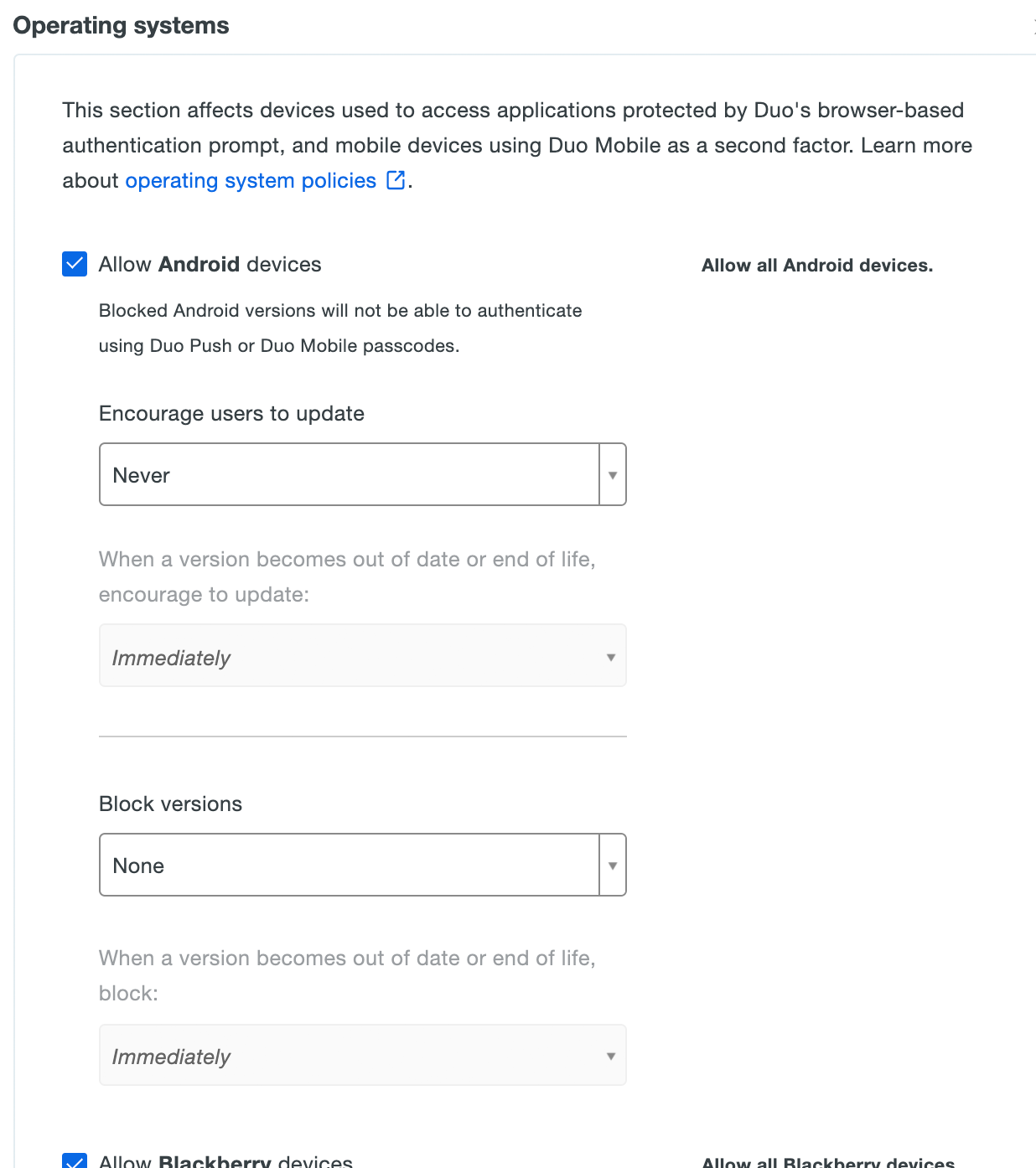
Encourage Users to Update While Still Permitting Access
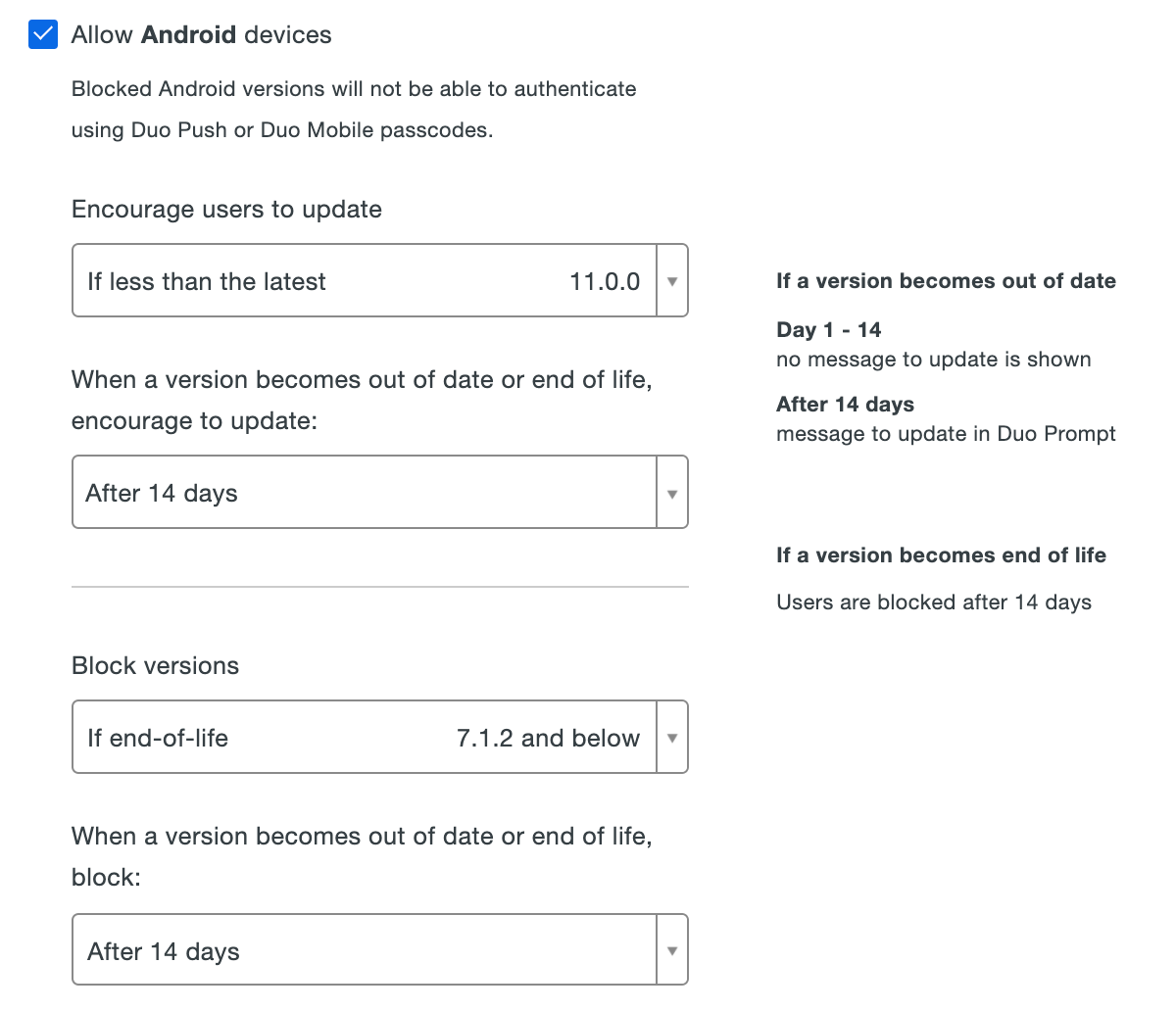
Enable the Encourage users to update option by picking your minimum allowable OS version from the drop-down selector. This affects access to applications from computers and mobile devices by showing a message in the online Duo prompt recommending they update their operating system. You can choose to select a specific version, or let Duo determine the most recent available up-to-date or end-of-life version.
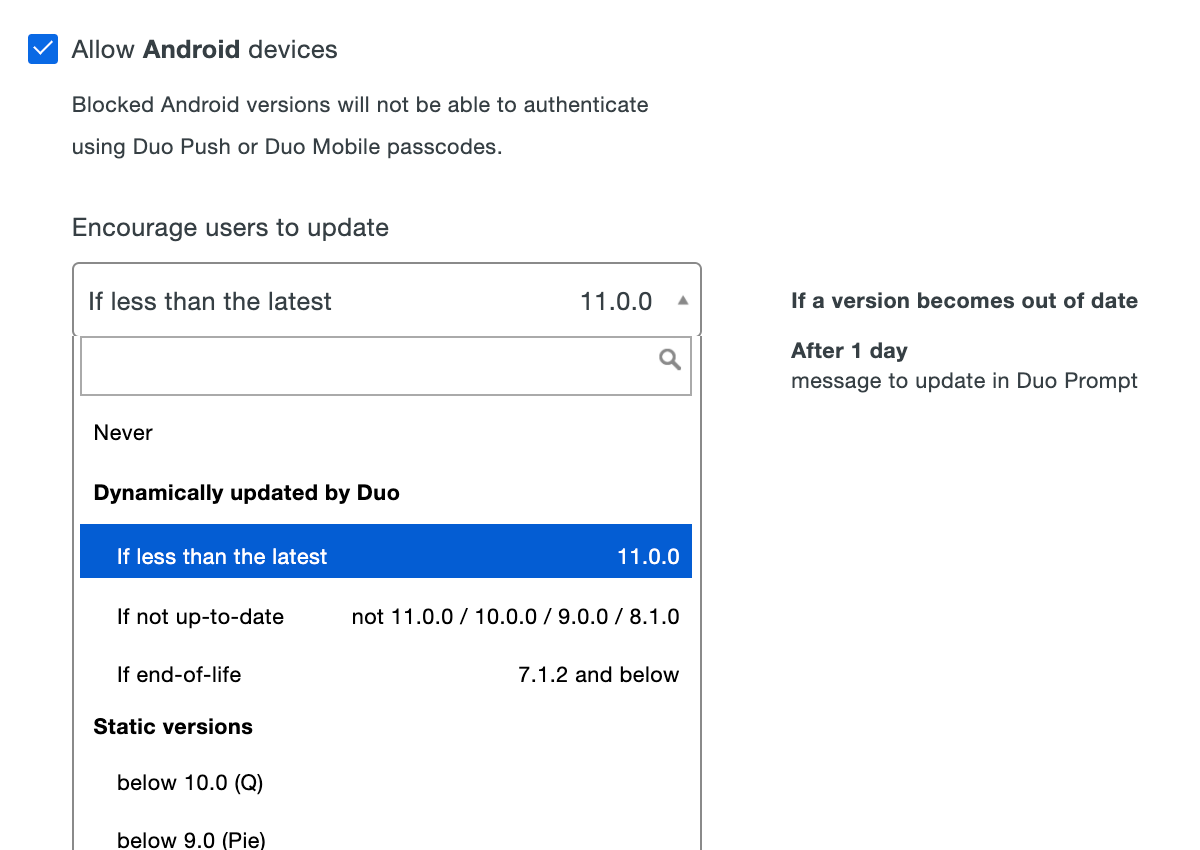
After choosing the OS version, select a grace period from the When a version becomes out of date or end of life, encourage to update choices. Setting this to "Immediately" means users see the warning as soon as their current version is lower than the version you selected. You can delay the Duo warning for up to 365 days. Look to the right of your selection to see a summary of your new policy setting.
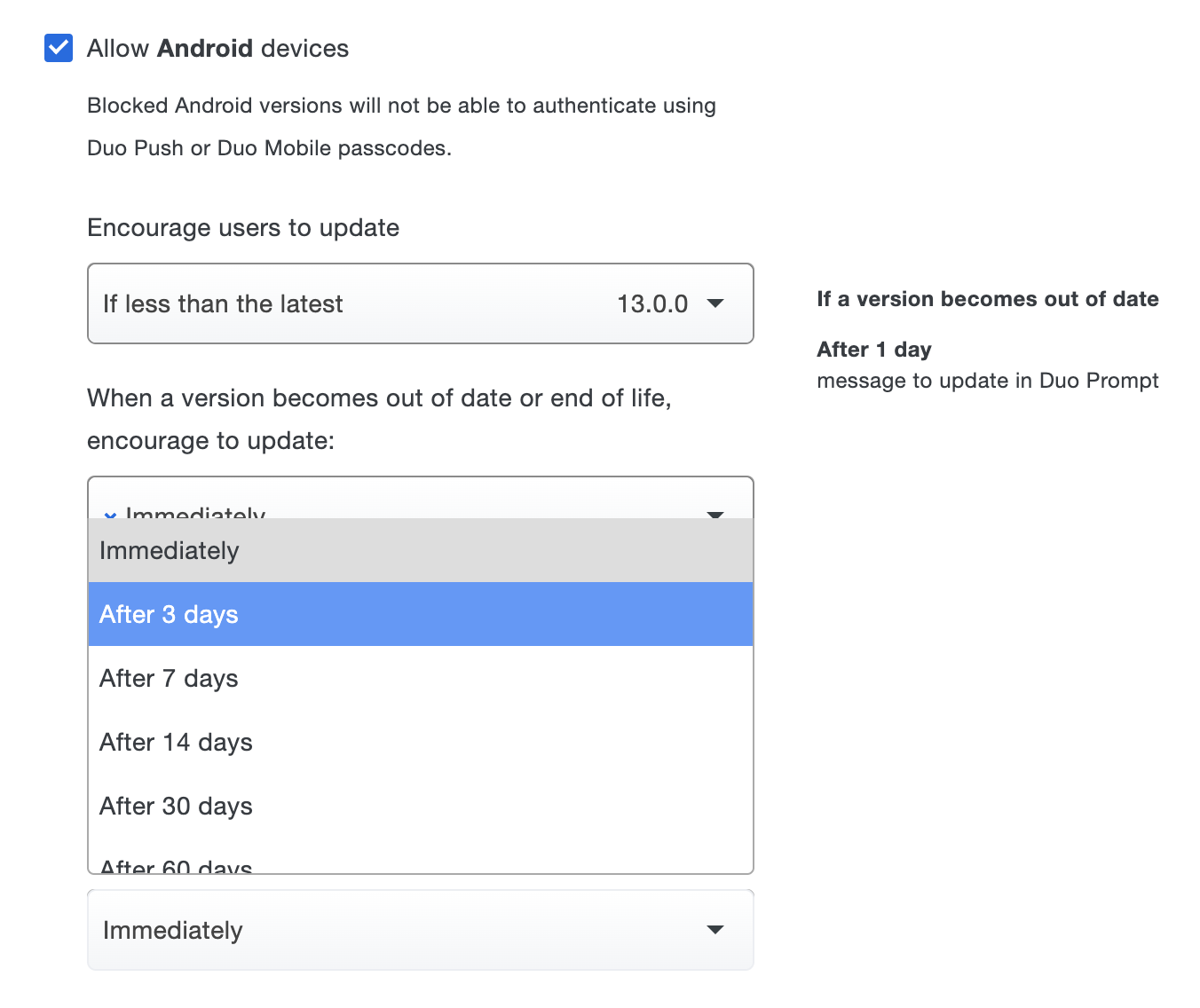
Block Access from Outdated Versions
Restrict application access to only the versions you've allowed by making a selection in the Block versions option for an OS, along with a corresponding grace period for blocking. Blocking any operating system version(s) prevents users from completing authentication or new user enrollment from that disallowed OS (or OS version).
Browsers
This policy supports Chrome, Chrome Mobile, Edge, Edge Chromium Mobile, Firefox, Firefox Mobile, Internet Explorer, Mobile Safari, and Safari. While you can block access from other browsers not listed by name with the All other browsers option, the out-of-date warning and blocking functionality only applies to the named computer browsers.
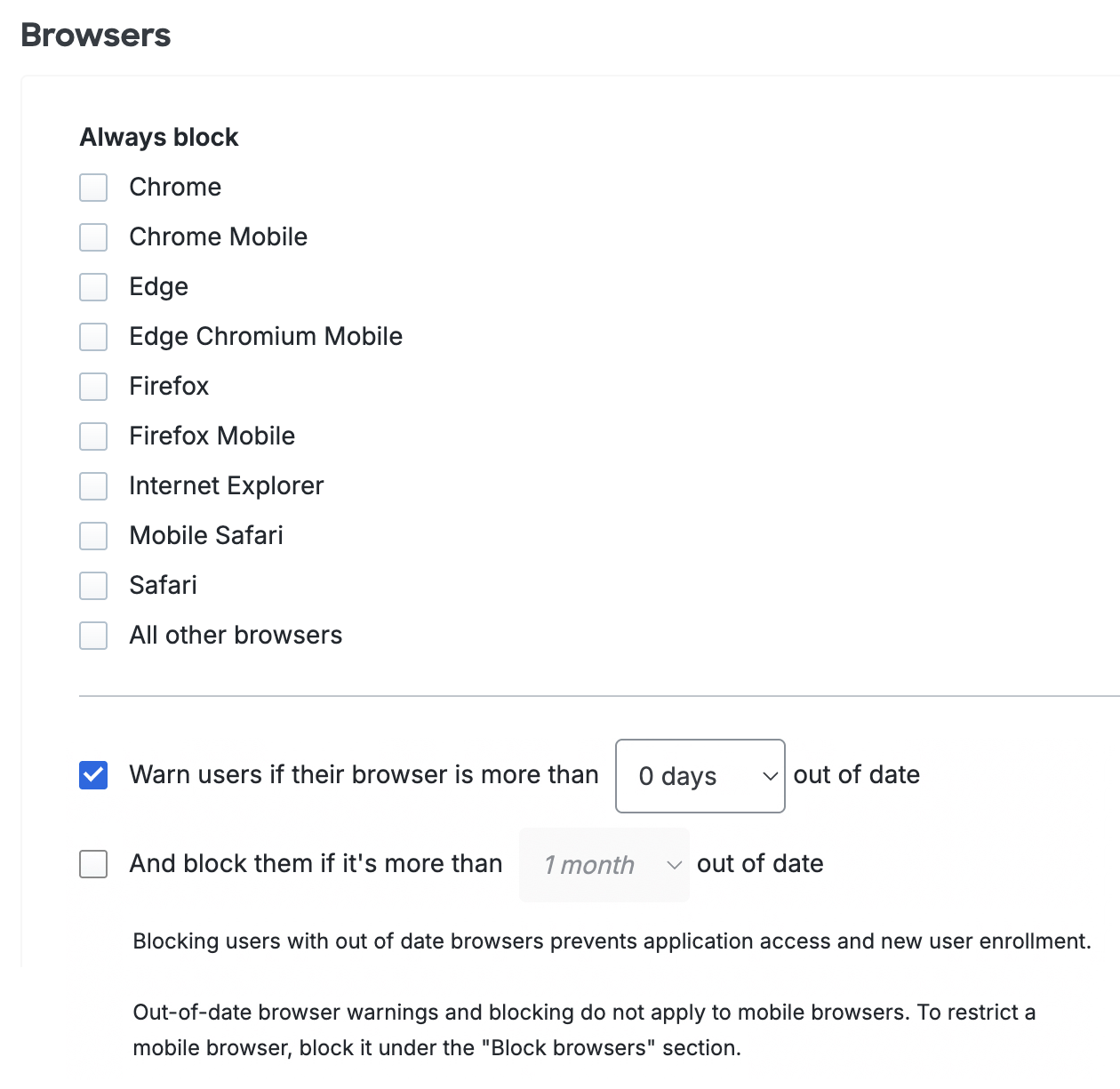
Use the drop-down selector to extend a grace period of 3 days to 1 year before users will start seeing out-of-date warnings while accessing Duo-protected applications from that browser. Instructions for updating or a link to the browser vendor's website are provided if applicable.
You may also choose to block user access when web browsers are out of date and specify a grace period during which users may continue to authenticate with older versions (0 days to 1 year after the current release). This grace period must be longer than the warning grace period so users have time to update their browsers before being blocked. If both the warning and block grace periods are set to 0 days, users have no opportunity to update their browsers as they will be blocked immediately once their browser is out of date.
Plugins
When the "Warn users" option is enabled, users authenticating via the Duo Prompt see a notification when the selected plugins are older than the current release version. If you have only selected to notify users of the outdated software, they may skip the software update and complete authentication. The software update notification continues appearing during authentication attempts until the end user updates the affected plugin.
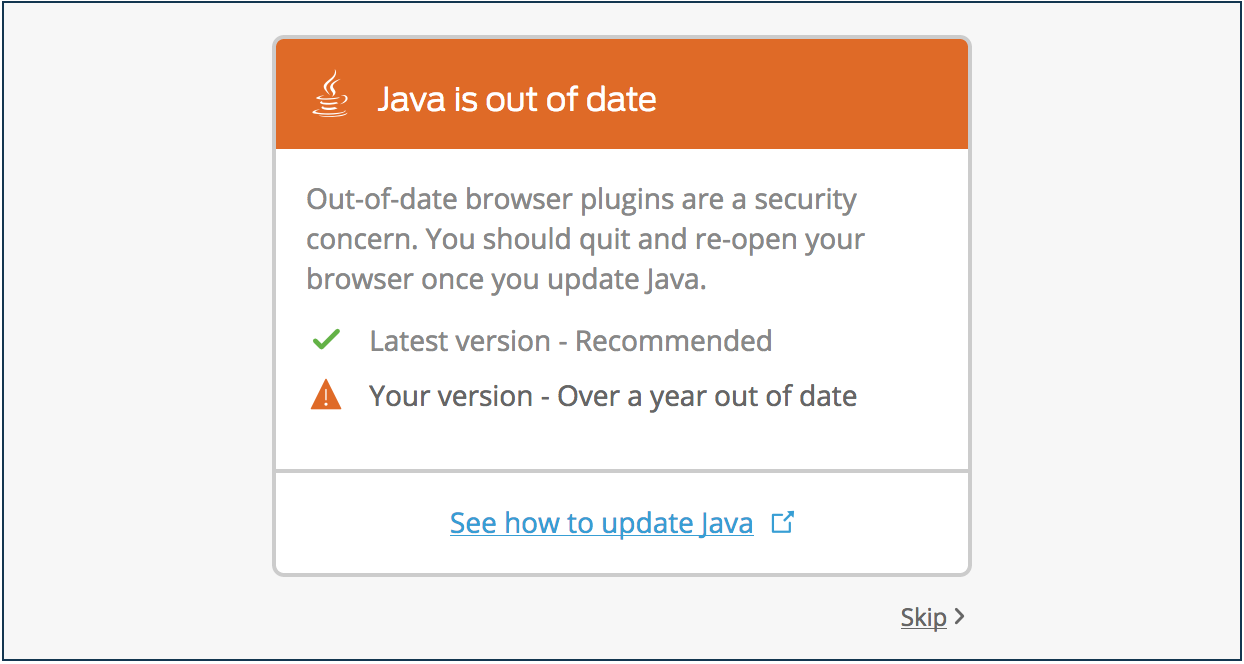
You may also choose to block user access when plugins are out of date and specify a grace period during which users may continue to authenticate with older versions (0 days to one year after the current release).
If you set your policy to block access from out of date plugins, users can skip past the software update warning up until the end of the grace period you specified in the policy. After that, users may not continue to Duo new user enrollment and authentication. Only updating the affected plugins permits a user to complete Duo authentication or enrollment.
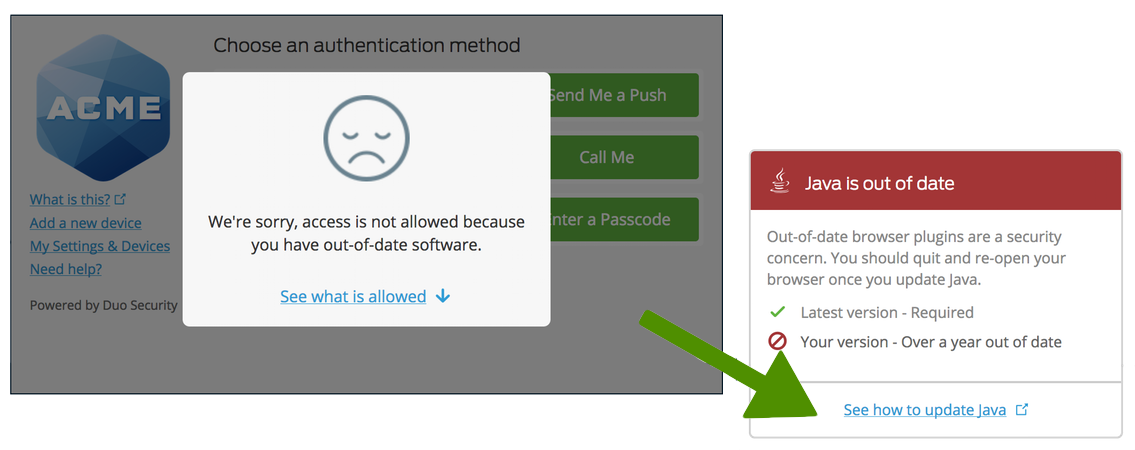
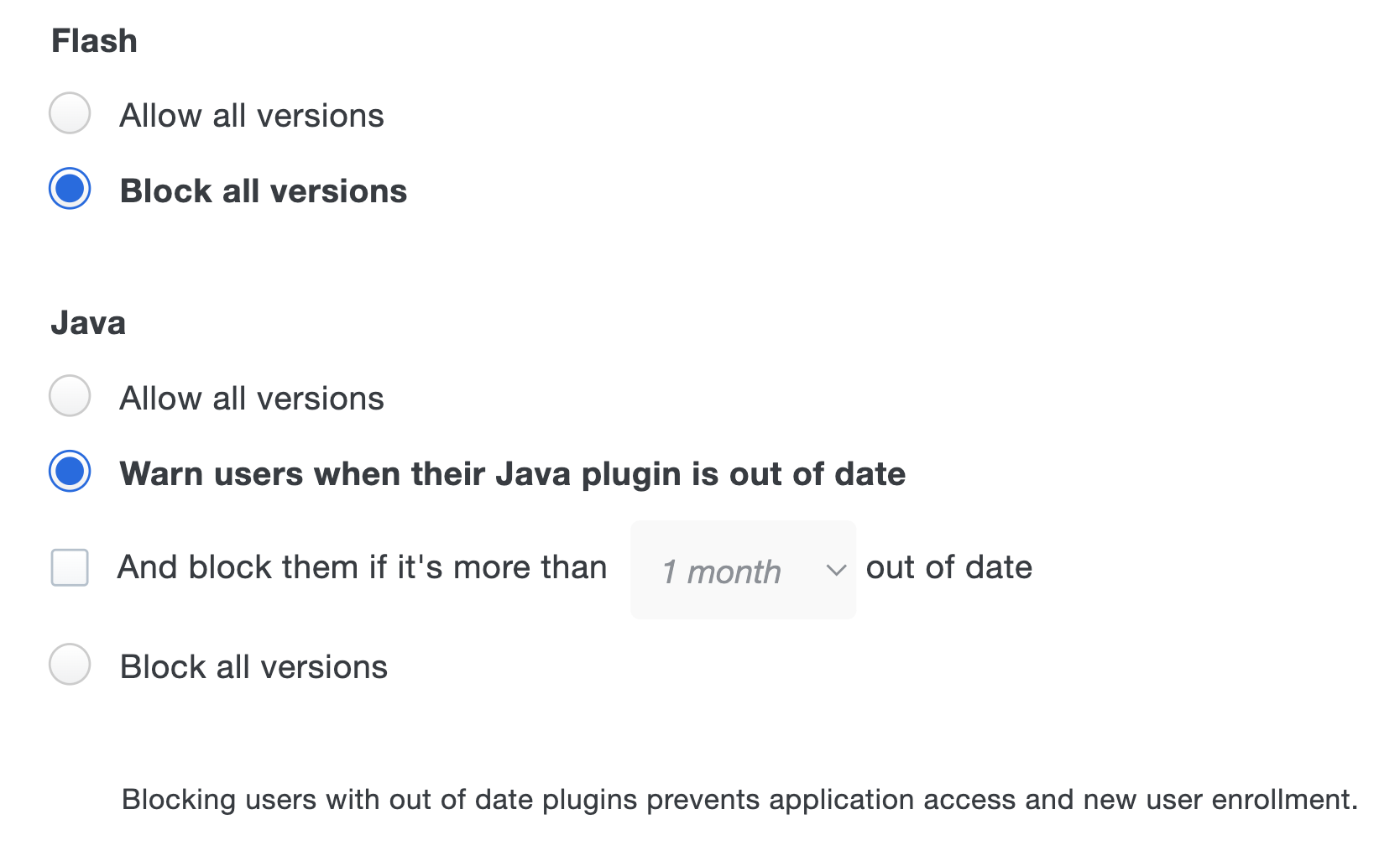
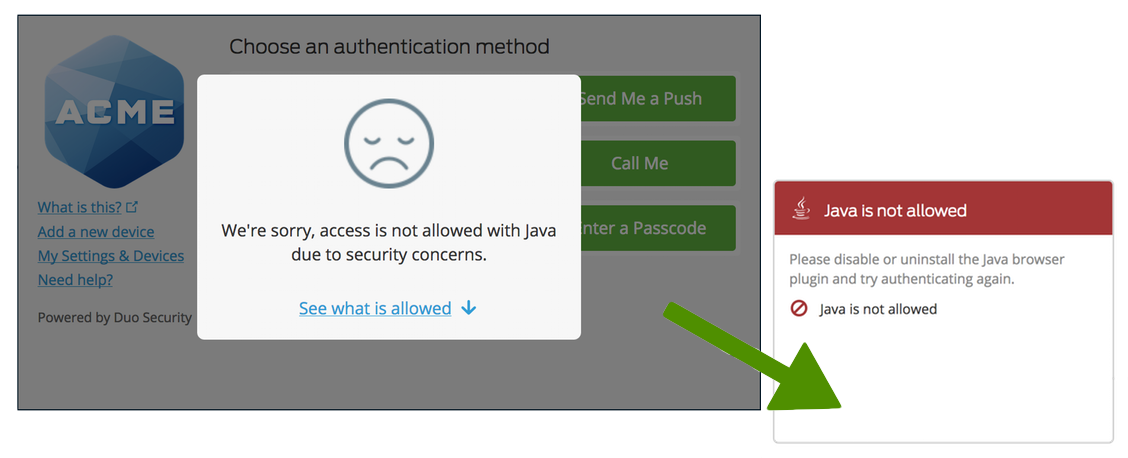
Restrict user access with certain plugins completely by selecting "Block all versions".
Configure software notifications for either or all of the following plugins:
-
Flash: Checks whether or not the browser uses the Flash plugin. Adobe ended support for Flash on December 31, 2020, and began blocking Flash content from running in Flash Player on January 12, 2021. With Flash at its end-of-life (EOL), version updates are no longer possible. Therefore, the Duo policy options no longer check for the latest version, and only offer the options to allow or block all versions of Flash.
Customers who configured a Flash plugin policy that checks for out-of-date versions prior to the Flash EOL still see those settings when viewing or editing those existing policies, but should be aware that the end of update availability means that all versions are considered out of date.
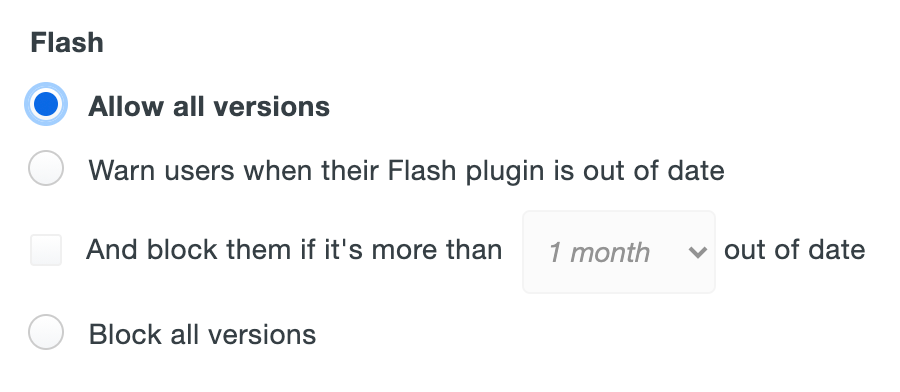
Duo recommends that all customers set the Flash plugin policy to Block all versions.
-
Java: Checks the version of the Java plugin used by the current browser and notifies the user if it is out of date. A link is provided to the Oracle Java download site.
Networks Policy Settings
Authorized Networks
-
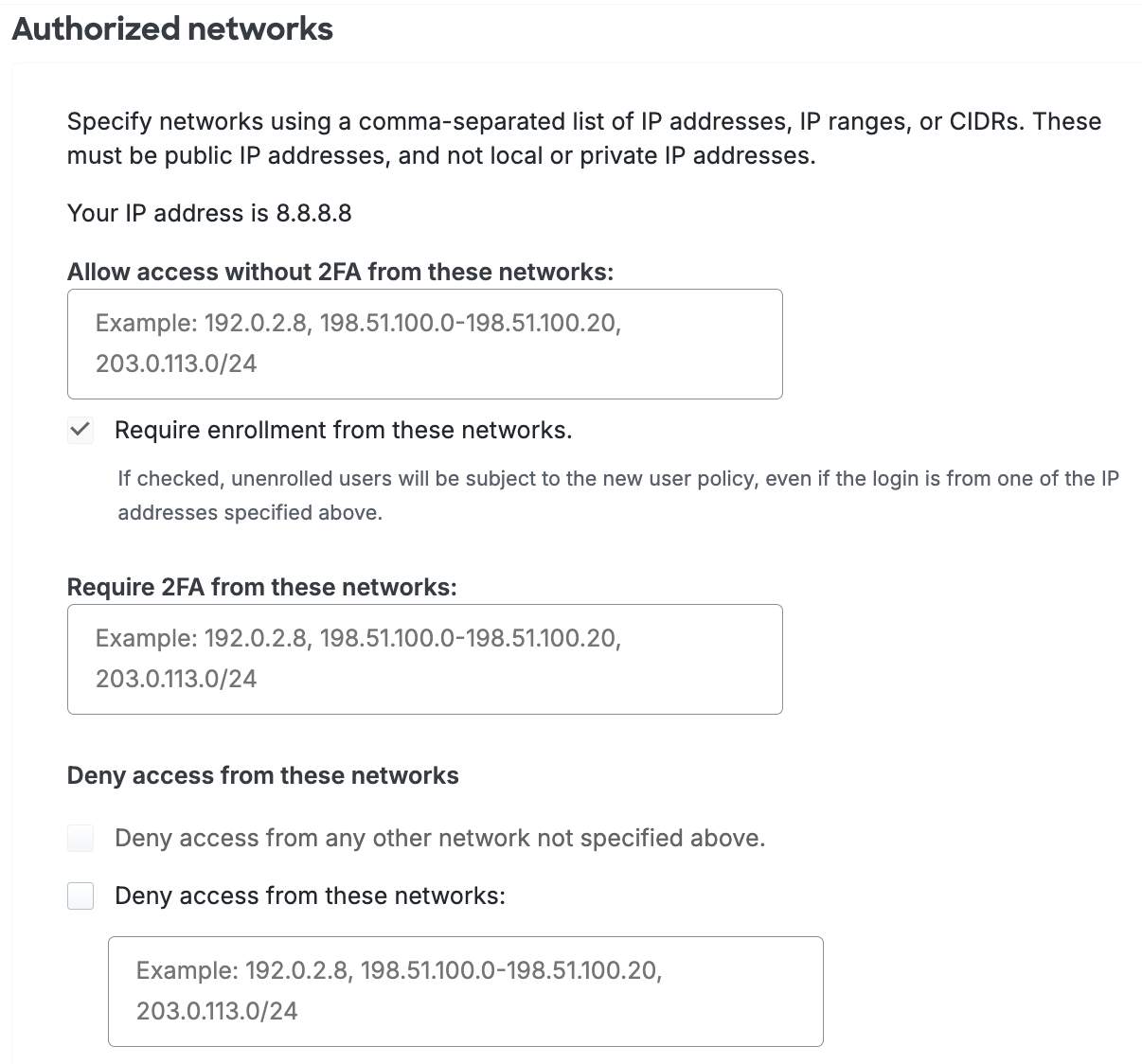
Allow access without 2FA from these networks: Users accessing Duo-protected resources from these networks skip Duo secondary authentication. Specify a block of IP addresses, IP ranges, or CIDRs as a comma-separated list. If you have enabled Duo Passwordless for your organization, the description of this setting mentions this has no effect on passwordless authentication.
By default, Duo prompts users to enroll when logging in from an authorized network when the new user policy is set to require enrollment. To prevent unenrolled users from receiving the Duo enrollment prompt when connecting from an authorized network, uncheck the Require enrollment from these networks setting.
-
Require 2FA from these networks: Users accessing Duo-protected resources from these networks must always complete Duo secondary authentication, even when another policy that permits bypassing Duo applies. Specify a block of IP addresses, IP ranges, or CIDRs as a comma-separated list. This overrides remembered device trust.
-
Deny access from these networks -
- Deny access from any other network not specified above: Use this option to block user access from any network not configured in the "allow access" or "require 2FA" options. You must define at least one network for 2FA bypass or enforcement to enable this setting.
- Deny access from these networks: Blocks users attempting to access Duo-protected resources from these networks. Specify a block of IP addresses, IP ranges, or CIDRs as a comma-separated list. This overrides the "allow access" and "require 2FA" options.
WARNINGEnabling the deny access option blocks access from Duo applications that don't report client IP! This prevents connections for any Duo application that shows the client IP as 0.0.0.0. Before configuring the setting, please review your authentication logs in the Admin Panel to verify your Duo-protected applications report the client IP.
If there is any overlap between the network segments or IP addresses defined in the "allow access", "require 2FA", and "deny access" options, then the more restrictive policy setting applies.
Anonymous Networks
-
Don't change authentication requirements: Permits Duo two-factor authentication and bypass or passwordless authentication from anonymous IP addresses. This is the default policy setting.
-
Require 2FA or passwordless authentication even if it would normally be skipped: Always require two-factor authentication or passwordless authentication for requests from anonymous IP addresses. This supersedes other effective policies that would permit access without 2FA or passwordless authentication.
-
Deny access: Prevents all Duo authentication attempts from anonymous IP addresses.
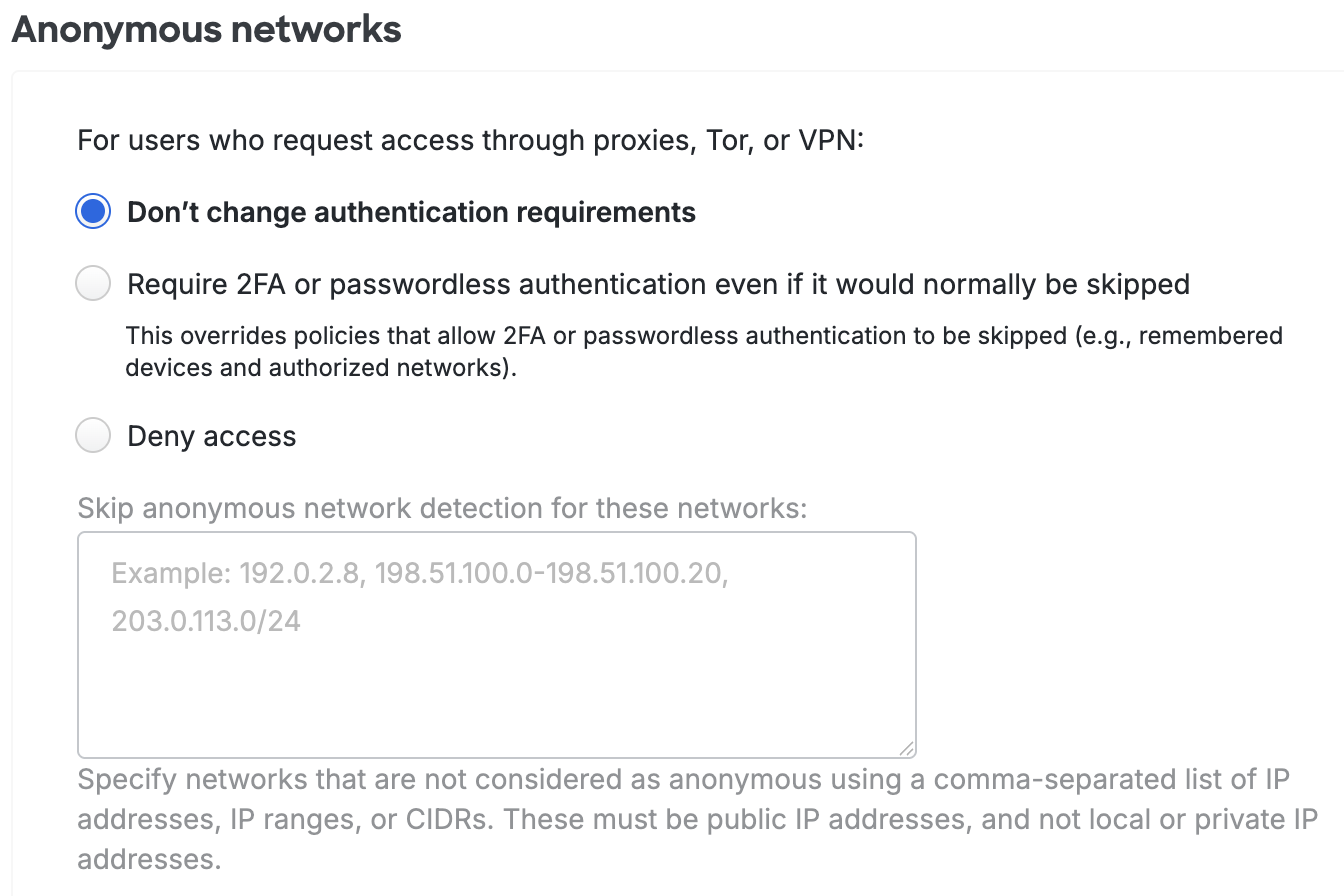
If you select Deny Access or Require 2FA or passwordless authentication even if it would normally be skipped, you can specify networks that are not considered as anonymous and allow access by entering a comma-separated list of IP Addresses, IP ranges, or CIDRs in the Skip anonymous network detection for these networks: field. These must be public IP addresses and not local or private addresses.
Learn more about Duo Passwordless and how to enable passwordless authentication for your users in the Duo Passwordless documentation.
Authenticators Policy Settings
Risk-Based Factor Selection
Available in: Duo Advantage and Duo Premier
Duo's Risk-Based Authentication automatically detects and mitigates commonly known attack patterns and high-risk anomalies to provide a higher level of security without compromising end-user experience.
The Risk-based Factor Selection policy setting enables detection and analysis of authentication requests and adaptively enforces the most-secure factors in order to highlight risk as well as adapt its understanding of normal user behavior.
Duo Risk-Based Factor Selection works with existing authentication methods policy for web-based applications that show the Duo Universal Prompt and for the Duo Auth API application (meaning any client app that uses the named "Duo Auth API" application). When we identify a risky logon attempt for a user, we restrict the authentication methods allowed for that user until they successfully authenticate with one of the permitted secure factors.
The default setting enables Risk-Based Factor Selection with a six-character verification code.
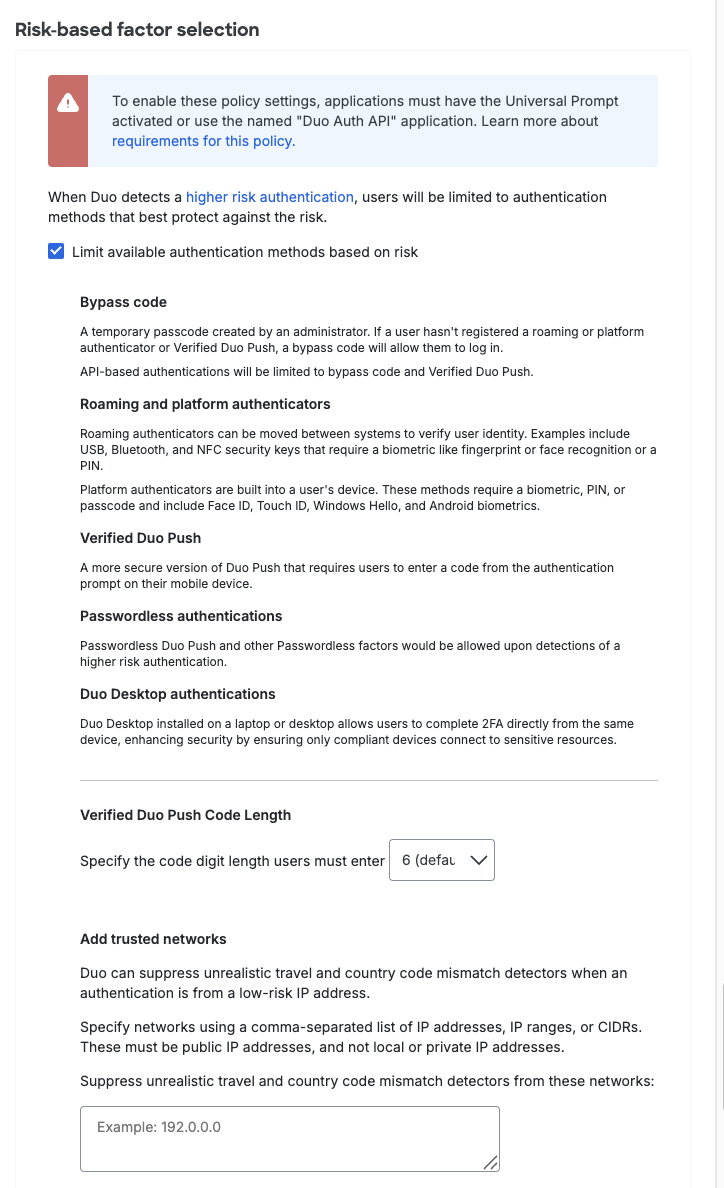
See our full Risk-Based Authentication documentation for more information and step-by-step deployment instructions.
Authentication Methods
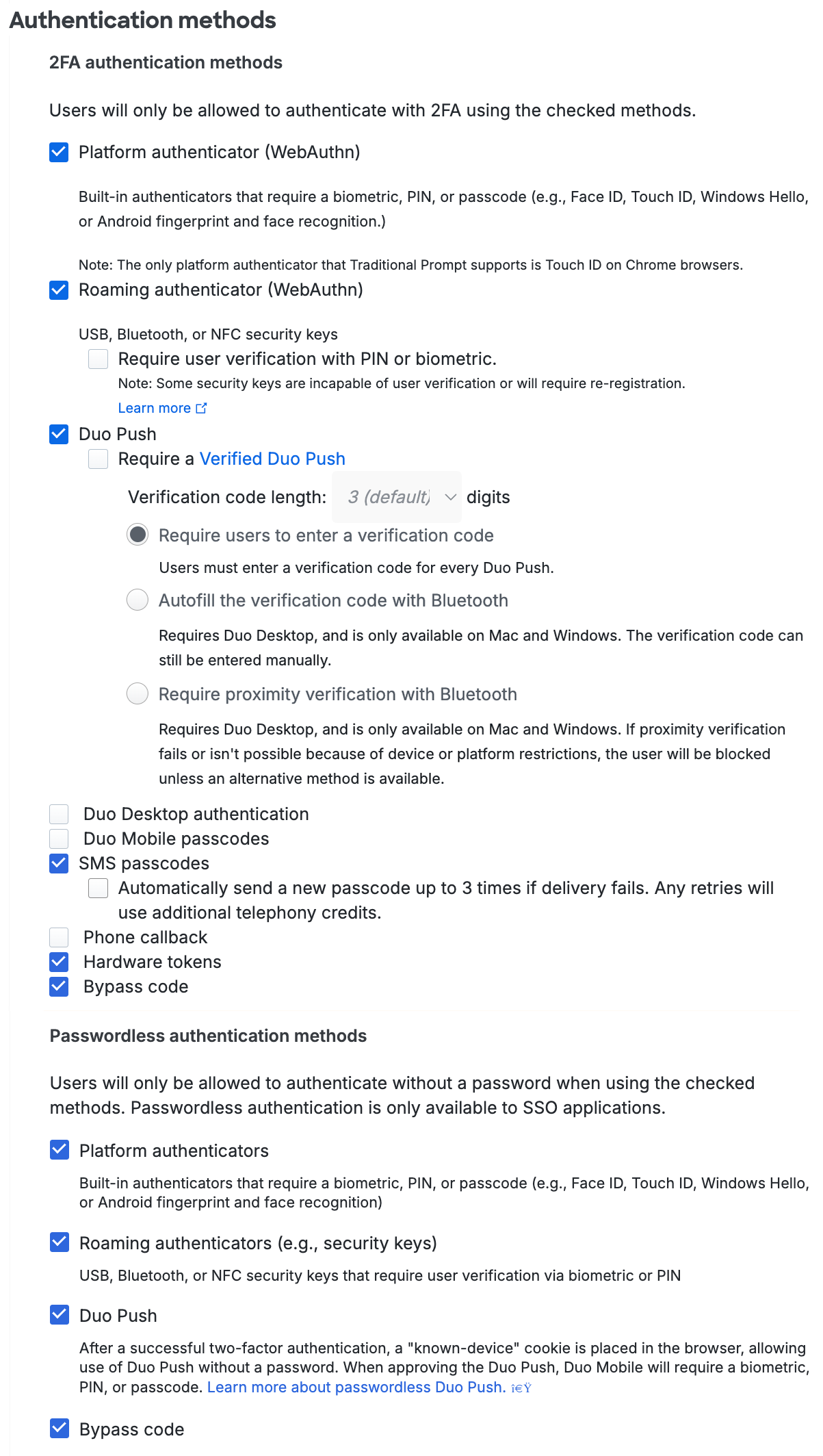
2FA Authentication Methods Policy Options:
-
Platform authenticator (WebAuthn): Users interact with the methods integrated into their device hardware and operating system, like the Touch ID fingerprint reader on a Mac, to authenticate. Default setting: enabled for Touch ID, Face ID, Windows Hello, and Android biometric.
-
Roaming authenticator (WebAuthn): Users authenticate with a FIDO2-compliant WebAuthn security key or a passkey on a mobile device via cross-device authentication (QR code). Default setting: enabled for USB, Bluetooth, or NFC security keys, and mobile devices with passkeys.
Platform and roaming authenticators also work in thick-client applications that use an embedded browser when the access device is registered with Duo Desktop. Duo Desktop transfers the authentication to the system default browser so the user can complete passkey authentication. Duo prompts users to continue authentication in their browser.
-
Require user verification with PIN or biometric. With this option enabled users must perform the extra step of PIN or biometric verification as supported by their security key model in both the Universal Prompt and the traditional Duo Prompt. The Duo device enrollment process prompts users to set a PIN or configure biometrics if it hasn't already been done for that security key. Default setting: off.
Users who registered a compatible security key before this policy setting was enabled may need to remove and re-register their security key to add user verification support. Please see article 8091 in the Duo Knowledge Base for more details about the effects of enabling this policy setting.
This option blocks use of roaming authenticators which do not support FIDO2 user verification, so if any of your users have older security keys you should either exclude them from effective policies requiring user verification, allow an alternative authentication method available to those users in the effective policy, or issue them updated security keys that do support user verification.
-
Platform and roaming authenticators also work in thick-client applications that use an embedded browser when the access device is registered with Duo Desktop. Duo Desktop transfers the authentication to the system default browser so the user can complete passkey authentication. Duo prompts users to continue authentication in their browser.
-
Duo Push: Duo's service sends an authentication request to the Duo Mobile iOS or Android app for the user to approve or deny. Default setting: enabled.
-
Require a Verified Duo Push: Users can approve a Duo Push by entering a numeric code or through proximity verification, depending on the application being accessed.
Note: Verified Duo Push is not supported in the traditional Duo Prompt. If an application still has "Show traditional prompt" enabled in its Universal Prompt settings, Verified Duo Push authentication is not enforced for user login attempts to that application. Ensure all your applications have Universal Prompt activated to enforce Verified Duo Push.
Default settings:
- For Duo Essentials customers, "Require users to enter a verification code" is enabled and set to 3 digits.
- For Duo Advantage and Duo Premier customers, all Verified Duo Push options are off.
Verified Duo Push options:
-
Require users to enter a verification code - Users must enter a numeric code in the Duo Universal Prompt, in Duo Authentication for Windows Logon 4.3.16 and later, and in the UI of an Auth API client application before approving the Duo Push request. No effect if you apply this selection to applications that do not show the Duo Universal Prompt, Duo Authentication for Windows Logon version 4.3.1 or earlier, or Auth API applications with clients not updated to support verification codes.
-
Autofill the verification code with Bluetooth - Users have the option to automatically fill their verification codes with Bluetooth if their mobile device is near their access device. Only available for Duo applications which feature the Duo Universal Prompt.
-
Require proximity verification with Bluetooth - Users must have their mobile device near their access device to approve the Duo Push request. Only available for Duo applications which feature the Duo Universal Prompt. Users will need to choose a different authentication method to log in if you apply this selection to applications that do not show the Duo Universal Prompt.
-
-
Duo Desktop authentication: Duo's service sends an authentication request for the user to approve or deny to the Duo Desktop application installed on the computer accessing the Duo Universal Prompt application. Default setting: off.
-
Duo Mobile passcodes: Users authenticate with a passcode generated in the Duo Mobile app. Default setting: off.
-
SMS passcodes: Users receive a text message with a Duo passcode that they use to authenticate. Default setting: enabled.
Duo attempts to send the SMS passcode once. If you would like Duo to retry sending the passcode text upon encountering a messaging error then enable the Automatically send a new passcode up to 3 times if delivery fails. option. -
Phone callback: Users receive a phone call from Duo and press a digit to approve the login request. Default setting: off.
-
Hardware tokens: Users enter passcodes generated by a physical device issued by your organization. Default setting: enabled.
-
Bypass code: Users enter a numeric bypass code generated by a Duo administrator. This is useful when no other previously-registered authentication methods are available. Default setting: enabled.
If you choose to enable phone calls as an authentication method, consider applying some additional policy controls (such as restricting User Location to your expected countries) or reducing your max credits per action telephony setting to only the credit amount needed for phone calls to your users' expected locations to avoid telephony misuse, especially if you've enabled the self-service portal for any of your applications.
WebAuthn security keys and passkeys can be used with the browser-based Duo Prompt when accessing applications. Please refer to Passkey Browser Support to see the minimum browser versions supported.
To restrict or allow authentication methods, just choose from the available options.
Passwordless Authentication Methods
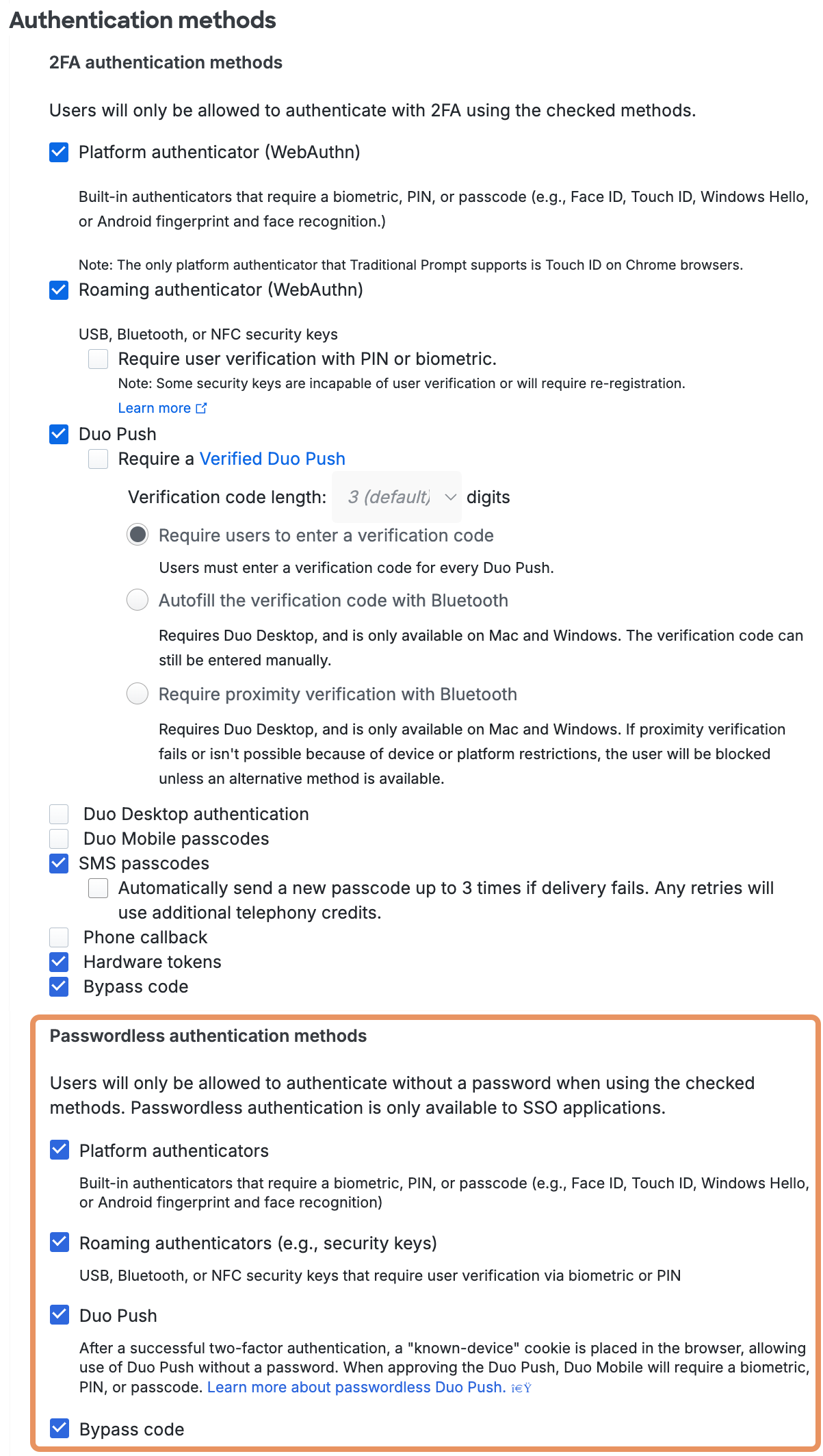
Duo Passwordless has separate authentication methods policy settings for passwordless authentication methods. Customers who sign up in June 2025 or later will have the passwordless methods enabled in the Global Policy by default, as well as in any new custom policies created. If you started your Duo account before June 2025, then the passwordless authentication methods won't be enabled in an existing policy until you enable them. If you create a new policy or revert your Global Policy to default settings, all passwordless authentication methods will be enabled by default in those policies.
Enabling any of the passwordless methods in a policy permits use of passwordless authentication for any Duo Single Sign-On application subject to that policy. The passwordless authentication methods settings have no effect for non-SSO applications, as those applications do not support passwordless logins today.
The authentication method options for passwordless logins are:
-
Platform Authenticators: This enables end-user authentication using biometric sensors built into their devices, such as Touch ID or Face ID on Apple devices, Windows Hello on Windows 10 and 11 systems, or Android biometrics. Enabling platform authenticators prompts just those users with compatible access devices to register a passwordless authenticator when they log in.
-
Roaming Authenticators: This enables end-user authentication using FIDO2-compliant WebAuthn security keys, like those from Yubico or Feitian, or passkeys on a mobile device via cross-device authentication (QR code). Enabling roaming authenticators prompts all users to register a passwordless authenticator whenever they log in.
Platform and roaming authenticators also work in thick-client applications that use an embedded browser when the access device is registered with Duo Desktop. Duo Desktop transfers the authentication to the system default browser so the user can complete passkey authentication. Duo prompts users to continue authentication in their browser.
-
Duo Push: This enables end-user authentication by approval of a login request pushed to Duo Mobile on a user's Android or iOS device. Duo Push authentication for Duo Passwordless is enabled via a browser cookie for the specific browser used to log in to a protected application from a given access device. When the user approves a Duo Push request for passwordless login, they must perform biometric or PIN/passcode verification while they approve the login request. Users may also need to enter a verification code into Duo Mobile to complete the passwordless Duo Push login depending on the known and trusted status of the browser used.
-
Bypass code: Users enter a numeric bypass code generated by a Duo administrator. This is useful when no other previously-registered passwordless authentication methods are available. Default setting: enabled.
Learn more about Duo Passwordless and passwordless authentication for your users in the Duo Passwordless documentation.
Duo Mobile App
Encourage Users to Update While Still Permitting Access
Enable the Encourage users to update option by picking your minimum allowable Duo Mobile version from the drop-down selector. You can choose to select a specific version, or let Duo determine the most recent available version.
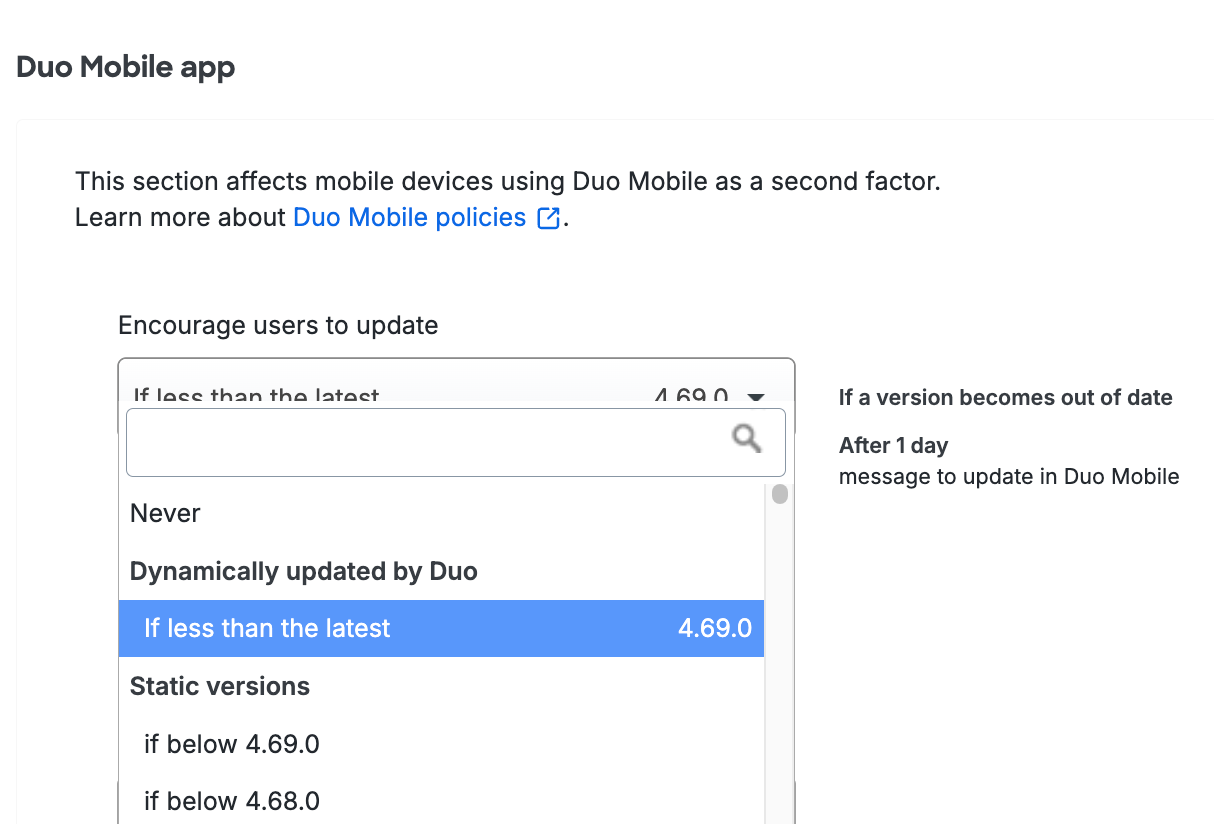
If you select a specific Duo Mobile version, the grace period is set to "Immediately" and users see the warning in Duo Mobile during their next authentication if their Duo Mobile version is lower than the version you selected.
If you select the If less than the latest version, you can select a grace period from the When a version becomes out of date or end of life, encourage to update choices. Setting this to "Immediately" means users see the warning in Duo Mobile during their next authentication if their Duo Mobile version is lower than the version you selected. You can delay the Duo warning for up to 365 days. Look to the right of your selection to see a summary of your new policy setting.
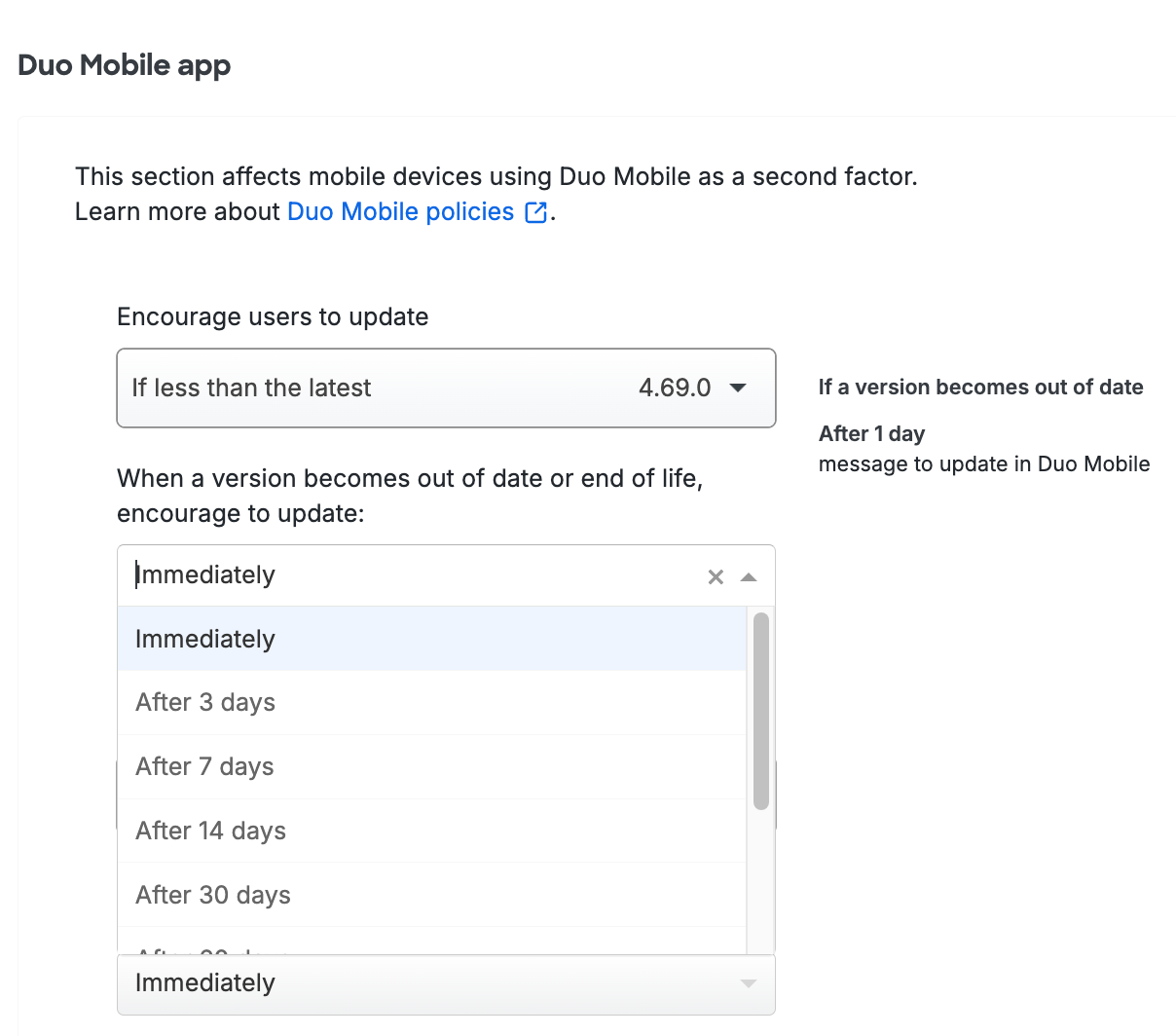
Once configured, Duo shows a notification in Duo Mobile during authentication to your users informing them that they should update if their device is running a Duo Mobile version older than your selection.
Block Access from Older Versions
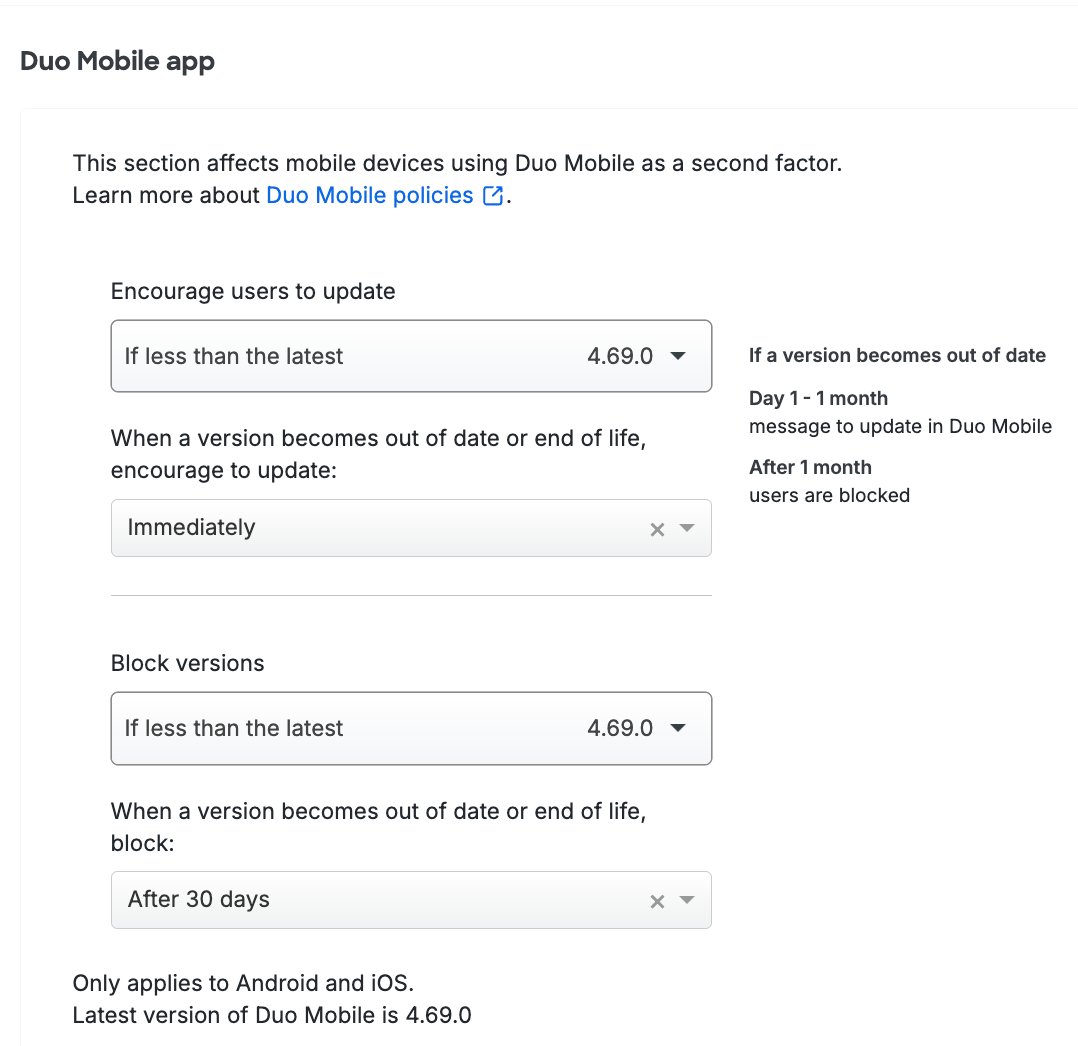
Restrict application access to only the versions you've allowed by making a selection in the Block versions option, along with a corresponding grace period for blocking. Blocking any version prevents users from approving Duo Push requests or generating passcodes for authentication with any older versions of Duo Mobile.
Tampered Devices
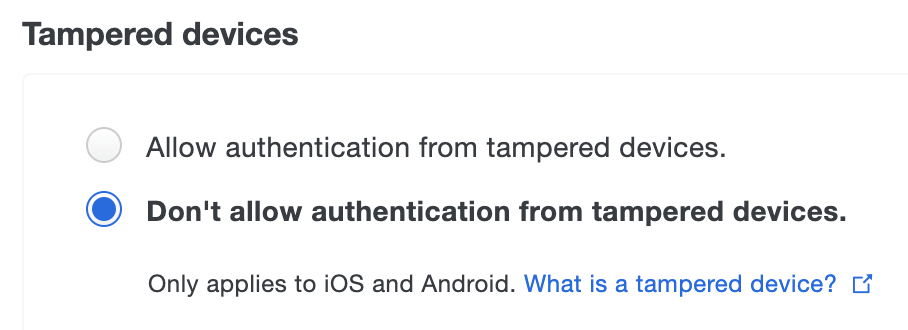
You can prevent Duo authentication approvals from tampered-with or rooted Android and jailbroken iOS devices by enabling the Don't allow authentication from tampered devices policy setting. This setting has no effect on other mobile platforms.
The default setting does not allow authentications from tampered iOS and Android devices.
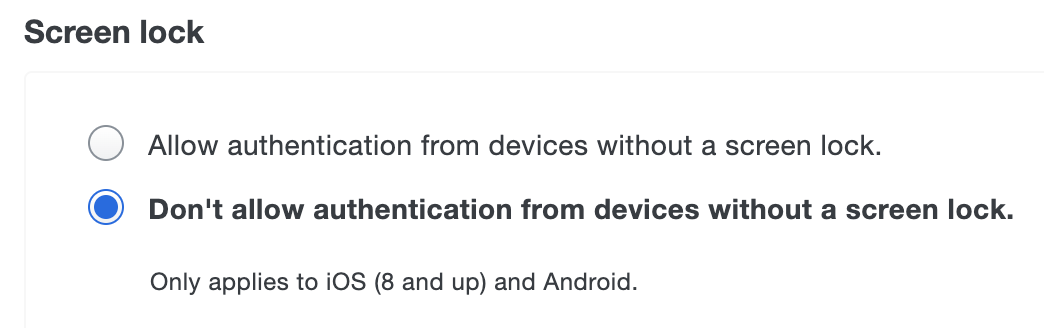
Screen Lock
Require your users to set a PIN or passcode on their devices by enabling the Don't allow authentication from devices without a screen lock option in the "Screen Lock" policy. With this option enabled, users must have screen lock enabled on their devices to approve Duo Push authentication requests or log in with a passcode generated by the Duo Mobile app. Users may still approve phone call login requests and use SMS passcodes texted to a device without screen lock. If you wanted to completely prevent authentications from phones without screen lock configured, you'd also need to disable the "Phone callback" and "SMS passcodes" options in the Authentication Methods policy setting.
This setting applies to all supported Android versions (2.2 and up). For iOS devices, this setting is only enforced on version 8 and higher. Devices running iOS 7 and lower can still authenticate without enabling screen lock. To ensure that Apple devices used to authenticate comply with the screen lock requirement, you may change the Operating Systems policy for iOS to "Block users if their version is below 8.0".
The default setting requires that screen lock be enabled to approve a Duo authentication request received via push or use a Duo Mobile generated passcode.
Full-Disk Encryption
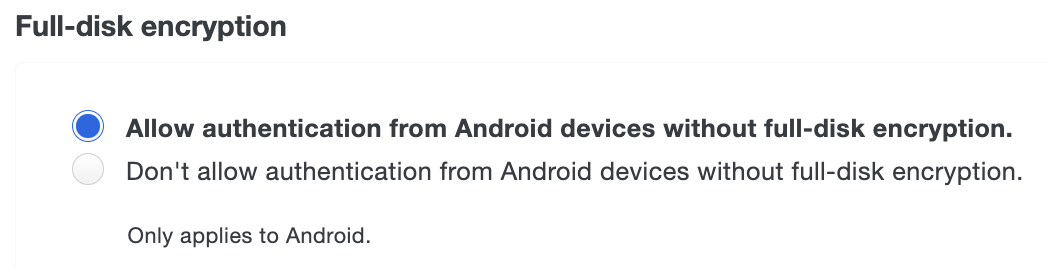
Prevent Duo authentication from Android devices without disk encryption by enabling the Don't allow authentication from devices without full-disk encryption option in the "Full-Disk Encryption" settings. Note that a PIN is required at startup in order for a device's status to show as encrypted.
The default setting does not require full-disk encryption to approve a Duo authentication request from an Android device. This setting has no effect on iOS.
Mobile Device Biometrics
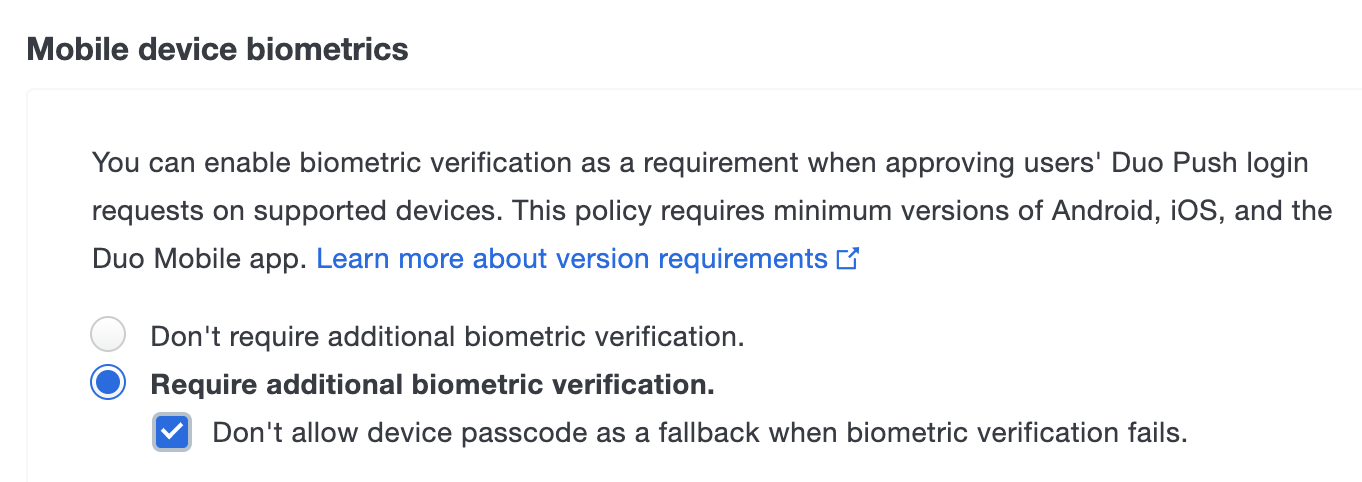
In the policy editor, select the Require additional biometric verification option to require biometric approval for Duo Push from supported devices. Use of Duo Mobile generated or SMS passcodes remains unaffected, as well as authentication via phone call.
Fingerprint and Touch ID authentication requires Duo Mobile app versions 3.7 or above for iOS and version 3.10 or above for Android and minimum OS versions iOS 8 or Android 5.0 Lollipop. Face ID requires iOS 11 and Duo Mobile 3.19. Devices running earlier versions of Duo Mobile, iOS, and Android cannot authenticate without biometric verification when you enable this policy setting.
Requiring biometric verification changes the Duo Push workflow. Users may no longer approve an authentication request from the app notification. Tapping the Duo notification opens the Duo Mobile app. After you tap "Approve" on the authentication request, scan your enrolled finger at the Touch ID or Android PIN prompt or perform Face ID verification to confirm the authentication approval. If you are unable to authenticate with a biometric factor you can fall back to your device's passcode.
You can disable fall back to passcodes by selecting Don't allow device passcode as a fallback when biometric verification fails. For this setting, fingerprint and Touch ID authentication requires Duo Mobile version 4.51.0 or above and minimum OS versions iOS 8 or Android 10.0. Face ID requires iOS 11 and Duo Mobile version 4.51.0 or above. Devices running older versions of Duo Mobile, iOS, or Android cannot authenticate without biometric verification when this policy setting is enabled.
The default setting does not require any biometric verification to approve a Duo Push authentication request from any device. All Duo Mobile, Android, and iOS versions may authenticate (subject to any other version restriction policy settings you may configure).